
Is Microsoft About to Make Windows Search Faster? New “Copy & Search” Feature in Testing
How many times a day do you copy and paste text into your Windows search bar? Probably more than you think. Microsoft is aiming to drastically simplify that process with its new “Copy & Search” feature, currently being tested in the Beta and Dev channels of Windows 11 Insider Program. This seemingly small change promises to streamline the search experience, saving users valuable time and clicks. Let’s delve into the details of this new feature and another handy tool Microsoft is testing, Proactive Memory Diagnostics.
Streamlining Windows Search: An In-Depth Look at “Copy & Search”
The current method of using Windows Search, especially when initiating a search with copied text, can feel clunky. The process typically involves:
- Copying the desired text (Ctrl+C).
- Clicking on the Windows Search bar (or using the Windows key).
- Waiting for the search UI to load.
- Pasting the copied text (Ctrl+V or right-click and paste).
- Initiating the search.
While each step is relatively minor, the cumulative effect of these steps can be frustrating, especially for users who frequently rely on Windows Search. Microsoft’s “Copy & Search” aims to remove several of these steps.
How “Copy & Search” Works: A One-Click Solution
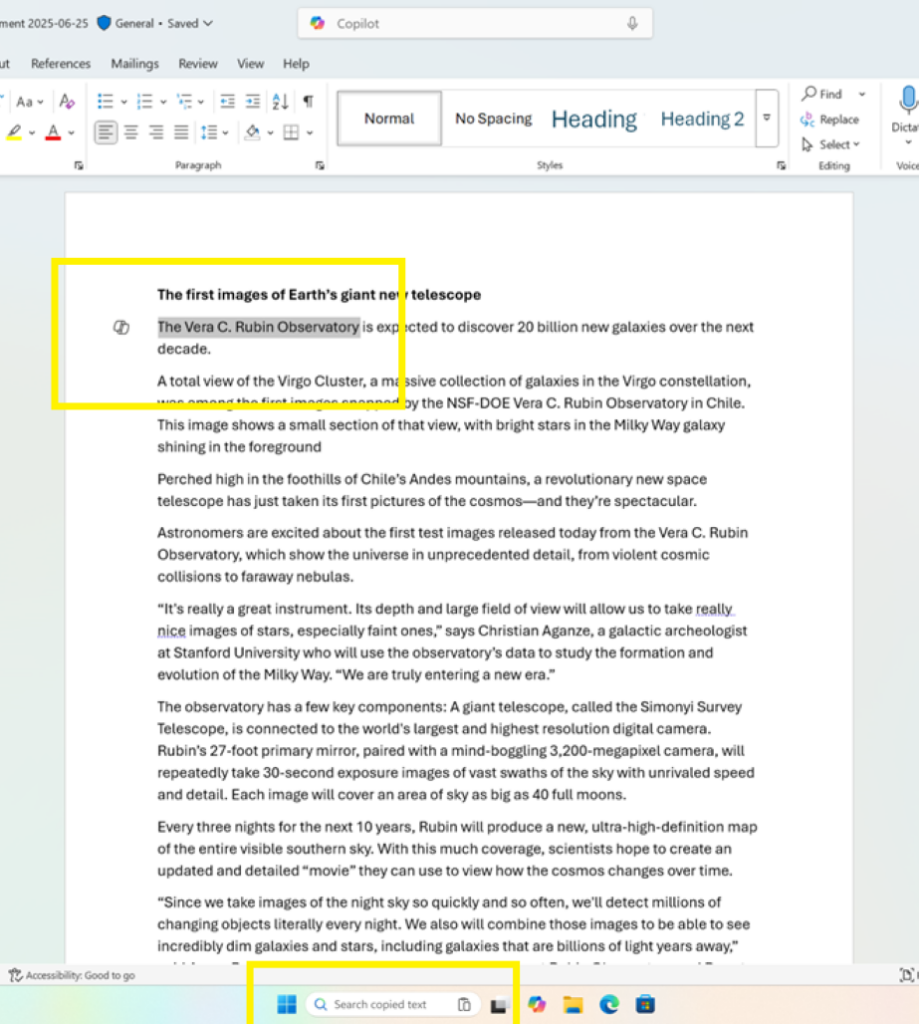
The core idea behind “Copy & Search” is automation and intelligent suggestion. When you copy text to your clipboard, the Windows Taskbar’s search box will detect the presence of text and display a suggestion: “Search copied text.” Along with this suggestion, a “paste gleam” icon will appear within the search box, visually indicating that clipboard content can be used for a search.
Clicking on the “paste gleam” icon will automatically paste the text into the search bar and initiate the search. This effectively transforms a multi-step process into a single click, significantly improving user efficiency. It operates on a similar principle to the “paste and go” feature found in many modern web browsers.
“Copy & Search” vs. Current Search Methods: A Comparison
To better understand the benefits of “Copy & Search,” let’s compare it to existing methods:
| Method | Steps | Efficiency |
|---|---|---|
| Standard Windows Search | Click Search Bar > Wait for UI > Type/Paste Text > Initiate Search | Moderate |
| Ctrl+F (In-App Search) | Press Ctrl+F > Type/Paste Text > Initiate Search | Moderate |
| Copy & Search | Copy Text > Click “Paste Gleam” Icon | High |
| Paste & Go (Web Browsers) | Copy URL > Open New Tab > Paste URL > Initiate Search (often automatic) | High |
As the table illustrates, “Copy & Search” offers the most streamlined experience specifically when initiating a search with copied text. It eliminates several unnecessary steps, providing a more efficient and user-friendly way to find information.
The Importance of User Experience in Windows Search
Windows Search is a fundamental tool for navigating and utilizing a Windows operating system. A well-designed search experience is crucial for:
- Productivity: Quick access to files, applications, and information allows users to complete tasks more efficiently.
- Accessibility: A user-friendly search interface makes it easier for all users, regardless of technical expertise, to find what they need.
- Overall Satisfaction: A smooth and responsive search experience contributes to a positive user experience, increasing satisfaction with the operating system.
Microsoft’s investment in improving Windows Search demonstrates their commitment to providing a user-friendly and efficient operating system. Features like “Copy & Search” reflect an understanding of user behavior and a dedication to optimizing common workflows.
Proactive Memory Diagnostics: Enhancing System Stability
In addition to “Copy & Search,” Microsoft is also testing another feature aimed at improving system stability: Proactive Memory Diagnostics. This feature is designed to detect and address memory-related issues that may cause unexpected system crashes or restarts (bugchecks).
How Proactive Memory Diagnostics Works
When Windows experiences a bugcheck, it often leaves users frustrated and uncertain about the cause. Proactive Memory Diagnostics aims to provide more clarity and potentially resolve the underlying issue. After a system reboot following a bugcheck, Windows may display a notification suggesting a quick memory scan.
If the user accepts the suggestion, Windows will schedule a Windows Memory Diagnostic scan to run during the next system reboot. This scan will analyze the system’s memory for errors or inconsistencies. If an issue is detected and mitigated, the tool will notify the user, providing valuable information about the problem and its resolution.
Limitations of Proactive Memory Diagnostics
It’s important to note that Proactive Memory Diagnostics is currently subject to certain limitations:
- ARM64 Devices: The feature is not supported on devices using ARM64 processors.
- Administrator Protection: Computers with Administrator Protection enabled may not be compatible.
- BitLocker without Secure Boot: Devices using BitLocker encryption without Secure Boot are also excluded.
These limitations suggest that the feature is still under development and may be expanded to include more devices and configurations in the future.
The Importance of Memory Diagnostics
Memory problems can be a significant source of system instability and data corruption. Proactive Memory Diagnostics represents a proactive approach to identifying and resolving these issues, potentially preventing future crashes and data loss. By automating the process of memory scanning, Microsoft is making it easier for users to maintain the stability of their systems.
The Future of Windows Search and System Maintenance
Both “Copy & Search” and Proactive Memory Diagnostics represent significant steps towards improving the Windows user experience. By streamlining common tasks and proactively addressing potential issues, Microsoft is demonstrating a commitment to providing a user-friendly, efficient, and stable operating system.
The development and testing of these features within the Windows Insider Program highlight the importance of user feedback in shaping the future of Windows. By actively engaging with the Insider Program, users can contribute to the development of features that address real-world needs and improve the overall user experience.
Conclusion
Microsoft’s “Copy & Search” feature offers a promising solution for streamlining the Windows Search process. By reducing a multi-step process to a single click, it has the potential to significantly improve user efficiency and overall satisfaction. Coupled with Proactive Memory Diagnostics, which aims to enhance system stability, these new features signal Microsoft’s ongoing efforts to refine and improve the Windows operating system. Only time will tell when these features will be rolled out to a mainstream build of Windows 11.
What do you think about “Copy & Search” and Proactive Memory Diagnostics? Would these features improve your daily workflow? Comment below and share your thoughts!
Sources & Further Reading:
Original article at www.ghacks.net


