
Unleash the Power of Your Obsidian Notes with NotebookLM: A Simple Migration Guide
Ever feel like your meticulously curated Obsidian vault, brimming with valuable insights, is more of a digital black hole than a dynamic knowledge base? You’re not alone. Many Obsidian users struggle to efficiently extract and utilize the wealth of information they’ve painstakingly accumulated. The good news is that integrating your Obsidian notes with AI platforms like NotebookLM can drastically improve your knowledge management. This article will guide you through a simple, yet powerful, two-plugin system for seamlessly migrating your Obsidian vault to NotebookLM, unlocking a new level of productivity and insight.
Supercharge Your Knowledge Base: Migrating Obsidian to NotebookLM
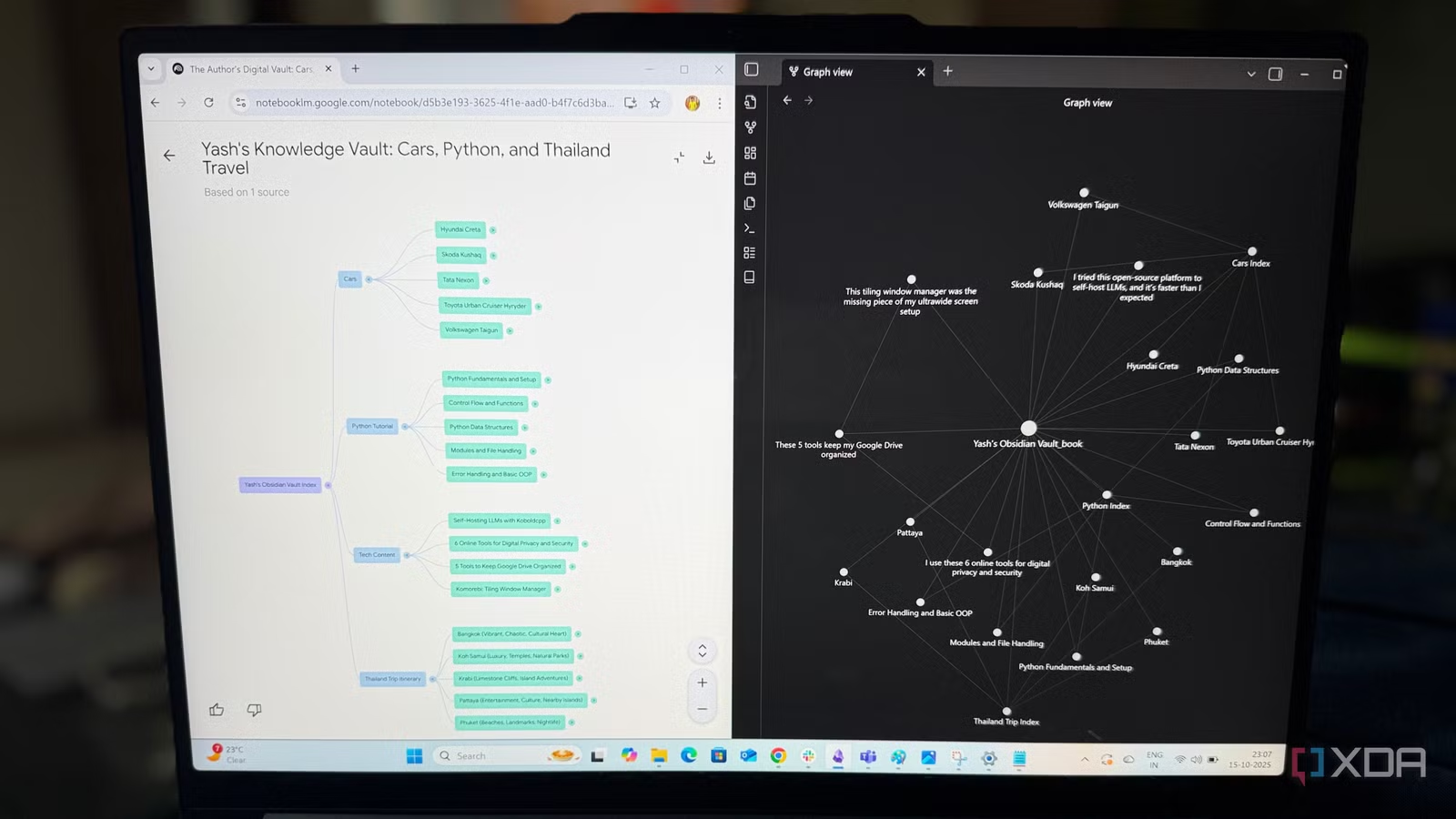
Obsidian is a fantastic tool for building a personal knowledge base. Its linking capabilities and Markdown support make it a favorite among researchers, writers, and anyone who wants to connect their thoughts. However, navigating a large Obsidian vault can become cumbersome. Manually searching for specific information, or attempting to synthesize disparate ideas, can be time-consuming and frustrating. This is where NotebookLM comes in. By combining Obsidian’s organizational power with NotebookLM’s AI capabilities, you can transform your static notes into an interactive knowledge partner.
This article will detail a step-by-step process for migrating your Obsidian vault to NotebookLM, focusing on a plugin-based approach that is both efficient and preserves the integrity of your data. We’ll explore how this integration can significantly boost your productivity and unlock new ways to interact with your personal knowledge base.
Consolidating Your Obsidian Vault: Creating a Single Document
The first challenge in migrating an Obsidian vault to NotebookLM is the fragmented nature of individual notes. NotebookLM works best with consolidated documents. Manually exporting and uploading hundreds of individual files would be a tedious and impractical task, losing the valuable interconnections between your notes in the process.
The solution lies in using the Vault 2 Book plugin for Obsidian. This plugin allows you to merge your entire vault into a single, comprehensive Markdown file. Here’s how to use it:
- Install the Plugin: Navigate to the Community Plugins section in Obsidian’s settings. Search for “Vault 2 Book” and install the plugin. Ensure you enable the plugin after installation.
- Configure the Plugin: After installation, an “Obsidian 2 Book” icon appears in the left-hand sidebar. Clicking this icon opens a setup window.
- Point to Your Vault: In the setup window, specify the root directory of your Obsidian vault. This tells the plugin to include all files and folders within your vault in the consolidation process.
- Generate the Document: Click the “Generate Book” (or similar) button. The plugin will then process your entire vault and create a single, massive Markdown file containing all your notes.
This single Markdown file becomes the foundation for transferring your knowledge to NotebookLM. This process ensures that all your notes are in a single, manageable document, ready for the next step.
Preparing Your Vault for NotebookLM: Exporting to PDF
While the consolidated Markdown file is a significant step forward, NotebookLM typically works best with PDF documents. Therefore, the next crucial step is to convert the Markdown file into a properly formatted PDF. Simply printing the Markdown file to PDF often results in formatting issues and a loss of structure.
This is where the Better Export PDF plugin comes in handy. This plugin offers a more robust and customizable PDF export option within Obsidian. Here’s how to use it:
- Install the Plugin: Similar to the Vault 2 Book plugin, find and install “Better Export PDF” from the Community Plugins section in Obsidian.
- Locate the Markdown File: In Obsidian’s file explorer, find the large Markdown file you created in the previous step.
- Export to PDF: Right-click on the file and select the “Better Export PDF” option. This will initiate the export process.
- Customize Settings (Optional): The Better Export PDF plugin allows you to customize various aspects of the PDF export, such as page size, margins, headers, and footers. Adjust these settings as needed to achieve the desired output.
The Better Export PDF plugin ensures that the resulting PDF maintains the structure, headings, and formatting of your original Markdown notes. This is critical for NotebookLM to accurately interpret and utilize your knowledge base.
- Why PDF? While NotebookLM might support other formats, PDF ensures consistent formatting and preserves the visual hierarchy of your notes. It also allows you to include images and other media within your knowledge base.
Unlock AI-Powered Insights: Integrating with NotebookLM
With your Obsidian vault now neatly packaged in a single, well-formatted PDF, the final step is to upload it to NotebookLM and unlock its AI-powered capabilities.
- Create a New Notebook: In NotebookLM, click the “New Notebook” button to create a new project.
- Name Your Notebook: Give your notebook a descriptive name, such as “Obsidian Knowledge Vault” or “Personal Research Notes.”
- Upload the PDF: Upload the PDF file you created using the Better Export PDF plugin. NotebookLM will process the document and index its content.
Once the upload is complete, NotebookLM will transform your static notes into an interactive knowledge base. You can now:
- Ask Questions: Pose questions to NotebookLM about the content of your notes. The AI will provide answers based solely on the information contained within your uploaded PDF.
- Generate Summaries: Request summaries of specific sections or the entire document. This is useful for quickly grasping the key concepts and findings.
- Connect Ideas: Explore the relationships between different ideas and concepts within your notes. NotebookLM can help you identify patterns and connections you might have missed.
- Create New Content: Use NotebookLM to generate new content, such as blog posts, articles, or presentations, based on the information in your knowledge base.
NotebookLM provides citations within its answers, allowing you to quickly jump back to the original source material in the PDF. This ensures accuracy and allows you to delve deeper into specific topics.
| Feature | Description | Benefit |
|---|---|---|
| Question Answering | Ask questions about your notes and get AI-powered answers. | Quickly find information without manual searching. |
| Summarization | Generate summaries of sections or the entire document. | Quickly grasp key concepts and findings. |
| Idea Connection | Explore relationships between different ideas. | Identify patterns and connections you might have missed. |
| Content Creation | Generate new content based on your knowledge base. | Create blog posts, articles, and presentations more efficiently. |
Beyond Searching: Transforming Knowledge into Action
The real power of integrating Obsidian with NotebookLM lies in its ability to transform your knowledge base from a passive repository into an active partner. No longer are you limited to simply searching for information; you can now engage in a dynamic conversation with your notes, extracting insights and generating new ideas. This can revolutionize your workflow for research, writing, and creative projects.
Conclusion: Unlock Your Obsidian’s Full Potential
Migrating your Obsidian vault to NotebookLM is more than just a technical exercise; it’s a strategic move towards unlocking the full potential of your personal knowledge base. By leveraging the Vault 2 Book and Better Export PDF plugins, you can seamlessly transfer your notes to NotebookLM and harness the power of AI to enhance your productivity and creativity.
What are your thoughts on integrating Obsidian with AI? Have you tried similar workflows? Share your experiences and questions in the comments below!
Sources & Further Reading:
Original article at www.xda-developers.com


