
Are Pixel “Rules” Really Rules? Why Samsung Routines Leaves Them in the Dust
Do you ever wish your phone could anticipate your needs and adjust settings automatically? The promise of a smart device that seamlessly integrates into your life is enticing, but not all implementations are created equal. Google’s Pixel phones offer a feature called “Rules,” intended to automate certain tasks. However, compared to the robust and versatile Samsung Routines, Pixel Rules fall short, leaving users wanting more. This article dives into the limitations of Pixel Rules and explores why Samsung’s solution reigns supreme in the realm of mobile automation. We’ll explore the differences, functionalities, and real-world examples that highlight the disparity between these two features.
Pixel Rules vs. Samsung Routines: A Comparison of Mobile Automation
While both Pixel phones and Samsung devices aim to simplify user experiences through automation, the execution and capabilities differ significantly. Let’s break down the specifics of Pixel Rules and Samsung Routines to understand why one is far more powerful than the other.
What are Pixel Rules?
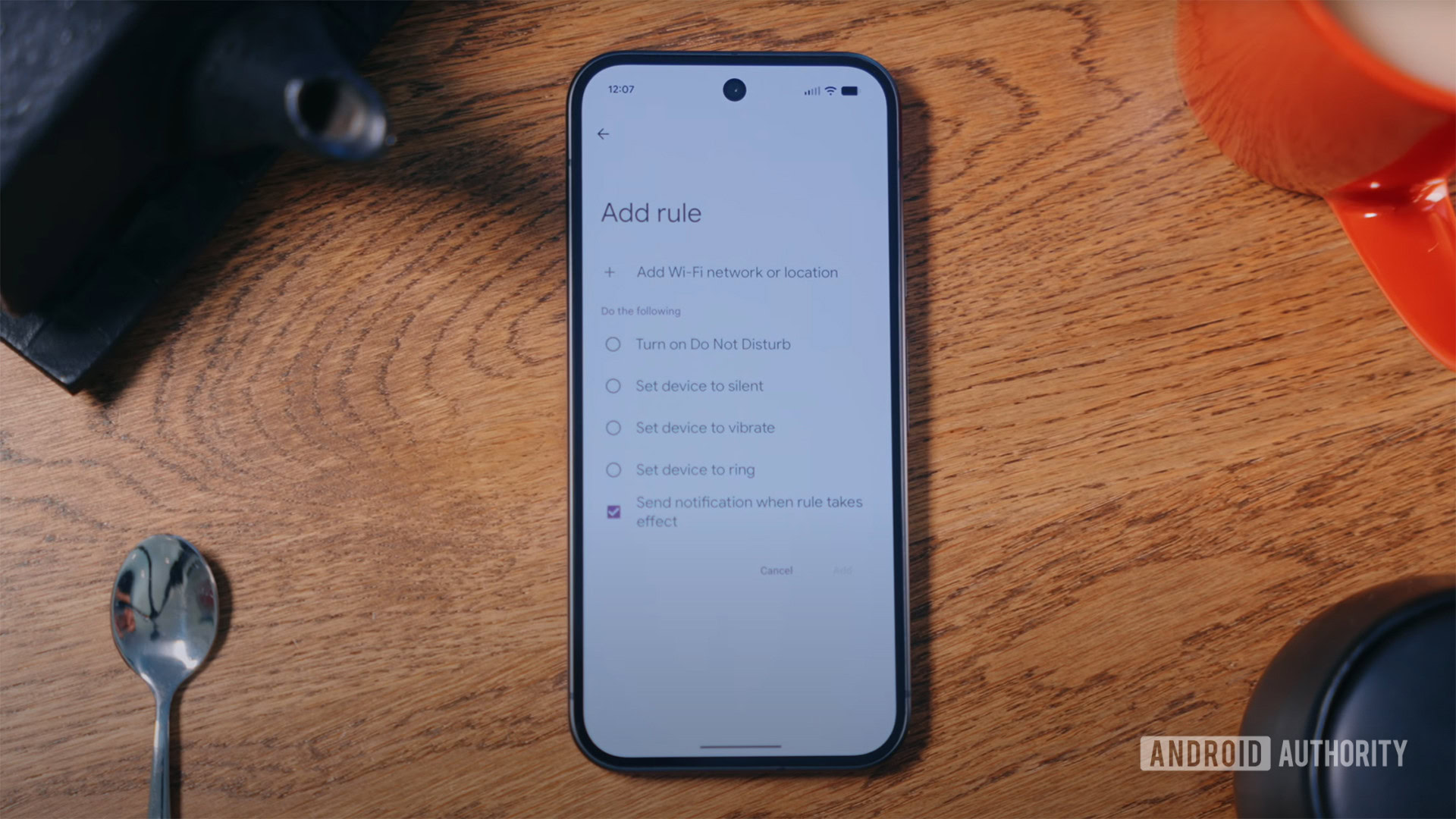
Pixel Rules are designed to automate simple tasks based on location or Wi-Fi network connections. Users can set their phone to DND (Do Not Disturb), silent, vibrate, or ring when connected to a specific Wi-Fi network or when at a particular location. The setup is straightforward, but that’s also where the limitations lie.
- Triggers: Location and Wi-Fi network.
- Actions: DND, silent, vibrate, or ring.
In essence, Pixel Rules offer a basic level of automation focused solely on sound profiles. This simplicity, while easy to understand, severely restricts its usefulness for users seeking more complex and personalized automation.
Unlocking the Power of Samsung Routines
Samsung Routines offer a far more comprehensive approach to mobile automation. With a vast array of triggers and actions, Routines allows users to create complex and customized workflows that adapt to their specific needs and preferences. This flexibility is what sets it apart from the rudimentary Pixel Rules.
- Triggers: 46 categories, including commuting, sleeping, connecting to a network or Bluetooth device, entering or exiting a location, an alarm sounding, receiving a call, and more.
- Actions: 35 categories, extending to device settings, app actions, SmartThings integration, and more.
The sheer number of possibilities within Samsung Routines is staggering. Users can create routines that automatically adjust screen brightness based on time of day, launch specific apps when connected to a Bluetooth headset, or even control smart home devices based on their location. This level of customization allows for a truly personalized and automated mobile experience.
Pixel Rules and Samsung Routines – A Table of Differences
| Feature | Pixel Rules | Samsung Routines |
|---|---|---|
| Triggers | Location, Wi-Fi Network | 46 Categories (Location, Wi-Fi, Bluetooth, Time, Alarms, Calls, etc.) |
| Actions | DND, Silent, Vibrate, Ring | 35 Categories (Device Settings, App Actions, SmartThings, Connectivity, Media, etc.) |
| Complexity | Simple | Complex, allows combining multiple triggers and actions |
| Integration | Limited | Extensive, integrates with SmartThings and other Samsung ecosystem components |
| Customization | Low | High, offering a vast range of personalized automation options |
Why is Samsung Routines Superior?
The primary reason for Samsung Routines’ superiority lies in its flexibility and depth. The ability to combine multiple triggers and actions within a single routine drastically increases its potential. Consider a scenario where you want your phone to automatically switch to silent mode when you’re at work and connected to the office Wi-Fi. With Samsung Routines, you can easily combine these two conditions into a single routine. Pixel Rules would require you to create separate rules for each location, leading to a less streamlined and efficient setup.
Real-World Examples of Samsung Routines in Action
To truly appreciate the power of Samsung Routines, let’s examine some practical examples of how it can be used to enhance daily life. These scenarios highlight the versatility and convenience that Routines offer.
Migraine Management
For individuals prone to migraines, bright screens can be a significant trigger. A customized Samsung Routine can be created to quickly mitigate the effects of a migraine attack. This routine, activated by a home screen widget, can:
- Turn the blue light filter to 100%.
- Reduce display brightness by 90%.
- Mute all sounds.
This single action saves the user the pain and hassle of manually adjusting these settings while experiencing the discomfort of a migraine.
Enhancing Shopping Experiences
Imagine automatically optimizing your audio experience when entering your local shop. With Samsung Routines, you can:
- Detect when you’ve reached the shop’s location.
- Switch your Galaxy Buds to ambient mode.
- Turn on the “boost dialogue” toggle.
This allows you to easily hear conversations and complete your purchase without the need to remove your earbuds or fumble with settings.
Never Miss an Appointment
Missing important phone appointments can be costly and frustrating. Samsung Routines can ensure that you never miss another call by:
- Triggering when an alarm labeled “appointment” goes off.
- Setting notification and ringer volume to 100%.
Alternatively, you can set a routine to trigger upon receiving a call from a specific contact number. This ensures you never miss important calls.
Going Beyond the Phone: SmartThings Integration
Samsung Routines’ ability to integrate with SmartThings opens up a whole new world of automation possibilities. You can create routines that control your smart home devices based on your location, time of day, or other triggers. For example, you can create a routine that:
- Turns on the lights when you arrive home after sunset.
- Adjusts the thermostat to your preferred temperature when you wake up.
- Locks the doors when you leave for work.
This level of integration transforms your phone into a central hub for controlling your entire smart home ecosystem. Learn more about SmartThings here.
Google’s Missed Opportunity: The Potential of Ambient Computing
Google has long advocated for “ambient computing,” the idea that technology should seamlessly assist you throughout the day, regardless of your location. While the Pixel’s At A Glance and Now Playing features exemplify this vision, the lack of in-depth automation capabilities in Pixel Rules feels like a missed opportunity.
Giving users the tools to create their own custom automations would significantly enhance the Pixel experience and make it a truly “smarter” smartphone. Imagine the possibilities if Pixel Rules offered the same level of flexibility and integration as Samsung Routines.
People Also Ask:
- What can Pixel Rules do? Pixel Rules can automatically adjust your phone’s sound profile (DND, silent, vibrate, or ring) based on your location or the Wi-Fi network you’re connected to.
- Are Samsung Routines available on all Samsung devices? Yes, Samsung Routines are available on most modern Samsung Galaxy smartphones and tablets running One UI.
- How do I set up Samsung Routines? The Routines feature can be found in the “Advanced Features” section of your Samsung device’s settings.
Conclusion: A Call for More Robust Automation on Pixel
While Pixel phones excel in many areas, including camera performance and software experience, their automation capabilities lag behind Samsung. The simplicity of Pixel Rules, while easy to use, ultimately limits its usefulness. Samsung Routines, on the other hand, offers a vast array of triggers and actions, allowing users to create complex and customized automations that significantly enhance their daily lives.
Google’s vision of “ambient computing” is compelling, but it requires more than just basic automation. By providing users with the tools to create their own personalized workflows, Google can unlock the full potential of the Pixel and deliver a truly intelligent and seamless mobile experience. What do you think? Share your thoughts and favorite automation ideas in the comments below!
Sources & Further Reading:
Original article at www.androidauthority.com


