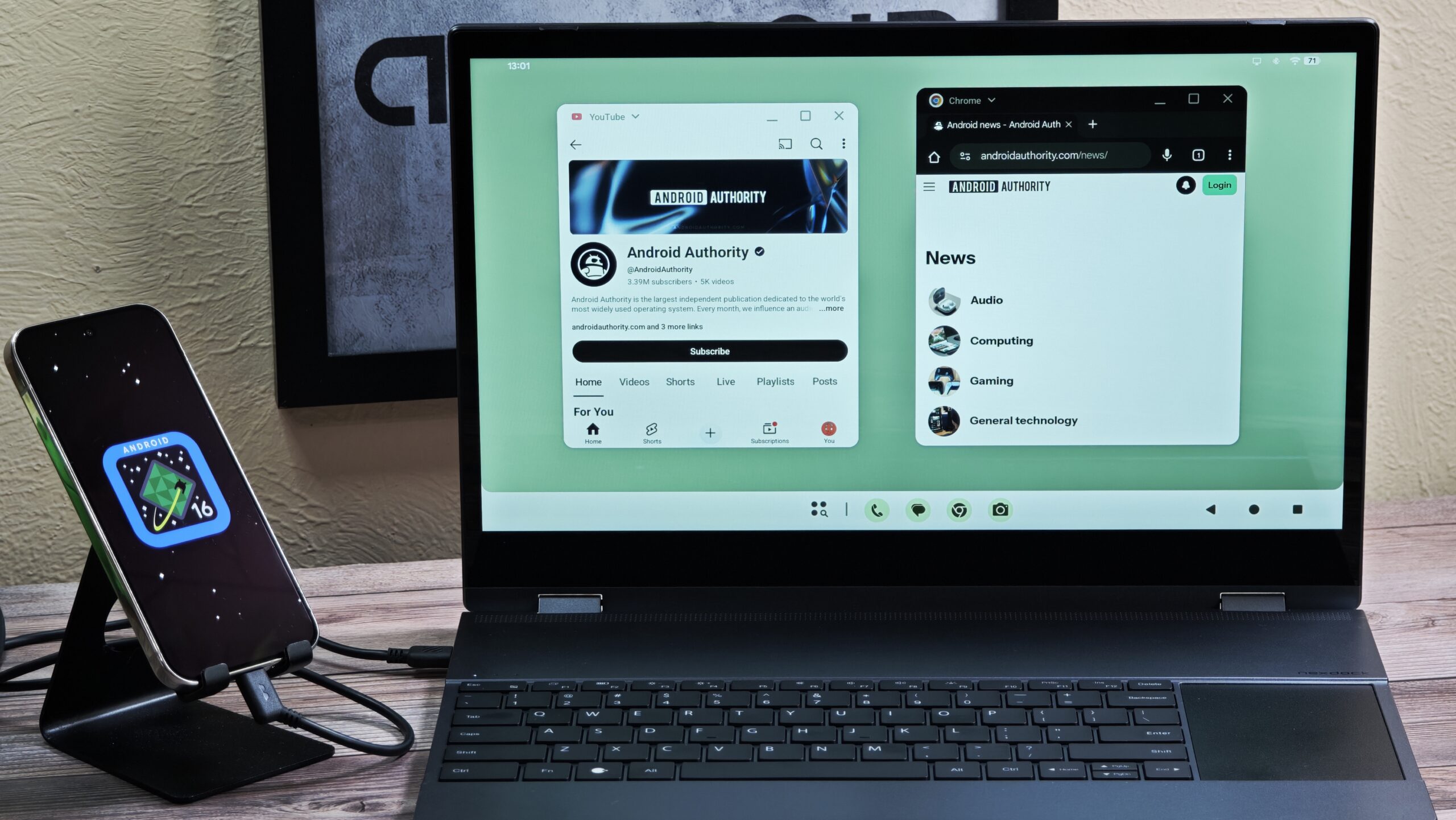

Is Seamless Too Seamless? Android 16 QPR2 Gives You Control Over Your Mouse Cursor
Have you ever found yourself accidentally swiping your mouse cursor off your external display and back onto your phone screen while working in Android’s desktop mode? For those leveraging the power of connecting their Android devices to external displays, a new feature in the upcoming Android 16 QPR2 release is set to bring a much-needed level of control. This update introduces a “Universal cursor” setting, allowing users to disable the seamless mouse movement between their phone and external display. This seemingly small tweak has the potential to significantly enhance the overall desktop experience, and we’ll dive into why this is such a welcome change.
Android 16 QPR2’s “Universal Cursor” Setting: A Deep Dive
Android’s push towards a more desktop-like experience has been a gradual but consistent process. With each new release, Google is adding features that make it easier to use Android devices for productivity tasks that were once exclusive to traditional laptops and desktops. One key aspect of this evolution is the ability to connect your Android phone or tablet to an external display and use it as a makeshift computer. The new Universal cursor setting in Android 16 QPR2 Beta 1 takes this functionality to the next level by allowing greater customization and control over mouse behavior.
What is Android’s Desktop Mode and Why Does it Matter?
Before we delve into the specifics of the Universal cursor setting, it’s crucial to understand the context in which it operates. Android’s desktop mode, especially on devices like Google Pixel phones, transforms your mobile device into a miniature workstation. When connected to an external monitor, keyboard, and mouse, your Android device projects a desktop-like interface onto the external screen. This includes features like:
- Taskbar: Provides quick access to your favorite and recently used apps.
- Freeform Window Management: Allows you to resize and reposition app windows just like you would on a traditional desktop OS.
- Dual Screen Functionality: Your phone’s screen remains independent, allowing you to perform other tasks simultaneously.
This functionality is especially useful for users who want to extend their mobile workflow to a larger screen without having to switch to a completely different device. It’s a convenient solution for on-the-go productivity, presentations, or simply enjoying content on a bigger screen. This is similar to Samsung’s DeX platform.
The Problem with Seamlessness: Accidental Screen-Hopping
The existing implementation of Android’s desktop mode has a significant limitation: the seamless transition of the mouse cursor between the phone’s screen and the external display. While this feature sounds appealing in theory, in practice, it can be quite frustrating. Users often find themselves accidentally moving the cursor onto the phone’s screen when they intend to stay on the external display, leading to:
- Interruptions in Workflow: Suddenly having to redirect your attention to the phone’s screen disrupts focus and slows down productivity.
- Accidental App Launches/Interactions: The cursor might inadvertently click on apps or trigger actions on the phone’s screen, leading to unexpected behavior.
- General Annoyance: The constant back-and-forth between screens can simply be irritating and detract from the overall user experience.
The Android 16 Universal Cursor Setting addresses this issue directly.
How the “Universal Cursor” Setting Works
The new “Universal cursor” setting, located under Settings > Connected devices > External displays, provides a simple toggle to disable the seamless mouse movement. When disabled, the cursor will no longer automatically jump to the phone’s screen when it reaches the edge of the external display. This prevents accidental screen-hopping and allows users to maintain a more focused workflow on the external display.
Here’s a breakdown of the key functionalities:
- Toggle On/Off: The core function is a simple switch to enable or disable the universal cursor feature.
- Default Enabled: The setting is enabled by default, meaning that new users will initially experience the seamless mouse movement. This allows them to try it out and decide if it suits their workflow.
- Disables Display Topology: When the “Universal cursor” is disabled, the ability to rearrange displays is removed. This makes sense because the feature’s sole purpose is to define how the cursor transitions between screens.
Benefits of Disabling Seamless Mouse Movement
Disabling seamless mouse movement offers several key advantages for users of Android’s desktop mode:
- Enhanced Focus and Productivity: Eliminates accidental screen transitions, allowing users to stay focused on their tasks on the external display.
- Reduced Frustration: Prevents the annoyance of constantly having to redirect the cursor back to the desired screen.
- Improved Control: Gives users greater control over their mouse behavior and ensures that their interactions are intentional.
Addressing “People Also Ask” Questions
Let’s anticipate some common questions users might have:
- “How do I disable seamless mouse movement in Android 16?” – Navigate to Settings > Connected devices > External displays and toggle off the “Universal cursor” setting.
- “Will disabling the universal cursor affect other features?” – Disabling it only removes the automatic mouse transition and the ability to rearrange your displays.
- “When will Android 16 QPR2 be released?” – The stable Android 16 QPR2 release is scheduled for December.
- “What devices are compatible with Android’s desktop mode?” – Compatible Pixel devices and other Android devices that support display output through USB-C or other means. Check your device’s specifications.
The Path to a Full Desktop Experience
While the addition of the “Universal cursor” setting might seem like a small change, it’s a significant step forward in refining Android’s desktop mode. Google still has work to do before desktop mode is ready for prime time, but every little change like this brings the experience one step closer to a full release. Areas that still need improvement include:
- App Compatibility: Optimizing more Android apps for larger screens and desktop-like input methods.
- Window Management: Enhancing window management features with more advanced options like tiling and stacking.
- Performance: Ensuring smooth performance and responsiveness even with multiple apps running simultaneously.
Conclusion: A Step in the Right Direction
The introduction of the “Universal cursor” setting in Android 16 QPR2 demonstrates Google’s commitment to improving the Android desktop experience. By giving users the option to disable seamless mouse movement, Google is addressing a common pain point and empowering users to customize their workflow to their preferences. This seemingly small tweak has the potential to make a significant difference in the overall usability and productivity of Android’s desktop mode. We anticipate the final release in December will be a step in the right direction for Android.
What do you think about the new “Universal cursor” setting? Will you be disabling the seamless mouse movement? Comment below and share your thoughts!
Sources & Further Reading:
Original article at www.androidauthority.com


