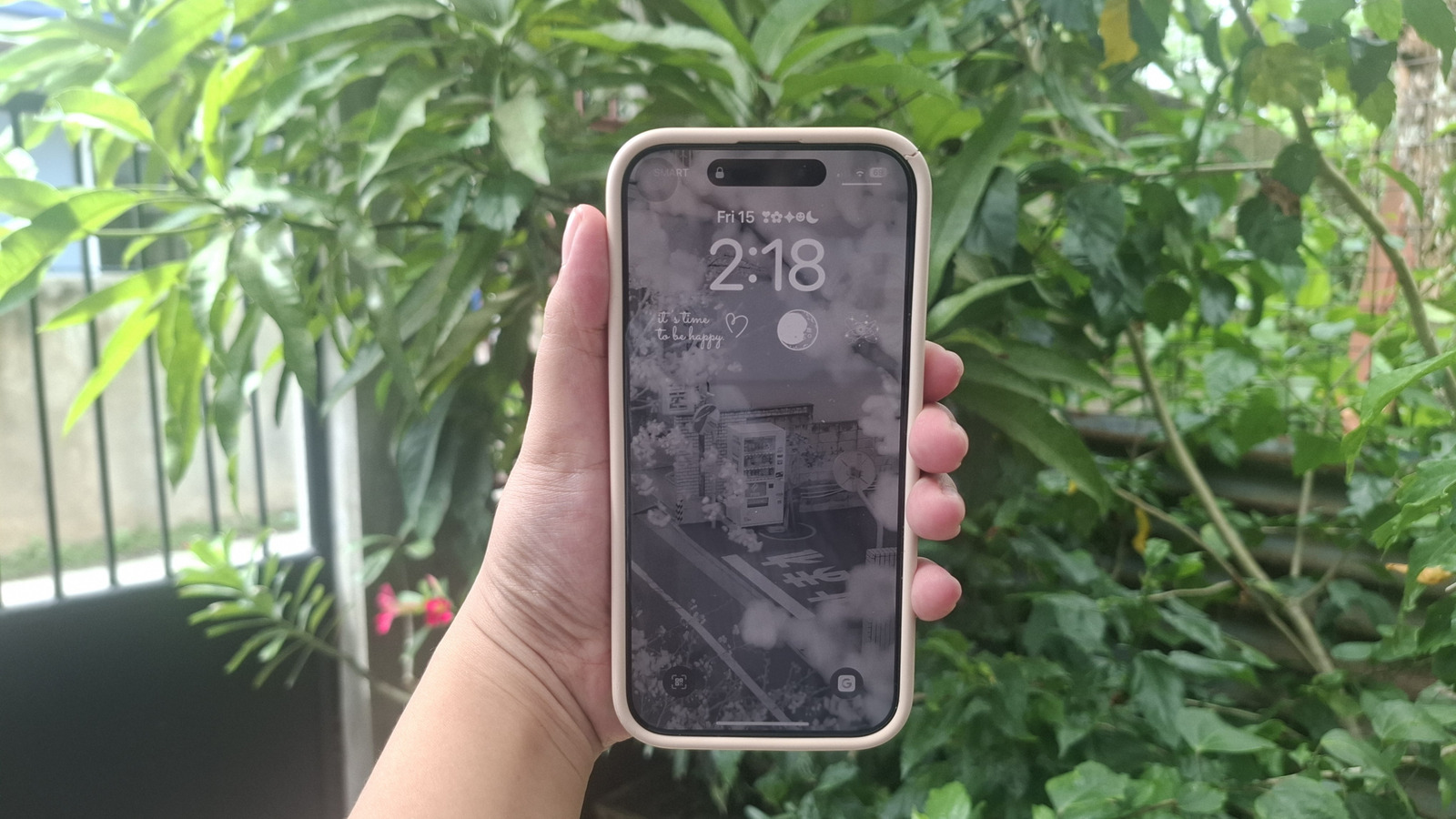

The Grayscale Revolution: How a Simple iPhone Setting Can Break Your Screen Addiction
Did you know the average American spends over 5 hours daily staring at their smartphone, with Gen Z consumers clocking a staggering 6 hours and 27 minutes? According to a pivotal survey by health data leader Harmony Healthcare IT, this relentless screen time contributes to eye strain, chronic headaches, and heightened anxiety. As digital overload becomes a public health concern, users desperately seek solutions to “unplug” without abandoning connectivity. This is where iPhone grayscale mode emerges as a game-changing, built-in tool. Tucked within iOS accessibility features, grayscale transforms your vibrant display into muted monochrome, drastically reducing visual appeal and device dependency. Let’s explore how activating this hidden function can rewire your phone habits and reclaim your attention.
The Screen Time Crisis: Quantifying Our Digital Dependency
Harmony Healthcare IT’s data reveals a troubling trajectory: smartphone engagement isn’t plateauing—it’s escalating. Gen Z’s 6.5+ hours daily highlights how devices dominate work, socializing, and leisure. Clinicians warn that such exposure triggers:
- Digital eye strain (Computer Vision Syndrome): Symptoms include dry eyes, blurred vision, and migraines. The American Optometric Association attributes this to blue light and prolonged focus on pixels.
- Mental health impacts: A meta-study in JAMA Psychiatry linked excessive screen use to increased anxiety and depression risks, particularly with social media scrolling.
- Sleep disruption: Harvard Medical School research confirms blue light suppresses melatonin, fragmenting sleep cycles.
Ironically, while app stores overflow with “digital wellbeing” tools, Apple’s simplest remedy requires no download.
The Psychology of Grayscale: Why Monochrome Curb Appeal Works
Converting your iPhone to grayscale isn’t just an accessibility feature—it’s a behavioral intervention. Studies, like those referenced in Journal of Behavioral Addictions, demonstrate grayscale reduces screen time by 18-25%. Here’s the science:
- Dopamine Disruption: Bright colors (especially reds and blues) trigger dopamine releases, reinforcing addictive app usage. Monochrome dulls this neurological reward.
- Reduced Visual Salience: Without vibrant alerts, notifications lose urgency. Instagram’s fiery orange “Like” icon becomes a faint gray square.
- Intentionality Over Impulse: Grayscale forces conscious engagement. Users report skipping “doomscrolling” as content feels less stimulating.
“It’s like removing sugar from your diet,” explains Dr. Anna Lembke, Stanford neuroscientist and author of Dopamine Nation. “By desaturating screens, we weaken the conditioning loop driving compulsive checks.”
Activating iPhone Grayscale: A Step-By-Step Guide
Enabling grayscale leverages iOS’s Color Filters—a tool designed for color blindness that doubles as a digital detox aid. Follow these steps:
- Access Settings: Open your iPhone’s Settings app.
- Navigate to Accessibility: Tap “Accessibility” > “Display & Text Size” under Vision.
- Enable Color Filters: Select “Color Filters” and toggle the switch ON.
- Choose Grayscale: Pick “Grayscale” from the filter options.
- Adjust Intensity (Optional): Use the slider to control contrast.
For instant access, add grayscale to Control Center:
- Swipe down to open Control Center → Long-press any blank area → Tap “Add a Control” → Search for “Color Filters” → Select it.
- Now, a quick Control Center tap toggles grayscale on/off.
Pro Tip: Pair this with iOS Screen Time limits (Settings > Screen Time > App Limits) for layered defense.
Why Built-In Grayscale Beats Third-Party Focus Apps
While apps like Freedom or Forest offer similar results, iPhone grayscale holds unique advantages:
| Feature | Grayscale Mode | Third-Party Apps |
|---|---|---|
| Cost | Free (iOS native) | Often subscription-based |
| Permissions | Zero data privacy risks | May require tracking access |
| Reliability | No crashes or background drain | Can be disabled by system |
| Setup Time | 60 seconds | Download, configure, learn |
Accessibility integration ensures grayscale works seamlessly across all apps and iOS updates.
Beyond Grayscale: Holistic Digital Wellness Strategies
While grayscale is potent, combine it with these research-backed tactics:
- Scheduled Downtime: Use iOS’s “Downtime” to lock non-essential apps after work hours.
- Notification Audits: Disable non-urgent alerts (Settings > Notifications). University of California research found this lowers stress levels by 30%.
- 20-20-20 Rule: Every 20 minutes, stare 20 feet away for 20 seconds to combat eye strain.
- Physical Separation: Charge phones outside bedrooms overnight to improve sleep hygiene.
As tech ethicist Tristan Harris notes, “It’s not about quitting devices, but designing relationships with them that honor human values.”
The Bigger Picture: Digital Minimalism in a Color-Saturated World
Grayscale mode embodies digital minimalism—a philosophy prioritizing intentional tech use. By stripping non-essential stimuli, we:
- Regain focus during work or study
- Strengthen real-world social connections
- Reduce cognitive load for better mental clarity
Google’s Digital Wellbeing team confirmed in 2021 that monochrome interfaces increase user awareness of passive usage, nudging behavioral change.
Conclusion: Embrace the Gray
The iPhone grayscale mode exploits a simple truth: visual appeal drives digital addiction. By muting your screen’s palette, you disrupt unconscious scrolling, mitigate physical strain, and cultivate mindful engagement. This accessibility gem requires no apps, fees, or complex setup—just a few taps to activate your personal “attention filter.” Pair it with intentional usage habits, and you’ll not only reduce screen time but transform your device from a distraction engine into a tool of purpose. Ready to detox your digital life? Try grayscale for a week and share your experience below. How many hours did you reclaim? Let’s discuss!
Sources:
- Harmony Healthcare IT Screen Time Survey
- American Optometric Association – Computer Vision Syndrome
- JAMA Psychiatry – Screen Time & Mental Health
- Harvard Medical School – Blue Light Effects
- Google Digital Wellbeing Research
Sources & Further Reading:
Original article at www.slashgear.com


