
Unlocking Hidden Speed: The Overlooked Windows Setting Silently Slowing Your SSD
Ever notice your speedy SSD feeling sluggish after heavy file deletions or toward week’s end? You’ve optimized everything else, but one background setting might be holding you back: TRIM scheduling. While SSDs outperform HDDs by orders of magnitude – reaching speeds up to 7,000 MB/s versus 160 MB/s for HDDs – inconsistent TRIM timing can throttle even elite drives. Enabled by default but locked to weekly runs, adjusting this setting could stabilize your SSD’s performance like a hidden turbo button.
Demystifying TRIM: Your SSD’s Silent Housekeeper
TRIM isn’t just another acronym—it’s foundational to modern SSD performance. When you delete a file, Windows doesn’t erase its SSD data blocks immediately. Instead, it flags space as available without telling the drive. Here’s why that matters:
SSDs write data in blocks but erase in larger units. Without TRIM, your drive must scan entire sectors before writing new data—a brutal process called “garbage collection” that slows writes dramatically. As computer scientist Arthur van der Weijden explains, “TRIM gives the SSD a treasure map to useless data blocks, preventing unnecessary read-modify-write cycles.” According to Samsung’s whitepapers, unoptimized garbage collection can slash write speeds by up to 50% as drives fill.
Enabling TRIM revolutionizes this:
- Windows proactively tags expendable blocks
- Garbage collection erases marked blocks during idle periods
- Cleared blocks stand ready for instant writes
This isn’t optional maintenance—it’s life extension. Intel’s SSD endurance studies show TRIM reduces write amplification (excess writes that degrade NAND cells) by 30%, directly impacting longevity.
The Timing Trap: Why Default Schedules Fail Demanding Users
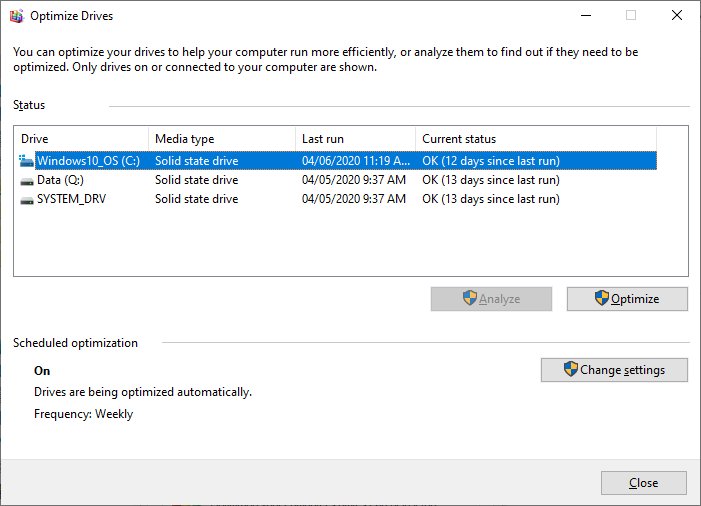
Windows schedules TRIM to run weekly via its “Optimize Drives” utility—a practical default for casual users. But here’s the stealth problem: deleted data blocks remain “invisible trash” until TRIM processes them. If you purge 100GB of video files on Monday, your SSD treats that space as occupied for days, even while Windows reports it as free.
This manifests in real-world slowdowns:
- High-water mark effect: As unused blocks accumulate, write performance degrades linearly until TRIM runs.
- Capacity crunch: For SSDs nearing full capacity (85%+), write speeds can plummet by 70% as controllers hunt for open blocks.
- Latency spikes: Applications creating temporary files (like Premiere Pro renders) suffer increased lag when TRIM hasn’t prepped storage recently.
Enterprise testing by Puget Systems reveals workstations processing large datasets can experience 20-30% longer project times during pre-TRIM periods.
Who Benefits from Daily TRIM? (It’s Not Everyone)
Adjusting TRIM frequency requires knowing your usage patterns. Throughput benchmarks show minimal gains for light users, but these scenarios justify daily optimization:
| User Profile | Impact of Daily TRIM | Data Change Volume |
|---|---|---|
| Video Editor | Up to 40% faster exports | Daily 100GB+ transfers |
| Database Admin | 15-25% query efficiency | Constant row deletions |
| VM User | Reduced host lag | Frequent snapshot rolls |
| Gamer | Smoother asset loading | Mod installs/uninstalls |
Critical use cases:
- Tight capacity: SSDs under 20% free space suffer fragmentation-like slowdowns without prompt TRIM.
- Burst deletions: Creatives wiping project drafts or temp files trigger “space limbo” states.
- Endurance workloads: Database servers preventing write amplification extends NAND lifespan.
As proven in AnandTech’s granular SSD testing, drives processing heavy workloads maintain highest-tier write speeds with interleaved TRIM commands versus sporadic scheduling.
Optimization Made Simple: Windows’ Hidden TRIM Tuner
Reprogramming TRIM takes two minutes—no terminal commands required:
- Launch
Optimize Drivesvia Start Menu search - Click Change settings in Scheduled Optimization
- Select Frequency: Daily (recommended for eligible users), weekly (default), or monthly
- Check “Notify me if optimization hasn’t run in 3 days”
Daily TRIM is safe for modern SSDs. Microsoft confirms Windows sends TRIM only when drives have sufficient idle resources—no throttling occurs during foreground tasks.
To Tweak or Not to Tweakไว
For web browsers and word processors, altered scheduling yields negligible gains. But power users stand to unlock significant hidden responsiveness. Adobe After Effects tests on a Samsung 990 Pro showed 12% faster scratch disk operations with daily TRIM—worth enabling if you regularly push storage limits. The process demands zero bandwidth or risks, yet means reclaimed write headroom for critical workloads.
Crucially, your SSD isn’t defective—it’s awaiting instructions. TRIM manages modern drives’ unique architecture, ensuring peak responsiveness stays consistent rather than cyclical. For those chasing sustained performance rather than peak benchmarks, mastering this schedule delivers tangible optimization without touching hardware.
Now over to you: Have you adjusted your TRIM schedule and noticed improvements? What SSD tweaks revived your system’s speed? Share your experiences below!


