
Connecting Your Roku to Wi-Fi: A Comprehensive Guide
Ever wondered how to connect your Roku to Wi-Fi, especially when setting it up for the first time or in a new location? Roku streaming devices have revolutionized how we consume content, offering a vast library of movies, TV shows, and live channels directly to our TVs. However, to access this content, a stable Wi-Fi connection is essential. This article provides a detailed, step-by-step guide on how to connect your Roku to Wi-Fi, covering everything from initial setup to connecting in hotels and dorms.
Setting Up Your Roku Device with Wi-Fi
The initial setup process is crucial for getting your Roku device connected and ready to stream. Here’s a breakdown of how to connect your Roku to Wi-Fi during the first-time setup.
Connecting Roku to Wi-Fi for the First Time
When you power on your Roku device for the first time, you’ll be guided through a series of steps, including connecting to the internet. Depending on your Roku model (box, TV, or streaming stick), the options might vary slightly.
-
Power Up: Ensure your Roku device is connected to power and turned on.
-
Connection Type (Boxes & TVs): During the initial setup for Roku boxes and TVs, you’ll be prompted to choose between “Wired” (Ethernet) or “Wireless” (Wi-Fi). Roku Streaming Sticks only offer the wireless option.
- Wired Connection: If you select “Wired,” connect your Roku device to your router using an Ethernet cable. The Roku device will automatically connect to your network and the internet.
- Wireless Connection: If you select “Wireless,” the Roku device will scan for available Wi-Fi networks in range.
Selecting Your Wireless Network
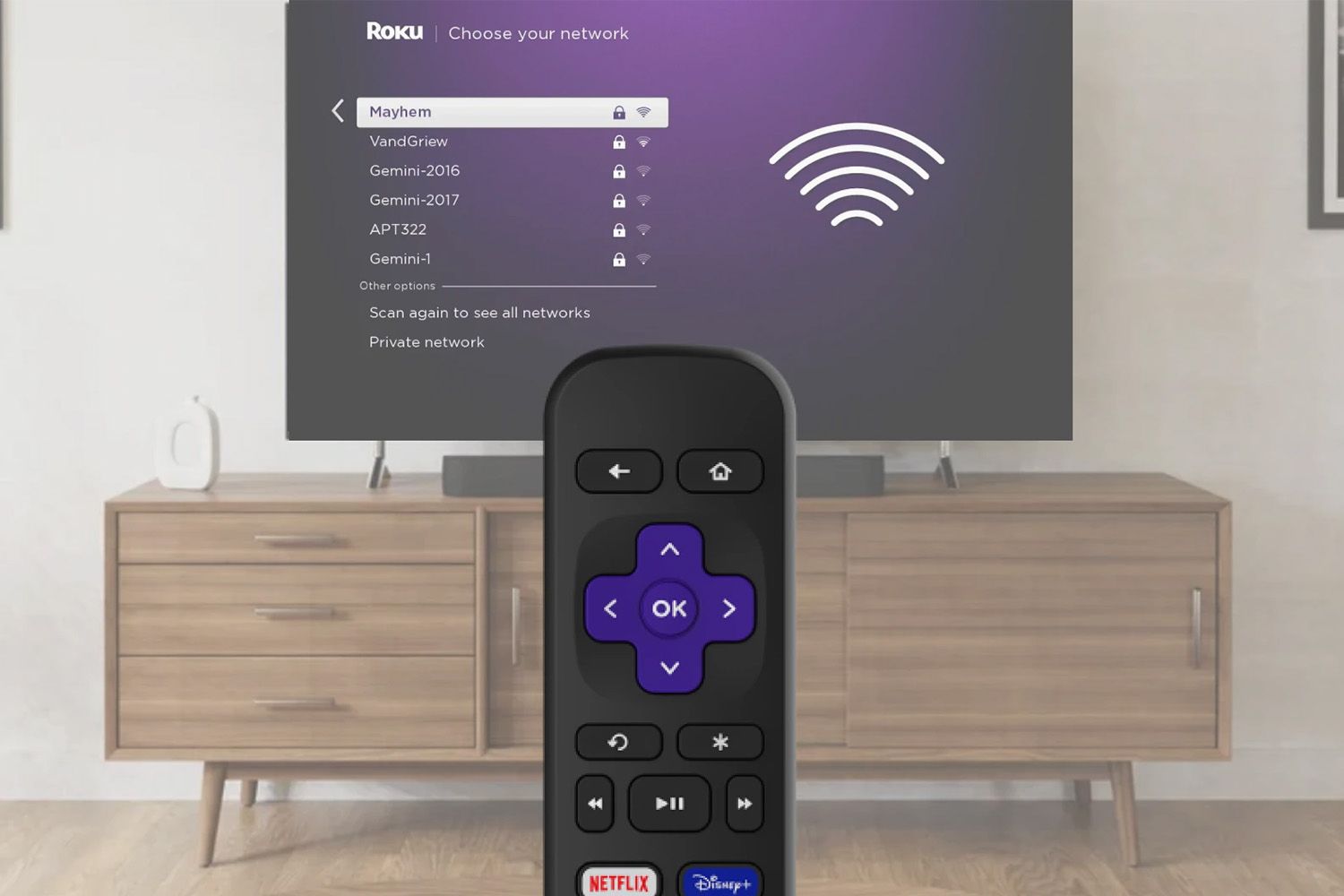
Once the Roku device scans, a list of available networks will appear on your TV screen.
-
Choose Your Network: From the list, find and select your home Wi-Fi network.
-
Network Not Listed? If you don’t see your network, select “Scan again” to refresh the list.
-
Troubleshooting Network Detection: If your network still doesn’t appear, consider the following:
- Distance: The Roku device might be too far from the router. Try moving the Roku closer to the router or vice versa.
- Ethernet Alternative: If possible, use an Ethernet cable for a direct connection.
- Wi-Fi Range Extender: Consider using a Wi-Fi range extender Wikipedia Link on Wireless Repeaters to boost the signal strength.
Entering Your Wi-Fi Password and Connecting
After selecting your network, you’ll be prompted to enter your Wi-Fi password.
- Enter Password: Use the on-screen keyboard (controlled by your remote) to enter your Wi-Fi password carefully.
- Connect: After entering the password, select “Connect.”
- Connection Confirmation: If the password is correct, you should see a confirmation message stating that your Roku device is connected to your network and the internet.
- Incorrect Password? If the connection fails, double-check that you’ve entered the correct password and try again.
Software Updates
Once connected to Wi-Fi, your Roku device will automatically check for and install any available software or firmware updates.
- Automatic Updates: Allow the device to download and install updates.
- Reboot/Restart: The Roku device may reboot or restart during this process.
- Complete the Process: Wait for the entire update process to finish before proceeding with further setup steps or streaming content.
Connecting to Wi-Fi After the Initial Setup
What if you need to change your Wi-Fi network or switch from a wired connection to wireless after the initial setup? Here’s how to do it.
Changing Your Roku Wi-Fi Network
- Access Settings: Press the “Home” button on your Roku remote (or use the Roku mobile app).
- Navigate to Network Settings: Go to “Settings” > “Network.”
- Set Up Connection: Select “Set up connection.”
- Choose Connection Type: If both “Wired” and “Wireless” options are shown, select “Wireless.”
- Select Network: The Roku will scan for available networks. Choose your desired network from the list.
- Enter Password: Enter your Wi-Fi password and wait for connection confirmation.
Connecting Roku to Wi-Fi in Hotels or Dorms
Roku devices are portable and convenient for travel. Here’s how to connect to Wi-Fi in a hotel or college dorm.
Hotel and Dorm Wi-Fi Connection Steps
- Prepare Your Device: Before traveling, ensure the location has Wi-Fi and the TV has an HDMI port. Also, keep your Roku account login information handy.
- Obtain the Wi-Fi Password: Get the Wi-Fi network name (SSID) and password from the hotel or dorm.
- Plug In and Power On: Connect your Roku device to power and the TV’s HDMI port.
- Access Network Settings: Press the “Home” button, then navigate to “Settings” > “Network” > “Set up connection.”
- Select Wireless: Choose “Wireless” from the connection options.
- Choose Your Network: Select the hotel or dorm’s Wi-Fi network from the list.
- Enter Password: Enter the Wi-Fi password you obtained.
- Hotel/Dorm Authentication: After connecting to the network, select “I am at a hotel or college dorm.”
- Authentication Prompts: Follow the on-screen prompts for authentication. This might involve entering a password shown on the TV screen using a smartphone, tablet, or laptop. This additional password often grants access to the Roku server through the hotel’s network.
Frequently Asked Questions (FAQ)
-
How do I connect my Roku remote to my TV?
- Insert batteries and turn on the Roku device. Hold the remote near the Roku box. Some remotes use Infrared (IR) and require a direct line-of-sight.
-
How do I connect my phone to my Roku TV?
- This generally involves downloading the Roku app on your phone and ensuring both devices are on the same Wi-Fi network. The Roku app will then detect and connect to your Roku device.
-
How do I connect external speakers to my Roku TV?
- This depends on the available ports on your Roku TV and speakers. Options include HDMI ARC, optical audio, or RCA cables. Consult your TV and speaker manuals for specific instructions.
-
How do I connect AirPods to my Roku TV?
- If your Roku has a “Headphone Mode” setting (Settings > Remotes & devices > Wireless headphones), you may be able to connect directly. Otherwise, use the Roku app on your phone, connect the phone to the Roku, and use the “Private Listening” feature.
Conclusion
Connecting your Roku to Wi-Fi is a straightforward process, whether it’s the initial setup, a network change, or connecting in a hotel or dorm. By following the steps outlined in this guide, you can ensure a seamless streaming experience. Remember to troubleshoot any issues by checking network range, verifying passwords, and following on-screen prompts carefully. Successfully connecting your Roku unlocks a world of entertainment. What are your go-to streaming apps on Roku? Share your thoughts in the comments below!
Sources & Further Reading:
Original article at www.lifewire.com


