
Is USB-C on Desktop PCs Really Worth It? Rethinking the Universal Port
Remember the promise of a single port to rule them all? USB-C arrived on the scene with the promise of simplifying our digital lives. While it has undoubtedly revolutionized connectivity for laptops, phones, and other portable devices, its impact on desktop PCs is far less pronounced. Many desktop users find themselves with a USB-C port they rarely, if ever, utilize, leading to the question: is the addition of USB-C to desktops truly a worthwhile upgrade, or just another piece of underutilized technology? This article will delve into the realities of USB-C on desktops, exploring its advantages, limitations, and whether it lives up to the hype.
The Laptop Revolution: How USB-C Changed the Game
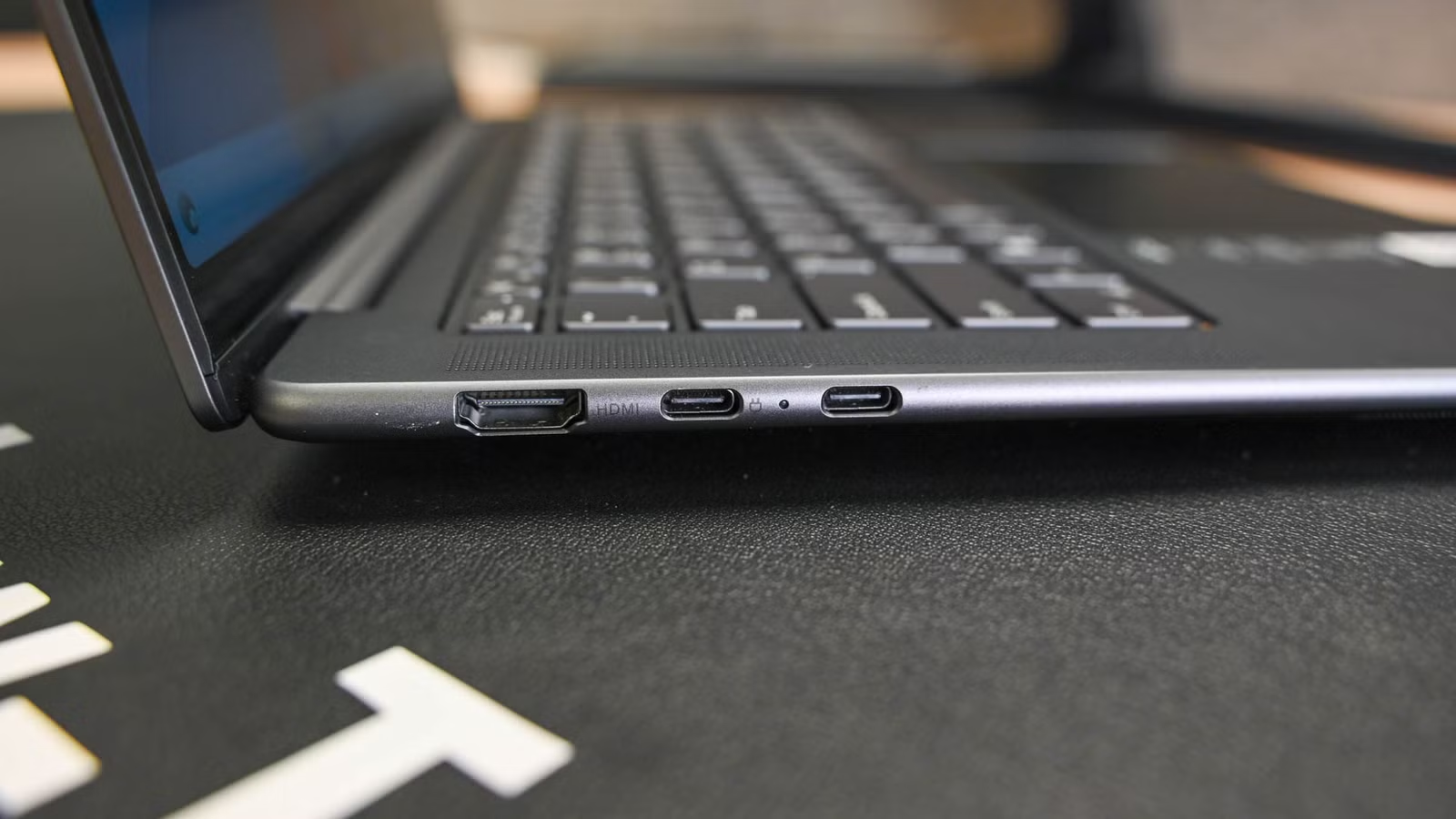
The introduction of USB-C ports to laptops was transformative. Before its widespread adoption, laptops were riddled with a chaotic array of ports, each serving a specific purpose. HDMI, DVI, DisplayPort, VGA, FireWire, multiple USB Type-A ports, a 3.5mm audio jack, RJ45 Ethernet ports, and a variety of proprietary charging ports cluttered the sides of these machines. This created a bulky and sometimes confusing user experience.
- Port Variety Before USB-C:
- HDMI
- DVI
- DisplayPort
- VGA
- FireWire
- USB Type-A (multiple)
- 3.5mm audio jack
- RJ45 Ethernet
- Proprietary charging ports
USB-C streamlined this landscape dramatically. Modern laptops can often feature only USB-C ports (sometimes accompanied by a single 3.5mm audio jack), achieving a sleek and minimalist design without sacrificing functionality. This is possible thanks to the versatility of USB-C, which can handle data transfer, video output, audio transmission, and power delivery all through a single port. Need to connect a device with an older port? A simple adapter or a USB-C dock can bridge the gap. These docks offer a range of ports, allowing users to connect legacy devices while still benefiting from the convenience of USB-C. This consolidation allowed manufacturers to significantly reduce the thickness of laptops, a major selling point for consumers.
Why the USB-C Advantage Doesn’t Translate to Desktop PCs
While USB-C’s impact on laptops is undeniable, the same cannot be said for desktop PCs. Several key factors contribute to this disparity.
The Space Advantage: A Non-Issue for Desktops
One of the biggest benefits of USB-C for laptops is its ability to save space. By consolidating multiple ports into a single, smaller connector, manufacturers can create thinner and more portable devices. However, desktop PCs generally don’t face the same space constraints. Even small form-factor desktops have ample room for a variety of ports. Fitting multiple USB Type-A ports, dedicated video outputs, and an Ethernet port on a motherboard doesn’t present a significant challenge.
- Desktop PC Port Availability: Motherboards often easily accommodate:
- Six or more USB Type-A ports
- Multiple video outputs (HDMI, DisplayPort)
- Dedicated Ethernet port(s)
- Audio jacks
Therefore, the space-saving advantage of USB-C is largely irrelevant in the context of desktop PCs.
The Specialized Peripheral Problem
The ability of USB-C to handle multiple functions through a single cable is another key benefit that doesn’t fully translate to the desktop environment. The vast majority of desktop peripherals, such as keyboards, mice, and webcams, still rely on USB Type-A connectors. Monitors typically connect via dedicated video cables like HDMI or DisplayPort. Routers still utilize standard Ethernet cables for network connectivity.
While USB-C can theoretically handle all these connections, the reality is that most desktop setups continue to rely on a variety of specialized ports and cables. This negates the convenience of having a universal port that can do it all.
Data Transfer: Where USB-C Shines
The one area where USB-C truly excels on desktops is high-speed data transfer. Modern USB-C standards like USB4 and Thunderbolt 5 offer blazing-fast speeds. Thunderbolt 5, for example, can theoretically transmit data at up to 120 gigabits per second in one direction, or 80 gigabits per second bidirectionally [Source: Intel Thunderbolt Specifications]. This is particularly useful for users who work with large files, such as video editors or photographers, and need to transfer data quickly to and from external storage devices like external SSDs.
However, even this advantage is limited by the relatively small number of devices that fully support these high-speed standards. Many external SSDs, while using a USB-C connector, don’t fully utilize the potential bandwidth of USB4 or Thunderbolt 5.
The USB-C Standards Mess: A Source of Confusion
One of the biggest drawbacks of USB-C is the fragmented and often confusing landscape of standards that utilize the same connector. A USB-C port can support anything from the outdated USB 2.0 standard, which offers a paltry data transfer rate of 480 megabits per second and 15 watts of power delivery, to the cutting-edge Thunderbolt 5, which boasts speeds of up to 120 gigabits per second and 240 watts of power delivery.
This means that simply plugging a USB-C cable into a USB-C port provides no guarantee of compatibility or performance. Users often have to rely on trial and error, or delve into technical specifications to determine what standard their devices and cables support. This lack of transparency can be frustrating and lead to unexpected limitations.
- USB-C Standard Confusion:
- USB 2.0: 480 Mbps, 15W
- USB 3.0/3.1/3.2: Varying speeds (5 Gbps – 20 Gbps), varying power delivery
- USB4: Up to 40 Gbps, up to 100W
- Thunderbolt 3/4: Up to 40 Gbps, up to 100W
- Thunderbolt 5: Up to 120 Gbps, up to 240W
This fragmentation undermines the promise of USB-C as a universal and easy-to-use standard.
Why Dedicated Ports Still Make Sense
The complexity of USB-C standards highlights the benefits of dedicated ports. When you plug an Ethernet cable into an Ethernet port, you know exactly what to expect: a reliable network connection. Similarly, plugging a DisplayPort cable into a DisplayPort port on your GPU guarantees a specific video output standard.
With USB-C, however, there’s always an element of uncertainty. You might plug in a cable expecting high-speed data transfer, only to discover that the port or cable only supports a slower standard. This unpredictability makes dedicated ports a more reliable and straightforward option for many desktop users.
Conclusion: USB-C’s Limited Role in the Desktop World
In conclusion, while USB-C has revolutionized connectivity for laptops and other portable devices, its impact on desktop PCs is far less significant. The space-saving benefits are irrelevant, most peripherals still rely on dedicated ports, and the fragmented USB-C standard can lead to confusion and frustration. The only clear advantage of USB-C on desktops is high-speed data transfer with compatible devices.
Ultimately, the value of USB-C on a desktop PC depends on individual needs and priorities. For users who frequently transfer large files to external SSDs, it can be a worthwhile addition. However, for the average desktop user, the benefits of USB-C are limited, and the convenience of dedicated ports may outweigh the perceived advantages of a “universal” connector.
What do you think? Is USB-C on your desktop PC a game changer or an underutilized port? Comment below and share your experiences!
Sources & Further Reading:
Original article at www.howtogeek.com


