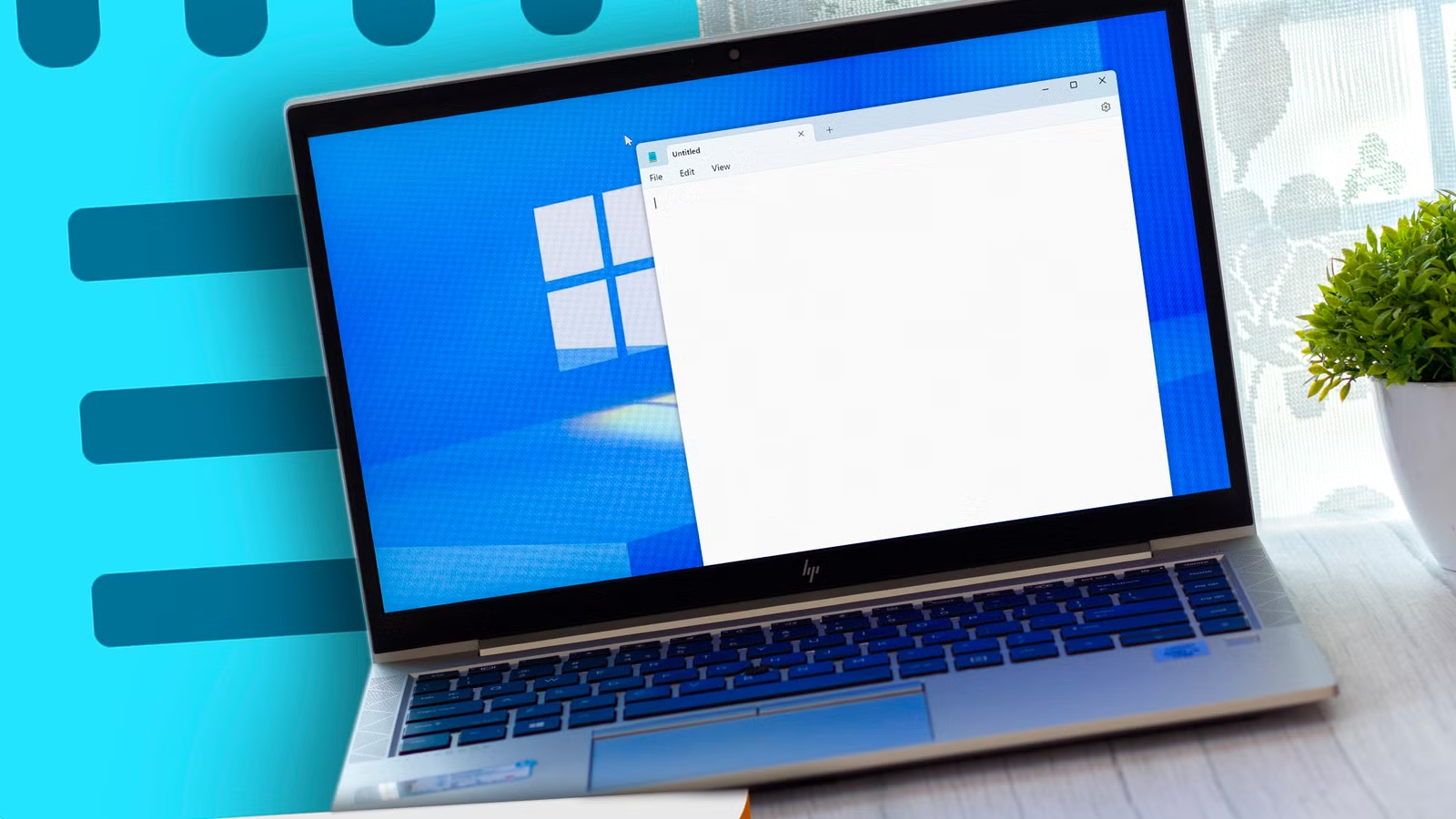

Has Notepad Become Too Powerful? A Look at Microsoft’s Upgrades
Remember the days when Notepad was the bare-bones, no-frills text editor you grudgingly used for quick notes? Well, times have changed. Microsoft has quietly been adding features, transforming it from a simple scratchpad into a surprisingly robust tool. Some users celebrate these enhancements, while others lament the loss of its minimalist charm. But is this evolution a step forward or a betrayal of its core identity? Let’s dive into the new features that might just make you rethink Notepad and discover if it truly has become “overpowered.”
The New Face of Notepad: More Than Just Plain Text
For years, Notepad held the crown as the quintessential plain text editor. Its appeal lay in its simplicity: no formatting, no distractions, just a blank canvas for your thoughts. But in recent years, Microsoft has been steadily adding features that some might consider “overpowered” for such a basic application. Let’s explore what’s changed.
Embracing Richer Documents: Light Formatting Comes to Notepad
Gone are the days when Notepad was strictly limited to plain text. One of the most significant additions is support for document formatting using Markdown. This means you can now:
- Create headings of various sizes.
- Emphasize text with bold and italics.
- Underline text for highlighting.
- Insert hyperlinks to websites or other documents.
- Organize information using bulleted and numbered lists.
These features elevate Notepad from a simple note-taking app to a viable option for creating well-structured documents. The inclusion of spellcheck and limited autocorrect further enhances its utility, ensuring that your documents are polished and professional. While it won’t replace dedicated word processors like Microsoft Word, it offers a compelling alternative for quick drafts, outlines, and Markdown-based workflows.
Markdown Made Easy: Preview and Conversion
The decision to utilize Markdown for formatting is a clever one. Markdown is a lightweight markup language with a simple syntax that’s easy to learn and use. The best part? Notepad makes it incredibly easy to preview your Markdown formatting and convert it to other formats. With just a click of a button, you can see how your document will appear or convert it for use in other applications. This integration eliminates the need for dedicated Markdown editors or extensions, streamlining the writing process and making Notepad a surprisingly powerful tool for content creators.
Minimalist Formatting: Striking the Right Balance
Despite these new formatting capabilities, Notepad retains its minimalist charm. The formatting options are intentionally limited, preventing the interface from becoming cluttered or overwhelming. Unlike feature-rich word processors like Microsoft Word or LibreOffice, Notepad avoids the bloat and distractions that can hinder focus. The formatting toolbar is clean and intuitive, allowing you to apply styles without disrupting your workflow.
Streamlining Your Workflow: Tabs and Session Saving
Beyond formatting, other new features contribute to a more efficient and user-friendly experience. Two standouts are tabbed browsing and session saving.
The Power of Tabs: Multi-Document Management
For years, Notepad++ users have touted the benefits of tabbed document management. Now, Notepad joins the party, allowing you to open and edit multiple documents within a single window. This feature significantly improves workflow efficiency, eliminating the need to juggle multiple Notepad windows and reducing desktop clutter. Just like modern web browsers, tabs in Notepad provide a seamless way to switch between different files, making it easier to compare notes, copy and paste text, and manage complex projects.
Never Lose Your Work: Session Saving
How many times have you accidentally closed Notepad without saving, losing valuable notes and ideas? Session saving is a game-changer in this regard. Notepad now automatically saves your session, including all open tabs and their contents. If you close Notepad and reopen it, your previous session is restored, ensuring that you never lose your work again. This feature is particularly useful for long-term projects, research, and brainstorming sessions where you may need to pause and resume your work frequently.
Recent Files at Your Fingertips: Enhanced File Management
Complementing session saving is the ability to quickly access recent files directly from within Notepad. This eliminates the need to rummage through your file system to find the document you were last working on. With a simple click, you can reopen any of your recently edited files, streamlining your workflow and saving valuable time.
Generative AI Integration: A Glimpse into the Future
Microsoft is heavily invested in generative AI, and Notepad is no exception. The integration of Copilot, Microsoft’s AI assistant, offers some interesting possibilities.
AI-Powered Assistance: Idea Generation and Text Refinement
Copilot can assist with a variety of writing tasks, including:
- Generating ideas for blog posts, articles, or creative projects.
- Rewriting text to improve clarity and style.
- Summarizing long documents or articles.
- Changing the tone and format of your writing.
While the integration is still in its early stages and requires a Microsoft 365 subscription, it demonstrates the potential of AI to enhance the Notepad experience. Imagine using Copilot to brainstorm ideas for a blog post, refine your writing style, or summarize research papers all within the familiar Notepad interface.
The Caveats of AI: Stability and Cost
Despite its potential, the Copilot integration is not without its drawbacks. Users have reported issues with stability, such as the prompt window disappearing unexpectedly. Furthermore, access to Copilot requires a Microsoft 365 subscription, which may be a barrier for some users. As Microsoft continues to develop and refine Copilot, it has the potential to become a powerful tool for writers and content creators.
Fine-Tuning the Experience: Customization Options
While the new features in Notepad offer significant benefits, they may not appeal to all users. Fortunately, Microsoft has provided several customization options to tailor the experience to your preferences.
Disabling the Formatting Toolbar: Back to Basics
If you prefer the minimalist interface of the classic Notepad, you can easily disable the formatting toolbar. Simply navigate to the settings menu and toggle off the “Formatting” option. This will remove the toolbar and revert Notepad to its traditional plain text editor appearance.
Choosing Your Workflow: Tabbed or Windowed
By default, Notepad opens new files in tabs within the same window. However, if you prefer to work with multiple Notepad windows side-by-side, you can change this behavior in the settings menu. Simply set the “Open Files” dropdown to “Open in New Window.”
Managing Sessions: Performance and Preferences
The session saving feature can be a double-edged sword. While it’s convenient to have your previous session restored automatically, it can also slow down the program’s startup time, especially on older hardware. If you prefer a clean slate each time you launch Notepad, you can disable session saving in the settings menu. Setting “When Notepad Starts” to “Start New Sessions and Discard Unsaved Changes” will ensure that Notepad always opens with a blank window.
Conclusion: A Versatile Tool for Everyone
The evolution of Notepad has transformed it from a basic text editor into a surprisingly versatile tool. With features like Markdown formatting, tabbed browsing, session saving, and AI integration, Notepad now offers a compelling alternative to more complex word processors. While some users may lament the loss of its minimalist charm, the customization options allow you to tailor the experience to your preferences. Whether you’re a writer, programmer, or simply someone who needs a quick and easy way to take notes, Notepad has something to offer.
So, what do you think? Has Notepad become “overpowered,” or is it a welcome evolution? Share your thoughts in the comments below!
Sources & Further Reading:
Original article at www.howtogeek.com


