
The Silent Data Transfer Nightmare: When Windows Explorer Cracks Under Pressure
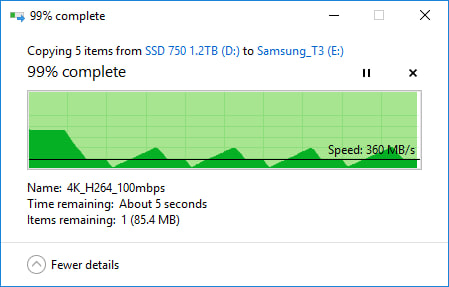
Have you ever started a massive file copy operation—transferring decades of family photos, a critical project backup, or raw video footage—only to watch Windows Explorer freeze on “Calculating,” stall indefinitely, or quit halfway without explanation? You’re not alone. Millions deal with these Winodws Explorer file transfer frustrations daily. While the built-in tool handles small tasks adequately, operations involving tens of gigabytes, hundreds of thousands of files, or complex directory structures expose fundamental flaws in its design, risking data integrity and wasting hours. Understanding why Windows file copy struggles and discovering robust alternatives isn’t just tech geek territory—it’s essential knowledge for digital professionals, archivists, and anyone moving large datasets in our data-saturated era.
The Anatomy of Failure: Why Explorer Chokes on Big Jobs
The root problem isn’t drive speed—modern SSDs and networks often outpace Explorer’s capabilities. Instead, its collapse stems from flawed architectural choices:
Pre-Calculation Paralysis
Before copying a single byte, Explorer obsessively counts every file and calculates total size. For directories containing 100,000+ files or complex nested structures (like a node_modules folder or photo library), this “enumeration” phase can take minutes to hours. During this time, you stare at a frozen window displaying “Calculating time remaining”—an estimate that’s notoriously inaccurate throughout. Unlike modern tools, Explorer doesn’t dynamically reassess; it relies on this initial snapshot. This wastes time and fails if file states change during enumeration.
Brittle Error Handling
Encounter a locked file? Explorer’s approach is nuclear: halt everything, pop up a vague warning (“File in Use”), and freeze until manually addressed. In worst cases, the entire transfer aborts, scattering partially copied files across your destination drive with zero built-in tools to audit what succeeded. The resume function often re-scans the entire set, repeating pre-calculation delays—utterly inefficient across slow network drives or external storage.
The Integrity Blind Spot
Shockingly, Explorer has no mechanism to verify copied data. It assumes successful writing equals file integrity. Your “completed” transfer might include corrupted files silently damaged during copying—only detected months later when opening fails. For mission-critical data like backups or medical imaging files, this flaw is inexcusable. Researchers emphasize that hardware errors during transfer are rare but not impossible; without cryptographic checksums (like SHA-256), corruption goes unnoticed. Microsoft’s own File Copy documentation acknowledges functionality limitations compared to dedicated tools.
Robocopy: Your Command-Line Lifeline
Enter Robocopy (“Robust File Copy”), a native tool embedded in Windows since Vista. Designed for enterprise-grade data migration, it bypasses Explorer’s GUI limitations through smart engineering:
Speed and Resilience Mechanics
- Multi-threaded Transfers: Using
/MT:16launches 16 concurrent file copies. For directories choked with tiny files (HTML assets, JSON configs), this slashes transfer time versus Explorer’s serial approach. - Intelligent Error Recovery: Hit a locked file? Robocopy sneaks past
/R:3 /W:5retries thrice, pausing 5 seconds between attempts, while copying everything else seamlessly. Critical operations continue unless failure is absolute. - True Resume Capabilities: Interrupted transfer? Robocopy compares source/destination timestamps/sizes at restart, copying only what’s missing without re-scanning the entire dataset.
- Full Audit Trail: Verbose logging (
/LOG+:failures.txt) tracks every action and error, creating accountability.
Mirroring: Power Demands Caution
The /MIR command mirrors source↔destination, deleting destination files/folders absent in the source—ideal for incremental backups. But misuse risks unintentional data loss:
bat
robocopy “D:\Project_Files” “F:\Backup\Projects” /MIR /R:5 /W:10 /MT:24 /LOG+:”C:\Logs\backup.log”
Translation: Mirror Project_Files to Backup\Projects, retry failed files 5 times, wait 10 seconds between retries, use 24 threads for blazing speed, and append logs to backup.log.
Comparing Giants: Explorer vs Robocopy
| Feature | Windows Explorer | Robocopy |
|---|---|---|
| Pre-Copy Scan | Full enumeration | Minimal metadata checks |
| File Integrity Check | None | Supports /COPYALL + /DCOPY:T for data/attributes |
| Resume Handling | Restarts entire job | Copies only missing/changed files |
| Error Recovery | Halts job immediately | Retries + skips; job continues |
| Multi-threading | None (single-threaded) | Up to 128 threads (/MT:128) |
| Logging | Minimal/surface-level | Highly detailed timestamped logs |
| Best For | Small, one-off copies | Backups, migrations, mass transfers |
Mitigation Beyond Microsoft: Third-Party Guardians
For GUI loyalists yearning for Explorer-like visuals without the instability, tools like TeraCopy and FastCopy shine:
- TeraCopy: Integrates into right-click menus; offers real-time graphs, verifies via checksums, queues multiple jobs.
- FastCopy: Excels for raw speed; uses specialized buffers surpassing Explorer throughput by up to 150% on large files. According to user benchmarks, switching can save hours per terabyte copied.
Even cloud giants face similar issues—Google Drive uses chunking and checksums for large file uploads, a principle reflected in all robust transfer protocols.
Owning Your Data Destiny
Explorer earns its place for dragging a few files between folders. Yet for substantial digital assets—be it photos, databases, media projects, or backups—its fragility invites headaches and costly data risks. Command-line tools like Robocopy trade initial complexity for iron-clad reliability and raw speed, while third-party GUIs offer a middle ground, merging usability and resilience. The lesson? Match your tool to the task’s scale and stakes. Ignore this, and you gamble with efficiency and data integrity. Are you ready to upgrade your transfer workflow, or will misplaced trust in Explorer cost you? Share your data battle stories below!


