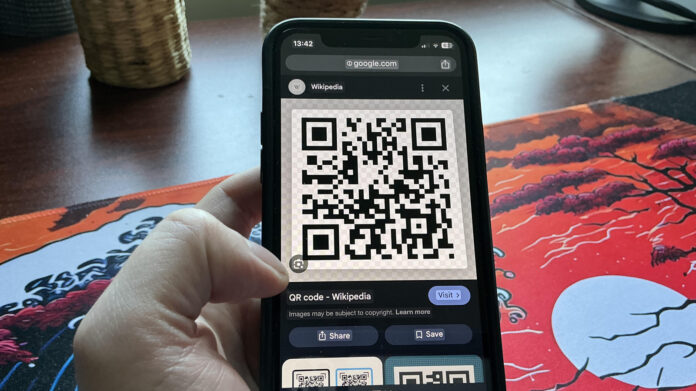

You probably think you need to use your smartphone camera to scan a QR code, right? That is no longer the case. It is entirely possible — and surprisingly easy — to scan a Quick Response code that is already saved on your phone. The exact steps vary slightly depending on whether you use Android or iOS, but it remains a simple process either way.
In fact, all you need to do is take a screenshot of a QR code, then access it through your phone gallery. Here is how it works on each platform.
How to scan a QR code saved on your phone
The trickiest part of scanning a QR code you already have saved on your smartphone is that it requires using two fingers. All you need to do is grab a screenshot of the code. On newer iPhones, hold the wake button and tap volume up until you see an onscreen flash. On Android devices, hold the power button and volume down to capture the screen.
Once you have the screenshot, navigate to your device image gallery. On an iPhone, select the screenshot and look for a small blue badge with three tiny lines above the trash icon, with an accompanying URL to its left. Tap the QR code, and you will be given the option to open it in your browser of choice. On Android phones, after selecting the QR code screenshot, simply tap the Google Lens icon — and you have just scanned a QR code saved on your phone.
Use Circle to Search on Android devices
Many Android devices let you use Circle to Search to scan a QR code without a camera. This feature is available on Google Pixel and Samsung Galaxy devices. If you have a recent Android phone, it should already be enabled. To check, open Settings, use the search bar to find “Circle to Search,” and toggle it on if supported.
Once activated, hold down the home button to launch it. A Google Search bar will appear at the bottom of your screen. Simply find the QR code on your device and circle it with your finger. It does exactly what it sounds like.
Google Lens can help with QR codes too
Google Lens works most seamlessly on Android, but you can also use it on iPhone through the Google app or Google Photos. On Android, tap the Lens icon in the Google search bar or open Lens through the Google app. Select the QR code image from your gallery, and Google Lens will analyze it and offer you a link to tap.
One final word of caution: while scanning QR codes from your phone is incredibly convenient, always practice basic security. Be wary of phishing attempts and only scan codes from sources you trust.


