
The Purity Paradox: Unmasking Pixel’s “Bloatware” Reality
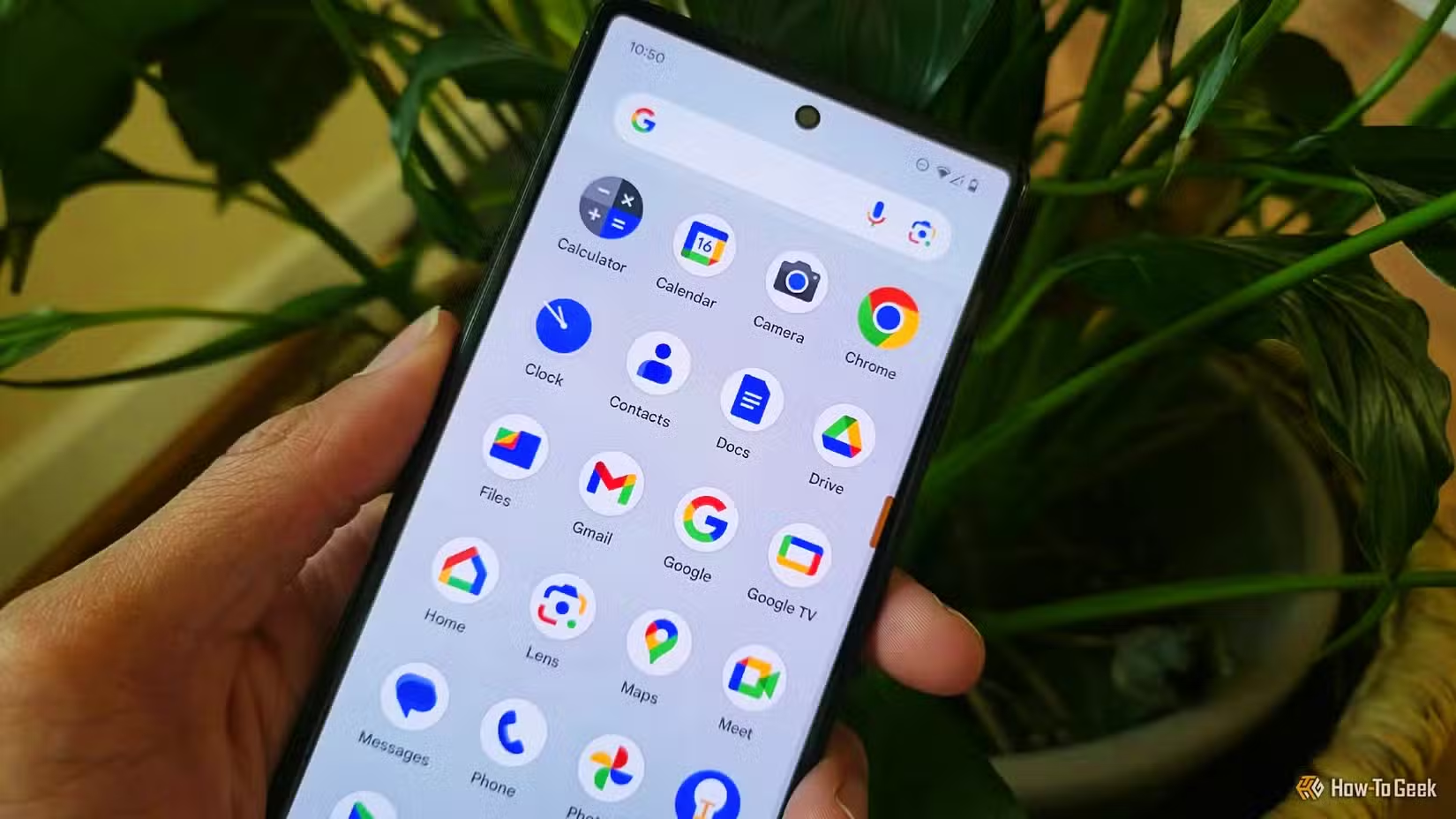
Ever landed on a pristine Android Pixel phone, anticipating untouched Google purity, only to find apps staring back you’ll likely never tap? Is your Pixel truly running the unadulterated “stock Android” experience so many users covet? The inconvenient truth is a resounding no. Despite widespread perception, Pixel phones are fundamentally Google phones first, loaded with proprietary apps and features that defy the minimalist ethos. While leagues leaner than bloated competitors, reliably placing Pixels as Android’s leanest competitors, they embody a carefully curated vision from Mountain View – packed with tools technically fitting the broad definition of Pixel bloatware precisely because they often can’t be easily removed and might not be universally essential. Understanding this reality unlocks the key to truly taking control of your Pixel experience.
Debunking the Persistent Myth of Stock Android on Pixels
The ideal of “stock Android” conjures an image of an untouched core operating system, unburdened by vendor-added layers or redundant applications. This purebred image has long clung to Google Pixel phones. However, this perception fundamentally misrepresents their nature.
- Pixel DNA is Google DNA: Pixel smartphones represent Google’s definitive hardware manifestation of Android. Unlike manufacturers licensing Android (like Samsung or Xiaomi) and layering custom skins atop it (One UI, MIUI), Google starts with Android Open Source Project (AOSP) and deeply integrates its own services. This results in a cohesive experience, but one intrinsically tied to Google’s ecosystem, heavily reliant on Play Services for core functions.
- Stock Android: A Phantom OS: More significantly, the classic “stock Android” experience rarely appears on consumer hardware shipped for everyday consumers. As noted in discussions surrounding Android fragmentation, the base AOSP lacks many consumer-ready features, Google Mobile Services (GMS), and the polish users expect. Phones requiring a truly barebones AOSP experience are niche, generally aimed at developers or privacy advocates. Google’s Pixel software stack, known as Pixel Launcher/UI, is Google’s polished, feature-packed consumer-facing variant of Android – it’s not stock. Encountering actual stock would likely be jarring, lacking integrations and conveniences users take for granted. Therefore, Pixel’s customization isn’t inherently negative; it’s essential.
The Nuance of Pixel “Bloat”: Useful Bundles vs. Unwanted Excess
Labeling Pixel apps as “bloatware” requires careful contextual evaluation. Unlike Samsung phones known for their extensive inclusions like Samsung Free or Galaxy Store, or notorious low-end devices preloaded with ad-serving apps, Pixel maintains a significantly cleaner baseline:
| Pixel Bloatware Comparisons | |
|---|---|
| Pixel Advantage | No preloaded third-party junk apps (e.g., carrier bloatware like AT&T services, random games like Candy Crush, or manufacturer duplicates like Samsung’s Email). |
| Pixel Consideration | Essential Google ecosystem apps included (Gmail, Maps, Drive, Photos, Calendar). While vital for many, inability to remove renders them “bloat” for those opting out. |
| Blatant Bloatware Examples | Common on competitor phones: Carrier-specific apps, manufacturer app stores, duplicate apps (multiple browsers/music players), unremovable trialware, ad-generating lock screen apps. |
- Core Google Suite: Applications like Gmail, YouTube, Maps, Drive, and Calendar are indispensable pillars for countless users, tightly woven into daily digital life. Declaring these as unwanted “bloat” misses their fundamental utility.
- The Gray Zone: Preferences diverge significantly here:
- Chrome: Many users prefer alternatives like Firefox or Samsung Internet Browser.
- Google Photos: Powerful but forces its integration as the Pixel camera’s gallery; replacing it with alternatives poses persistent challenges.
- Google Play Games/Books: Irrelevant for non-gamers or eBook readers.
- AI Features: Tools like Magic Eraser, Audio Eraser, or Circle to Search offer novel functions, but their accuracy varies and reliance extends the Pixel exclusivity.
- System Intrusions: Persistent elements like “At A Glance,” “Google Search Bar,” and “Dashboards” encroach directly onto your main home screens—unremovable adornments enforcing Google’s interface vision whether the user desires them or not. Minimalism preference is disregarded.
- The Setup Trap: Beyond core preinstalls, Google leverages the onboarding process to prompt installations of auxiliary apps like Wallet, Keep, Podcasts, Fitbit Companion, YouTube Music, Gemini/Assistant, NotebookLM, and Journal. These selections are frequently pre-ticked during setup, an omission easily overlooked. Installing such extras—especially hardware-dependant ones (Pixel Watch/Fitbit) or niche AI assistants—clutters devices unnecessarily:
- “Users navigate an onboarding experience optimized for installation speed and ecosystem promotion, not personalized app curation.”
Your Basic Cleanup Toolkit: Disabling Built-in Pixel Apps
Thankfully, Pixel users possess robust tools to tame preinstalled apps without resorting to complex modifications. Standard Android functionality allows disabling numerous integrated applications:
- Disabling Defined: Disabling halts an app’s execution clears user data/caches, hides the icon from your app drawer, and prevents background operation. Critically: It does not remove the app’s core files. No storage space is reclaimed. Functionally, it vanishes for daily use.
- Safeguards: Crucially, disabling options are blocked for fundamental system components ensuring core phone operation operates reliably.
- Risk Profile: Potential drawbacks include disruption if another app relies on the disabled component, though this risk proves minor for eligible apps per Google’s blocking of vital elements.
Common Candidates for Disabling:
- Apps with direct alternatives: Chrome (Firefox), Gboard (SwiftKey/Bitwarden), Android TV (Streaming app alternatives), Meet (Teams/Zoom), Recorder (External tools)
- Apps tied to unused services: Google Play Books, Google Play Games, YouTube Music (Spotify/Apple Music)
- Emerging/Experimentals Tools: Gemini assistant apps, Journal, NotebookLM, Recorder (depending on comparative usage preferences)
- Redundant Utilities: Simple System Apps visible via Show System Menu, Pixel-exclusives like My Pixel clinic
Execution Procedure: Navigate to Settings > Apps > See all apps. Locate target apps. If an “Uninstall” button appears freely: tap it. If unavailable: tap “Disable”. Hidden system apps require tapping the three-dot menu > Show system. Exercise extreme caution disabling hidden system-level components unless tracking high/proven battery consumption.
Venturing Deeper: ADB’s Power and Pitfalls
For users persisting eager disentangling specific deeply-rooted Google applications—like forcibly removing Chrome—Advanced techniques exist utilizing the Android Debug Bridge (ADB).
- ADB Explained: ADB serves a developer/rescue toolkit permitting command-line execution directing an Android device via USB debugging from a computer. It unlocks intricate uninstalling capabilities (“debloating”) inaccessible through UI.
- Power vs. Risk: Using ADB demands technical confidence:
- Requires enabling Developer Options/USB debugging.
- Requires installation/platform-tools installed on host PC/macOS/Linux machine.
- Commands entail risk: Removing the wrong application package name (
com.google.android.apps.chrome) risks unexpected crashes/unpredictable behaviors affecting camera, Assistant integration stability, or Play Store resilience until restoration occurs. Google Play services components interconnect deeply; caution remains critical. - Removal isn’t permanent; factory resets restore default configuration.
While powerful for truly determined users grappling Pixel bloating challenges prohibiting Chrome elimination entirely via UI disablement paths alone, ADB presents safeguards versus removal complexity substantially higher than disabling workflows applying for most consumers safely contained boundaries remain Propelled unnecessary risk exposure. Hence disabling serves adequately.
Conclusion: Embracing Pixel Power Responsibly
Pixel smartphones consistently provide among Android’s cleanest launching pads—liberated mandatory bloatware ad-serving software or predatory overlays plaguing devices globally. However, labeling them “stock Android” fundamentally misrepresents Google’s curated wrapper packed deeply integrating essential—and occasionally excess—applications/services uniquely defining its ecosystem solutions underlining core Google visions persistently applied. Recognizing this nuanced reality empowers thoughtful decision-making: Identify unused tools lurking via accidental installation errors during initial onboarding stages—delete them outright immediately thereafter proactively disabling persists persistently bothersome defaults remaining unobtrusively minimizing distractions reclaiming personalized layouts reflectindividuated preferences efficiently leveraging meaningful Android features woven intelligently beneath surface stratum optimizing Google-first device journey’s profoundly.
Revistiting Settings periodically updating disabled list conforming evolves needs ensuring optimal mobile harmony achieved intentionally. Which Google Pixel baggage will empower or hinder you first? Share your Pixel streamlining journeys below! What preinstalls met your disable queue decisively? Can Google strike better balance granting genuine market choice surrounding core tools alternatives leveraging Pixel hardware seamlessly?


