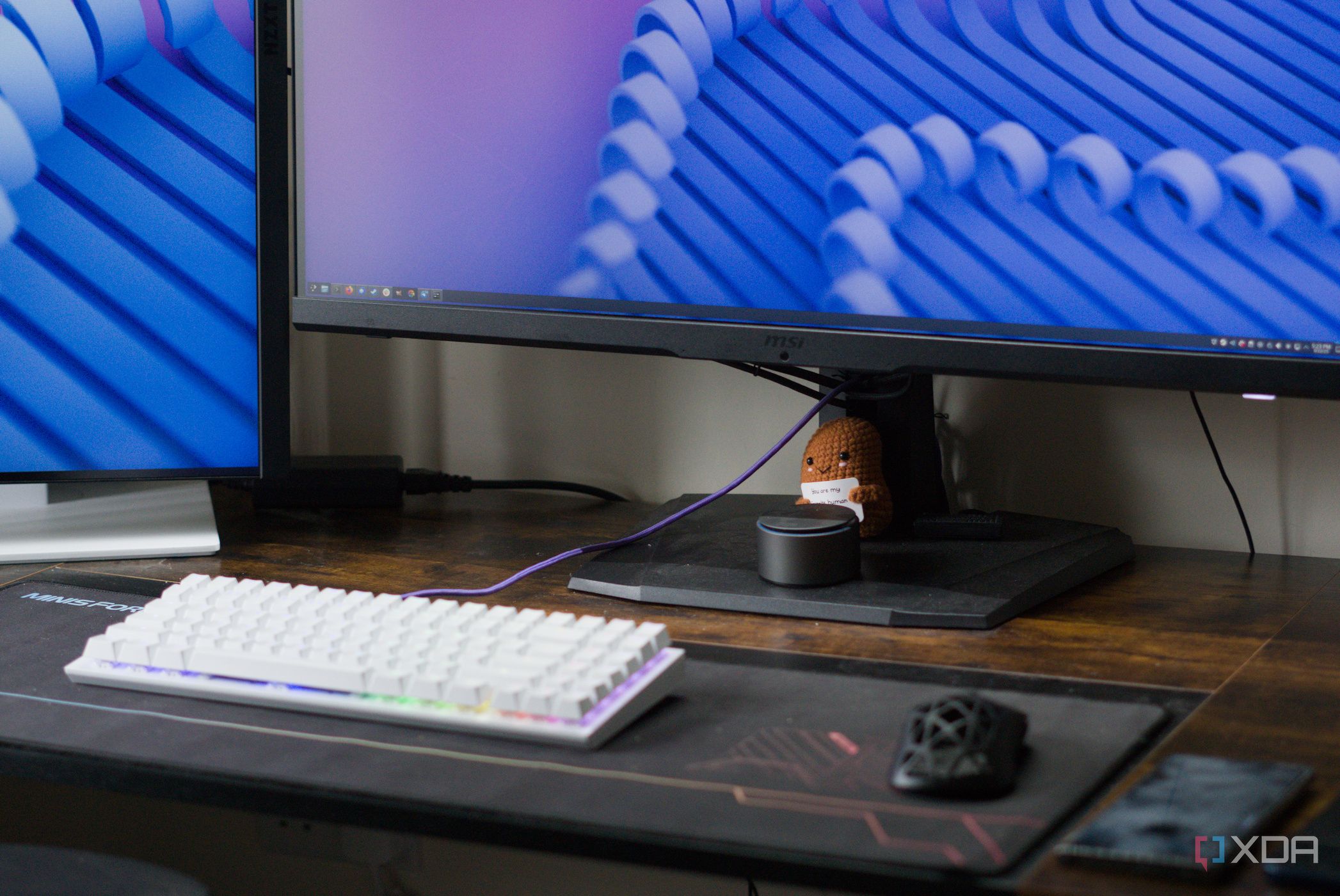

Is Your Monitor’s Hidden Feature the Key to a Clutter-Free Desk?
Are you tired of the tangled mess of cables snaking across your desk, turning your workspace into a digital jungle? You’re not alone. Many PC users struggle with cable management, resorting to ties and clips to tame the chaos. But what if the solution was right in front of you, quite literally? The integrated monitor USB hub, often overlooked, offers a powerful and convenient way to declutter your desk and enhance your overall computing experience. This article explores how to leverage this often-underutilized feature for a cleaner, more efficient workspace.
Unlocking the Potential of Your Monitor USB Hub
The Overlooked Hub: Simplifying Your Connections
For years, the author directly connected peripherals to their PC, using cable ties as a last resort. The shift came with a desire for a cleaner workspace. The revelation? Using the monitor’s built-in USB hub was a game-changer. These hubs, typically found in productivity-focused or higher-end monitors, offer a central point for connecting devices, streamlining the cable management process.
Many users overlook this functionality, often setting up the monitor with just the necessary HDMI or DisplayPort connection and forgetting about the extra ports. However, connecting your mouse, keyboard, webcam, microphone, and other peripherals to the monitor drastically reduces the number of cables running directly to your PC, resulting in a significantly cleaner desk.
More Than Just a Display: Transforming Your Monitor into an I/O Gateway
Think of your monitor as more than just a display – it can function as an extension of your computer’s I/O (Input/Output) panel. Instead of reaching behind your PC to plug in a gamepad or swap out a device, you can easily access the ports on your monitor. This accessibility is especially useful for those with limited space or PCs tucked away in hard-to-reach locations.
This newfound convenience also impacts workflow. Quick access to peripherals streamlines daily tasks and makes swapping devices effortless. The author now considers monitors an integral part of their PC setup, acting as a convenient gateway to the system’s I/O.
USB-C Connectivity: The Ultimate Cable Clutter Solution
Many newer monitors with built-in USB hubs also feature USB-C connectivity. This single port can handle video, data, and even power delivery to a laptop or desktop, minimizing the number of cables needed between your devices. Imagine connecting your laptop to your monitor with a single cable that charges your device, displays the image, and connects all your peripherals simultaneously.
This simplifies the connection process and creates a visually appealing, clutter-free setup. This is particularly beneficial for users who frequently switch between a laptop and a desktop PC, as it allows for quick and easy transitions between devices.
Maximizing Your Monitor’s USB Hub: A Practical Guide
Identifying Your Monitor’s Capabilities
First, determine if your monitor actually has a built-in USB hub. Check the specifications in your monitor’s manual or look for USB ports on the back or side of the display. These ports are usually labeled and may include USB-A, USB-C, or a combination of both.
Connecting Your Monitor’s USB Hub
Once you’ve confirmed the presence of a hub, you’ll need to connect the monitor to your PC using a USB cable (usually USB-A to USB-B). This connection enables the hub to function as an extension of your computer’s USB ports. Typically, the necessary cable is included with the monitor.
Strategically Connecting Your Peripherals
Consider the types of devices you use most frequently and connect them to the monitor’s USB hub. Prioritize peripherals like your keyboard, mouse, webcam, microphone, and external storage devices. For devices that require higher bandwidth, such as external hard drives or high-performance audio interfaces, connecting them directly to the PC may be preferable to ensure optimal performance.
Cable Management Techniques
Even with a USB hub, some cable management is still necessary. Utilize cable ties, clips, or sleeves to bundle and organize the remaining cables. Use the monitor’s built-in cable routing features to neatly conceal the wires and create a visually clean setup.
Common Problems and Troubleshooting
- Device Not Recognized: Ensure the USB cable connecting the monitor to the PC is securely plugged in and functioning correctly. Try a different USB port on your PC.
- Slow Transfer Speeds: If you experience slow transfer speeds, especially with external storage devices, consider connecting them directly to the PC’s USB ports.
- Power Issues: Some monitors may not provide enough power to all connected devices. If you experience issues with devices not functioning correctly, try using a powered USB hub.
Is a Monitor with a USB Hub Worth It? The Pros and Cons
Here’s a breakdown of the advantages and disadvantages:
| Feature | Pros | Cons |
|---|---|---|
| Cable Management | Drastically reduces cable clutter, creating a cleaner workspace. | Still requires some cable management for the connection between the monitor and the PC. |
| Convenience | Provides easy access to USB ports for frequently used peripherals. | May not provide enough power for all connected devices. |
| Cost Savings | Eliminates the need to purchase a separate USB hub. | Monitors with USB hubs are typically more expensive than those without. |
| Functionality | Expands the functionality of the monitor, turning it into an I/O gateway. | USB hub functionality can be limited by the monitor’s design or the number of available ports. |
| USB-C options | single cable for video, data and power. Clean solution to reduce cables to bare minimum | Depending on the monitor, the USB-C output may be limited to certain outputs like 15W or 65W for laptops |
Monitor USB Hub: A Cost-Effective Solution
A quality USB hub can easily cost upwards of $100, depending on the number of ports, transfer speeds, and available connections. In contrast, the USB hub functionality within your monitor is essentially “free,” as it’s included as part of the display’s features. This makes it a cost-effective way to improve your desk setup and reduce cable clutter.
Furthermore, the author notes this discovery changed their perspective on monitors, recognizing them as more than just screens and seeing them as integral components of a PC setup.
Upgrade Your Setup Today
The benefits of using a monitor USB hub extend beyond just aesthetics. A cleaner workspace can positively impact your mental health, reduce distractions, and improve focus. A study published in the Journal of Environmental Psychology found that a cluttered environment can lead to increased stress and decreased productivity. By simplifying your connections and tidying up your desk, you can create a more conducive environment for work and play.
Conclusion: Embrace the Power of the Monitor USB Hub
Don’t overlook the potential of your monitor USB hub. It’s a simple yet powerful tool that can transform your cluttered desk into a clean and efficient workspace. By utilizing this often-underutilized feature, you can simplify your connections, improve accessibility, and enhance your overall computing experience. The author’s personal experience highlights the significant impact this small change can make, proving that sometimes the best solutions are the ones we often overlook.
So, before you spend money on external USB hubs or struggle with endless cable ties, take a closer look at your monitor. You might be surprised at the hidden functionality it offers.
What do you think? Have you utilized your monitor’s USB hub? Share your experiences and tips in the comments below!
Sources & Further Reading:
Original article at www.xda-developers.com


