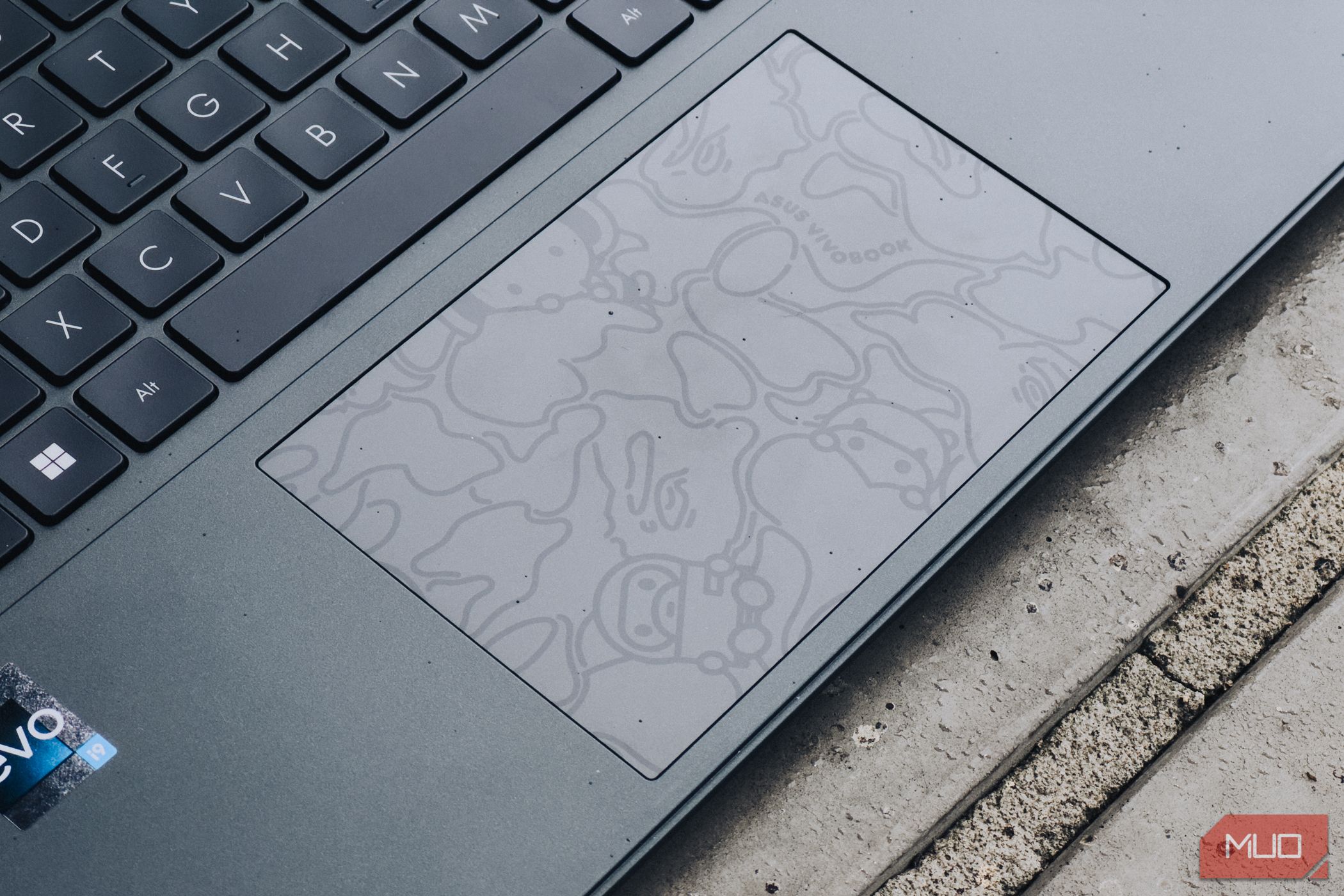

Unlock the Hidden Power of Your Laptop Touchpad: Mastering Windows Gestures
Did you know that your laptop’s touchpad is capable of so much more than just moving the cursor? It’s true! Many users only scratch the surface of what their touchpad can do. Learning to use touchpad gestures can dramatically improve your workflow and productivity on a Windows laptop. These gestures offer a quicker, more intuitive way to manage apps, control media, and navigate files, all without needing an external mouse. Let’s dive into how you can unlock the full potential of your laptop’s touchpad.
Maximizing Your Windows Laptop Touchpad Experience
Your laptop touchpad is a powerful tool hiding in plain sight. Beyond basic navigation, it provides a range of gestures that can significantly enhance your Windows experience. Understanding and utilizing these gestures can save time, improve efficiency, and even reduce strain on your hands.
Tap With Two Fingers to Right-Click on Windows
For years, we’ve been accustomed to dedicated right-click buttons on our mice. However, on a laptop, constantly moving your hand to the designated right-click area on the touchpad can be cumbersome. The two-finger tap offers a streamlined alternative.
Instead of hunting for that specific spot, simply tap anywhere on the touchpad with two fingers simultaneously. This instantly brings up the familiar right-click menu, offering options like copy, paste, delete, and rename. This gesture is especially useful if you find yourself frequently using the right-click function.
Furthermore, if you’re not a fan of the condensed Windows 11 right-click menu and often find yourself clicking “Show more options,” there’s a shortcut for that too! Holding down the Shift key while tapping with two fingers directly accesses the full, classic right-click menu. This can save you an extra click and streamline your workflow.
Tap Twice and Drag to Multi-Select Items
Selecting multiple files or blocks of text can be a tedious process, especially when using a touchpad. The traditional method of holding down the left-click button and dragging a finger can feel awkward and imprecise. Fortunately, there’s a smoother, more controlled gesture for multi-selecting.
To use it, tap twice on the touchpad. On the second tap, keep your finger pressed down and drag it across the screen. This gesture allows you to highlight multiple items, whether it’s a group of files in File Explorer, lines of text in a document, or cells in a spreadsheet. This is far more intuitive and precise compared to the click-and-drag method.
Alternative Selection Methods:
While the tap-twice-and-drag gesture is efficient, Windows offers other methods for selecting multiple files, depending on your specific needs:
- Shift + Click: Hold down the Shift key and click on the first file and then the last file in a group. Windows will automatically select everything in between, ideal for contiguous selections in long lists.
- Ctrl + Click: Hold down the Ctrl key and click on each individual file you want to select. This allows you to select non-adjacent files and create a custom selection. Click a selected file again to deselect it.
Two-Finger Swipe: Scrolling Made Easy
Laptops typically lack the scroll wheel found on traditional mice, but that doesn’t mean you’re stuck using those tiny scrollbars. The two-finger swipe gesture provides a natural and efficient way to scroll through documents, web pages, and spreadsheets.
Simply place two fingers on the touchpad and slide them up or down to scroll vertically. The scrolling speed is directly proportional to the speed of your finger movement.
For horizontal scrolling, such as when viewing a wide spreadsheet or a website with horizontal overflow, hold down the Shift key and use the same two-finger swipe gesture. Swiping up will scroll from left to right, and swiping down will scroll from right to left.
Customizing Scroll Direction:
If you find the default scrolling direction unnatural, you can easily reverse it. Navigate to Settings > Bluetooth & devices > Touchpad > Scroll & zoom. In the “Scrolling direction” dropdown menu, select your preferred option. This allows you to personalize your scrolling experience for optimal comfort.
Three-Finger Tap for Middle-Click Functionality
The middle-click button is often overlooked, but it’s a powerful tool for productivity. On a traditional mouse, pressing down on the scroll wheel activates the middle-click. Since touchpads don’t have scroll wheels, you need to configure a gesture to emulate this functionality.
To enable the three-finger tap for middle-click, go to Settings > Bluetooth & devices > Touchpad > Three-finger gestures. In the “Taps” dropdown menu, select “Middle mouse button.”
Once enabled, a simple three-finger tap on the touchpad will function as a middle-click. This opens up a range of possibilities:
- Web Browsers: Middle-click a link to open it in a new tab, or middle-click a tab’s title bar to close it quickly.
- File Explorer: Middle-click a folder to open it in a new tab, or middle-click a tab’s title bar to close it.
This gesture can significantly speed up your workflow, especially when working with multiple tabs and files.
Three-Finger Swipe: App Switching and Desktop Management
The three-finger swipe gesture offers intuitive ways to manage your open applications and quickly access your desktop.
- Horizontal Swipe (Left or Right): Swipe left or right with three fingers to switch between open applications. This is a faster and more intuitive alternative to the classic Alt + Tab shortcut. You can swipe once to jump to the next app, or swipe and hold to scroll through all open apps until you find the one you want.
- Vertical Swipe (Down): Swipe down with three fingers to minimize all open windows and reveal the desktop. This is equivalent to pressing Windows + D.
- Vertical Swipe (Up): Swipe up with three fingers to restore all minimized windows to their previous positions.
These gestures provide efficient methods for managing your workspace and navigating between applications.
Four-Finger Tap: Quick Access to the Notification Center
Staying on top of notifications is crucial, but constantly reaching for the notification icon can disrupt your workflow. The four-finger tap gesture provides instant access to the Windows Notification Center.
By default, a four-finger tap on the touchpad will open the Notification Center, allowing you to quickly view and manage your alerts.
Customizing the Four-Finger Tap:
You can customize this gesture to perform other actions. Navigate to Settings > Bluetooth & devices > Touchpad > Four-finger gestures and select your preferred action from the “Taps” dropdown menu. Options include opening the search bar, playing/pausing music, or disabling the gesture altogether.
Four-Finger Swipe: Media Control at Your Fingertips
The four-finger swipe gesture can also transform your touchpad into a convenient media remote.
- Vertical Swipe (Up): Increase the system volume.
- Vertical Swipe (Down): Decrease the system volume.
- Horizontal Swipe (Left): Go back to the previous track.
- Horizontal Swipe (Right): Skip to the next track.
These gestures allow you to control your music playback and adjust the volume without needing to switch to the media player application or use the volume keys.
Enabling Media Control:
If the four-finger swipe isn’t controlling your media, ensure it’s properly configured. Go to Settings > Bluetooth & devices > Touchpad > Four-finger gestures and verify that “Four-finger swipe” is set to “Control audio and volume.”
Customizing Touchpad Gestures to Suit Your Workflow
The beauty of Windows touchpad gestures lies in their customizability. If the default configurations don’t perfectly align with your workflow, you can easily adjust them to your liking.
Go to Settings > Bluetooth & devices > Touchpad. Here, you can disable gestures you rarely use by unchecking the boxes in the “Taps” and “Scroll & zoom” sections. For more advanced customization, head to the “Advanced gestures” section.
This menu provides granular control over three- and four-finger gestures. You can configure these gestures to perform a variety of actions, such as:
- Navigate forward or backward in your browser.
- Snap the active window to the left or right side of the screen.
- Minimize all apps except the one you’re currently working on.
Experiment with different configurations to find the setup that best complements your workflow and maximizes your productivity.
Conclusion: Unleash the Power of Your Touchpad
Your laptop’s touchpad is a versatile tool packed with hidden potential. By mastering these touchpad gestures, you can transform your laptop navigation and control experience. From two-finger scrolling and right-clicking to three- and four-finger swipes for app management, media control, and notification access, these gestures offer a quicker, more intuitive, and efficient way to interact with your Windows laptop. So, take some time to explore these gestures, customize them to your liking, and unlock the full power of your touchpad!
What are your favorite touchpad gestures? Which ones do you find most useful? Share your thoughts and tips in the comments below!
Sources & Further Reading:
Original article at www.makeuseof.com


