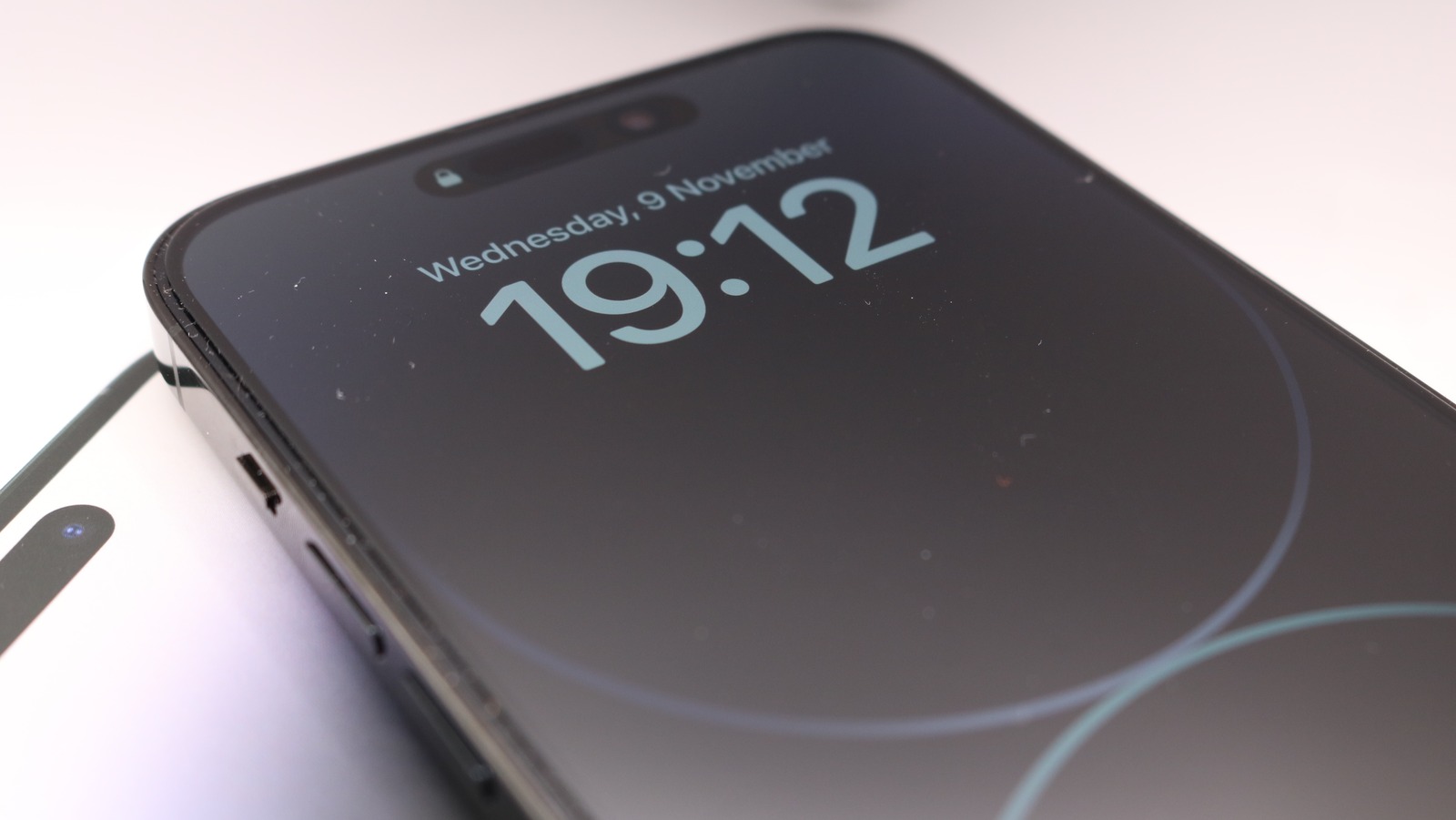

# **Does Always-On Display Drain Your Battery? The Truth & How too Save Power**
Ever peeked at your phone just to check the time or see if you’ve missed anything—without even touching it? That’s the magic of **Always-On Display (AOD)**. But here’s what everyone wonders: *Is this feature secretly killing your battery life?*
The truth: **AOD does use extra power, but the impact isn’t as drastic as you might think.** With a few tweaks, you can enjoy its convenience without sacrificing battery longevity.Let’s break down how AOD works, its real-world battery drain, and actionable ways to minimize its effect.
## **What Is an Always-On Display (AOD)?**
An always-on display keeps key information—like the time,date,notifications,or weather—visible even when your screen is “off.” Instead of lighting up every pixel (which would guzzle power), AOD only activates a small portion of the screen. This works best on **OLED/AMOLED displays**,where black pixels stay completely off while others glow independently.
Manufacturers optimize AOD software for efficiency, but no feature is truly “free” when it comes to battery life. so how much juice does it actually consume?
### **How Much Battery Does AOD Really Use?**
While AOD uses far less energy than fully waking your screen repeatedly, it still draws power continuously. The exact drain depends on:
– **Screen type:** OLED/AMOLED screens are more efficient than LCDs (which require constant backlighting).
– **Brightness:** Higher brightness = faster drain.
– **Content shown:** Static clocks use less power than animations or frequent notification updates.
– **Phone model:** Some brands optimize AOD better than others for minimal impact.
On average:
– 🔋 OLED phones lose about *0.5%–1% per hour* with AOD enabled.*
– 🔋 LCD phones may see slightly higher drain (*1%–2% per hour*) due to backlighting.*
(*Results vary based on usage and settings.)
## 5 Smart Ways to Reduce Always-On Display Battery Drain ⚡
Love AOD but want longer battery life? Try these optimizations:
✅ **Use a static clock design** instead of live wallpapers or animations (simpler = less power).✅ Enable dark mode or black backgrounds (**critical for OLED screens**, where black pixels turn off entirely).
✅ Schedule AOD during active hours only (turn it off overnight via settings).
✅ Limit notifications displayed—show only priority alerts rather than every social media ping!
✅ Lower brightness if possible (some phones let you adjust lock-screen brightness separately).
Pro Tip: Pair these tweaks with other [battery-saving strategies](https://techkyskills.com/the-pros-and-cons-of-wireless-charging/) like adaptive charging for even better results!
## Should you Keep Always-On Display On or Off? 🤔
It depends on your priorities! If you need every last drop of battery (*e.g., during travel or emergencies*), disabling AOD can help slightly extend usage time.** But if convenience matters more—and your phone has solid optimization—keeping it enabled won’t cripple daily performance.** Most modern devices handle this feature efficiently enough that casual users won’t notice major differences.**
### Final Verdict: Is Always-On Display Worth It? ✅🔋
Yes! While always-on displays do consume extra energy,** they’re far more efficient than constantly waking your full screen throughout the day.** With smart adjustments like scheduling,** minimizing dynamic elements,** and leveraging OLED advantages,** you can enjoy this handy feature without major compromises in endurance.*
💬 *Do YOU keep always-on display enabled,* *or do you disable it for extra juice? Share your thoughts in the comments below!*# **Does Always-On Display Drain Your Battery? Smart Tips to Minimize Power Loss**
Your phone’s **Always-On Display (AOD)** is a game-changer for convenience—showing the time, notifications, and battery status at a glance. But does this feature silently eat away at your battery life? The short answer: **yes**. However, with the right optimizations, you can enjoy AOD without sacrificing too much endurance.
## **How Much Battery Does Always-on Display Really Use?**
tests by [DXOMARK](https://www.dxomark.com/always-on-display-how-does-it-affect-battery-life/) reveal that AOD can slash standby time dramatically—sometimes up to **four times faster**. Here’s how top smartphones compare:
– **Google pixel 7 pro**: Lasted **367 hours** on standby with AOD off vs. just **139 hours** with it enabled.
– **iPhone 14 Pro**: Dropped from an impressive **466 hours** (AOD off) to a mere *122 hours* (AOD on).- Flagships like the *Samsung Galaxy S23 Ultra* and *Xiaomi 13 Pro* showed similar declines in battery longevity.
### Why Such a Big Difference?
OLED screens (common in premium phones) only light up active pixels, making them more efficient than LCDs. Still, even minor power draw adds up over time—especially if brightness is high or unnecessary widgets refresh constantly.
—
## 🔋 **[H2] 3 Smart Ways to Reduce AOD Battery Drain Without turning it Off**
Love AOD but hate frequent charging? Try these expert-backed tweaks:
### ✅ **[H3] Optimize Brightness & Refresh Rate for Efficiency**
– Lower brightness substantially cuts power use (*Settings > Display > Always-On Display*). Enable “dimmed mode” if available (*e.g., Samsung’s “Show for new notifications” option*).
– Use adaptive refresh rates instead of fixed high rates (*120Hz drains more than 60Hz*). Some Android skins even offer ultra-efficient minimalist modes showing only basic info.
### ✅ **[H3] limit Lock Screen Clutter for Better Efficiency**
Customize what appears in AOD mode:
– Show only essentials like clock/date (*skip weather updates or media controls*).
– Disable widgets that constantly refresh (*e.g., fitness stats or news tickers*)—Samsung’s *Good Lock* app allows deeper customization here!
### ✅ **[H3] Schedule When Your AOD turns On/Off automatically**
Rather of running nonstop:
– Set activation windows (*e.g., enable only from 8 AM–10 PM via Settings > display > always On*)
– Use motion detection so it wakes just when you pick up your phone (**iPhone users:** “Tap to Wake” works similarly!)
—
## ⚖️ **[H2] Is Always-On Display Worth the Battery Tradeoff? The Verdict**
If every drop of battery matters (**like during travel or long workdays**) disabling AOD can squeeze out extra standby hours—especially on older devices.** but if convenience tops efficiency**, strategic adjustments let you keep glanceable info without drastic drain.> 💡 *Pro Tip:* Dark-themed clocks/wallpapers consume less power on OLED screens than radiant designs!
—
## 💬 **[CTA]** What’s Your Take—Battery Life or Convenience?
Do you keep AOD enabled despite its impact? Share your hacks below! And if this guide helped, pass it along to friends battling battery woes too! 🚀# **Does Always-On Display Drain Your Battery? Here’s the truth**
Ever glanced at your phone just to check the time or notifications without unlocking it? That’s the magic of **Always-On Display (AOD)**—a feature that keeps key info visible while your screen is locked. But here’s the burning question: *Does AOD secretly suck up your battery life?* Let’s dive into how it works, its real-world impact, and whether you should keep it on or off.
## **How Always-On Display Works (And Why It Matters for Battery Life)**
Unlike older LCD screens that light up entirely, modern **OLED/AMOLED displays** power only the pixels they need—making AOD far more efficient. Here’s what happens behind the scenes:
– 🔋 **Low-power mode**: The refresh rate drops to as low as 1Hz when idle.
– 🌙 **Smart sensors**: Many phones disable AOD in dark environments (like your pocket).
– ⚡️ **Minimalist design**: Showing just the clock/notifications avoids unnecessary pixel use.
Still, not all AOD implementations are equal. Some brands optimize better than others—let’s explore how to tweak yours for max efficiency.—
## **How Much Battery Does AOD *Really* Use?**
Tests reveal that AOD typically drains:
– 📉 **0.5%–2% per hour** on OLED phones (e.g., iPhone 14 Pro, Samsung Galaxy S23).
– 📈 Up to **3%–4% per hour** on older LCD models (if they even support AOD).
### Estimated Daily Drain:
| Scenario | Battery Impact Over 24 Hours |
|———-|—————————–|
| 🔹 OLED with AOD | ~5–15% |
| 🔹 LCD with AOD | ~10–20%+ *(rare nowadays)* |
| 🔹 No AOD | <1% difference |
*Pro Tip:* Dark mode and scheduled hours can slash these numbers further!
---
## How to Optimize Always-On Display for Longer Battery Life
### 🍏 For iPhone Users (iOS 16+)
1️⃣ *Disable Wallpaper on AoD:*
- go to Settings > Display & Brightness > Always On Display > Toggle off *Show Wallpaper*.
– This keeps a black background, saving extra power.
2️⃣ *Automate with Focus Modes:*
– Set Sleep/Work focus modes to disable AoD during downtime automatically.
– Use Shortcuts app automations (e.g., turn off AoD when charging overnight).
### 🤖 For Android Phones *(Settings vary by brand)*
#### 📱 Samsung Galaxy Devices:
– Navigate to Settings > Lock Screen > Always On Display → Choose “Tap to show” or set a schedule rather of always-on mode.
– Disable features like *Show Music Info* if you don’t need them.
#### 🟢 Google Pixel Phones:
– Head into Settings > Display > Lock Screen → Toggle off “Always show time and info.”
– Opt for lift-to-wake gestures instead.
—
## ⚡️ Bonus Power-Saving Hacks
✔️ Enable dark mode – Reduces pixel energy use by up to 60%. ✔️ Schedule AoD – Only activate during daytime hours via settings.
✔️ Pair with battery saver – Most phones disable AoD in low-power mode.
—
## Final Verdict: Is It Worth Keeping?
AoD offers undeniable convenience but isn’t free—it trades ~10% daily battery for instant access to info.If you’re a heavy user already struggling with battery life,turning it off helps.But if you charge nightly and love glancing at notifications,the drain is negligible after optimization.💬 What’s your take? Do you keep AoD enabled or disabled? Share your tips below! And if this guide helped,send itto a friend who checks thier phone too frequently enough 😉🔋# **Does always-On Display Drain Battery? Smart Ways to Reduce Its Impact**
Always-On Display (AOD) is a nifty smartphone feature that lets you check the time, notifications, and other key details without unlocking your device. but does it come at the cost of battery life? The answer is yes—though the drain isn’t as severe as many assume. If you’re looking to strike a balance between convenience and battery efficiency, here’s how to optimize AOD settings for minimal power consumption.
## **How Much Battery Does Always-On Display Use?**
AOD does consume power as it keeps part of your screen active. Though, on modern OLED or AMOLED screens (found in most premium phones), only essential pixels light up, reducing energy usage significantly. On average, AOD drains about **1-2% per hour**, meaning tweaks can definitely help extend battery life further without disabling it entirely.### **1. Choose a Dark or Minimalist AOD Design**
As OLED screens turn off black pixels completely:
– Opt for **dark backgrounds**—they use almost no power.- Avoid flashy animations or complex graphics that increase energy draw.
### **2.Set a Custom Schedule for AOD**
Why keep the display on when you don’t need it? Most phones allow scheduling:
– Turn off overnight (e.g., 11 PM–7 AM).
– Disable during work hours if unnecessary (e.g., 9 AM–5 PM).
### **3.Remove Unnecessary Elements from AOD**
Streamline what appears on your always-on screen:
– Disable frequent notification previews (check them manually instead).
– Skip dynamic wallpapers or excessive animations that drain extra power.
### **4.Use Power-Saving Modes Wisely**
Many smartphones automatically simplify AOD in battery saver mode, dimming brightness or removing non-critical elements while keeping basic info visible.
## **Should You Keep Always-On Display Enabled?**
For most users with OLED phones, the slight battery trade-off is worth the convenience—especially with optimized settings like those above.If every percentage matters,turning off AOD helps,but try these adjustments first!
What’s your experience with Always-On Display? do you keep it running 24/7 or prefer disabling it for extra battery life? Share your thoughts below!
—
*Author:* [Your Name] | *Published:* [Date] | *Category:* Smartphone Optimization# **Does Always-On Display drain Battery? The Truth Revealed**
Love the convenience of checking your phone’s time and notifications without unlocking it? Always-On Display (AOD) is a game-changer—but does it come at the cost of battery life? Let’s dive into how AOD impacts your device’s power and whether the trade-off is worth it.
## **How Does Always-On Display Affect Battery Life?**
The short answer: **Yes, AOD does consume battery**, but not as much as you might think. Thanks to modern OLED displays and smart optimizations, the drain is minimal—yet still noticeable over time. Here’s what influences AOD battery consumption:
### **1. Display Technology Matters**
– **OLED Screens:** More efficient as they only light up necessary pixels (perfect for AOD).
– **LCD Screens:** Less efficient because the entire backlight stays on, increasing power usage.
### **2. Brightness & content Play a Role**
– Higher brightness = more battery drain.
– Frequent notifications or animations increase power consumption slightly.
### **3.Software Optimization Helps**
Brands like Samsung and apple fine-tune their AOD settings to minimize battery impact, making it smarter than ever before.### **4. Refresh Rate Can Make a Difference**
Phones with higher refresh rates may experience slightly faster drain when using AOD continuously ([learn more about high-refresh-rate displays](https://techkyskills.com/heres-when-the-redmi-a5-4g-is-launching-in-india/)).
On average, AOD consumes around **0.5% to 1.5% per hour**, meaning you could lose about 5–15% of your total daily battery life with it enabled—a small price for added convenience!
## **how to Reduce Always-On display Battery Drain**
if every percentage matters to you, try these tips:
✅ **Use a Dark or Minimalist Design** – Fewer lit pixels = less power used (check out [how dark mode helps save energy](https://techkyskills.com/love-darkish-mode-on-your-iphone-examine-out-these-hidden-settings/)).
✅ **Schedule It Wisely** – Enable only during waking hours instead of 24/7 use.
✅ **Limit Notifications** – Fewer updates mean fewer screen refreshes and lower drain!
✅ Lower Brightness – Dimming your display helps conserve energy significantly!
❌ Turn It off When Unnecessary – Disable in low-power mode or when charging overnight!
## Final Verdict: Is Always-On Display Worth It?
While there’s no denying that *Always-On Display uses some battery*, its impact is minor compared to its benefits—quick access to info without unlocking your phone makes daily use smoother! If maximizing endurance is critical (like on long trips), disabling or scheduling AOD can help extend runtime significantly otherwise most users won’t notice major differences anyway…
So what do YOU think—do YOU keep yours enabled OR prefer turning off completely?! Drop YOUR thoughts below AND share any extra tips we missed!! 🚀
# **Does Always-On Display Drain Your Phone’s Battery?**
## **Introduction**
The always-On Display (AOD) is a popular feature in modern smartphones that allows users to view essential facts—such as the time, date, notifications, and battery status—without fully waking the device. While convenient, many users wonder whether AOD significantly impacts battery life. this article explores how AOD works, its effect on battery consumption, and ways to optimize its usage.
## **How Always-On Display Works**
AOD keeps a portion of the screen illuminated at all times, using low-power display technologies such as OLED or AMOLED. Unlike customary LCD screens, which require a backlight for the entire display, OLED panels only light up the necessary pixels, reducing power consumption.
Key aspects of AOD operation include:
– **Low refresh rate:** AOD typically refreshes at 1Hz (once per second) to minimize power usage.
– **Limited brightness:** The display dims significantly to conserve energy.
– **Selective pixel activation:** Only essential pixels (e.g., clock, notifications) remain lit.
## **Battery Consumption: How Much Does AOD Drain?**
While AOD is designed to be energy-efficient,it still consumes battery power. The exact drain depends on several factors:
1. **Display Technology:**
– **OLED/AMOLED:** Consumes less power (~0.8% to 1.5% per hour).
– **LCD:** Rarely supports AOD due to higher power demands.
2.**Brightness & Customization:**
– Brighter AOD settings increase battery drain.
– Animated or interactive AOD features (e.g., moving wallpapers) use more power.
3. **Usage Patterns:**
– If the phone is frequently in use, AOD’s impact is minimal.
– If left idle for long periods, AOD can contribute to noticeable battery drain.
### **Estimated Battery Impact**
| Scenario | Estimated Battery Drain per Hour |
|———-|——————————–|
| **Basic AOD (OLED, static clock)** | 0.8% – 1.2% |
| **AOD with Notifications** | 1% – 1.5% |
| **AOD with Animations** | 1.5% – 2.5% |
Over a full day, AOD may consume **5% to 15%** of battery life, depending on settings.
## **How to Reduce AOD Battery Drain**
To minimize battery consumption while keeping AOD enabled:
1. **Use a Dark or Minimalist AOD design** – Fewer lit pixels reduce power usage.
2. **Disable unneeded Features** – Turn off animations or frequent updates.
3. **Schedule AOD** – Some phones allow AOD to turn off during sleep hours.
4. **Lower Brightness** – Adjust AOD brightness to the lowest agreeable level.
5. **Enable Power Saving Mode** – Some devices disable AOD in battery saver mode.
## **Conclusion**
Always-On Display does consume battery power, but its impact is relatively modest on OLED-equipped smartphones.With proper optimization, users can enjoy the convenience of AOD without significantly sacrificing battery life. For those concerned about battery longevity, scheduling AOD or using a minimalist design can help strike a balance between functionality and efficiency.
Would you keep AOD enabled, or do you prefer turning it off to save battery? Let us know in the comments!
—
*This article is for informational purposes only. Battery performance may vary based on device model and usage habits.*


