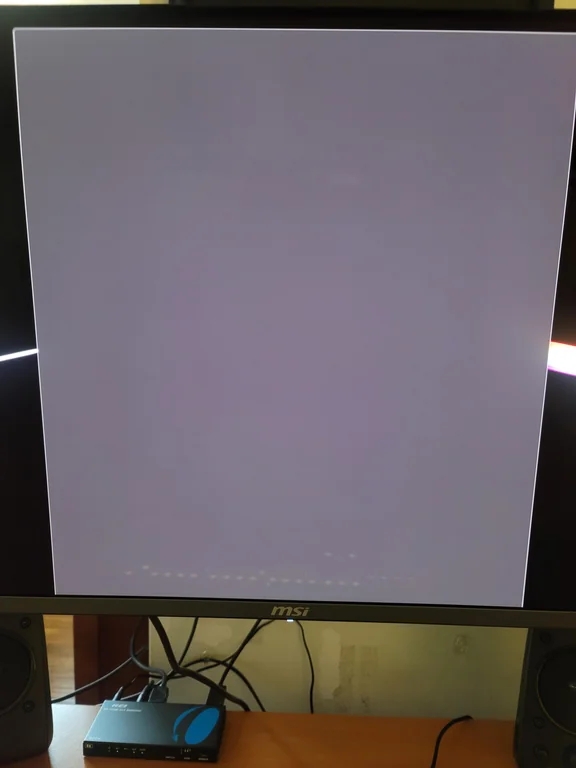

Is Your Chrome Browser Showing a Gray Screen? Here’s How to Fix It
Have you ever opened Google Chrome only to be greeted by a blank, gray screen? You’re not alone. The recent Chrome 139 update, while intended to improve browsing, seems to have introduced a frustrating glitch for some users. This article will delve into the causes of this Chrome gray screen issue and provide a step-by-step guide to quickly resolving it, so you can get back to browsing.
Understanding the Google Chrome Gray Screen Issue
The dreaded Chrome gray screen (or sometimes white or black) manifests as a complete lack of user interface elements upon launching the browser. No address bar, no tabs, no settings – just a blank void. This can be incredibly disruptive, especially if you rely on Chrome for work or daily tasks.
Identifying the Affected Versions
This problem appears to primarily affect users running versions 139.0.7258.66 and 139.0.7258.67 of Google Chrome. While not everyone with these versions will experience the issue, the number of reports suggests it’s a widespread problem.
- Version 139.0.7258.66: First released on July 31st, potentially containing the initial bug.
- Version 139.0.7258.67: Released shortly after, continuing to exhibit the gray screen problem.
Potential Cause: OpenGL Compatibility and Hardware Acceleration
The root cause of this issue appears to be a compatibility problem with OpenGL, a cross-language, cross-platform API for rendering 2D and 3D vector graphics. The Chrome update may have inadvertently broken or altered the way it interacts with OpenGL on certain systems.
This disruption seems to trigger when the browser attempts to utilize hardware acceleration, a feature that offloads graphics processing from the CPU to the GPU (Graphics Processing Unit) for smoother performance. When OpenGL compatibility is compromised, hardware acceleration can fail, resulting in the gray screen. This is why disabling hardware acceleration, as we’ll see in the fix, often resolves the problem.
Hardware acceleration is a crucial component of modern browsers, enabling features such as:
- Smooth scrolling: GPU processing enables smoother transitions when scrolling through webpages.
- Video playback: GPUs are optimized for video decoding and rendering, reducing CPU load and improving video quality.
- Web gaming: GPU acceleration is essential for running demanding web-based games smoothly.
Is it Affecting You?
If you are encountering a blank gray, white, or black screen when opening Chrome, and you are running version 139.0.7258.66 or 139.0.7258.67, then this fix is most likely for you. But how do you find out what version of Chrome you are running?
- Open Chrome (if you can get it to open properly, otherwise, use a different browser for these steps)
- Click the three dots at the top right of the screen
- Hover over “Help”
- Click “About Google Chrome”
- This page will display the version you are using and automatically check for updates.
Step-by-Step Guide: How to Fix the Chrome Gray Screen Error
Fortunately, fixing the Google Chrome gray screen error doesn’t require a complete reinstallation. The solution involves temporarily disabling hardware acceleration and adjusting a specific Chrome flag. This fix is currently confirmed to work for Windows users.
Here’s a detailed breakdown of the steps:
-
Modify the Chrome Shortcut:
-
Right-click on your Chrome desktop shortcut. If you don’t have one, create a shortcut from the Chrome executable (typically located at
C:\Program Files\Google\Chrome\Application\chrome.exe). -
Select “Properties.”
-
In the “Target” field, add the following command line argument at the very end:
--disable-gpu(Make sure there is a space between the existing path and the added command).- Example:
"C:\Program Files\Google\Chrome\Application\chrome.exe" --disable-gpu
- Example:
-
Click “Apply” and then “OK.”
What This Does: The
--disable-gpuflag tells Chrome to launch without using hardware acceleration. This bypasses the OpenGL compatibility issue, allowing the browser to open normally. -
-
Launch Chrome and Adjust the “use-angle” Flag:
- Open Chrome using the modified shortcut. It should now open correctly.
- In the address bar, type
chrome://flags/#use-angleand press Enter. - This will take you directly to the “Choose ANGLE graphics backend” flag.
- Set the dropdown value to “Default.”
What This Does: The ANGLE (Almost Native Graphics Layer Engine) flag controls which graphics backend Chrome uses for rendering. Setting it to “Default” allows Chrome to automatically choose the most compatible option for your system. Source: Chromium.org.
-
Remove the
--disable-gpuFlag:- Close Chrome.
- Right-click on the Chrome desktop shortcut again and select “Properties.”
- In the “Target” field, remove the
--disable-gpucommand you added in step 1. - Click “Apply” and then “OK.”
Why Remove It? While disabling the GPU allows chrome to run properly again, it is not the most efficient way of running chrome. Re-enabling it after setting the ANGLE flag back to default will allow Chrome to use the GPU but with the default ANGLE settings. This will hopefully let it run as intended.
-
Restart Chrome:
- Open Chrome using the regular shortcut. It should now open correctly with hardware acceleration enabled and the Chrome gray screen issue resolved.
Alternative Solutions and Troubleshooting
While the above steps should resolve the issue for most users, here are a few alternative approaches and troubleshooting tips:
- Clear Chrome’s Cache and Cookies: Corrupted cache or cookie data can sometimes cause rendering problems. Go to
chrome://settings/clearBrowserDatato clear your browsing data. - Update Your Graphics Drivers: Outdated or faulty graphics drivers can cause compatibility issues. Visit your GPU manufacturer’s website (Nvidia, AMD, Intel) to download and install the latest drivers.
- Create a New Chrome Profile: A corrupted user profile can also lead to rendering errors. Create a new Chrome profile by going to
chrome://settings/manageProfileand see if the issue persists. - Roll Back to a Previous Chrome Version: As a last resort, you can try uninstalling the current version of Chrome and installing an older version. However, be aware that older versions may have security vulnerabilities.
Monitoring the Chromium Issue Tracker
A bug report has already been filed on the Chromium Issue Tracker. This is the official channel where Google developers track and address bugs in Chrome. You can follow the progress of the fix by searching for “Chrome gray screen” or similar keywords on the Chromium Issue Tracker website (link to Chromium Issue Tracker). Checking this can help stay up to date and get updates on whether or not the bug has been officially fixed.
Conclusion: Resolving the Chrome Gray Screen Issue
The Chrome gray screen issue can be a major inconvenience, but it’s usually fixable with a few simple steps. By temporarily disabling hardware acceleration, adjusting the ANGLE flag, and re-enabling acceleration, you can often restore your browser to normal functionality. Remember to keep your graphics drivers updated and monitor the Chromium Issue Tracker for official updates and solutions.
Have you encountered the Chrome gray screen problem? Did this guide help you resolve it? Share your experiences and questions in the comments below!
Sources & Further Reading:
Original article at www.ghacks.net


