
Level Up Your iPhone Texts: A Complete Guide to Sending GIFs
Tired of boring text messages? Did you know that using GIFs can significantly increase engagement and emotional expression in your conversations? Adding a GIF to your messages allows you to convey tone, humor, and personality in a way that simple text often can’t. This article provides a comprehensive guide on how to send GIFs on iPhone, making your communication more dynamic and engaging. We’ll explore various methods, from using the built-in Messages app features to leveraging third-party apps and even grabbing GIFs directly from the web.
Sending GIFs Directly From the Messages App
The simplest way to inject some fun into your iMessage conversations is by using the integrated GIF search within the Messages app itself. Apple provides a built-in #images app, making it incredibly convenient to find and send GIFs on iPhone.
Accessing the #images App
Here’s a step-by-step guide:
- Open the Messages app on your iPhone.
- Start a new message or select an existing conversation.
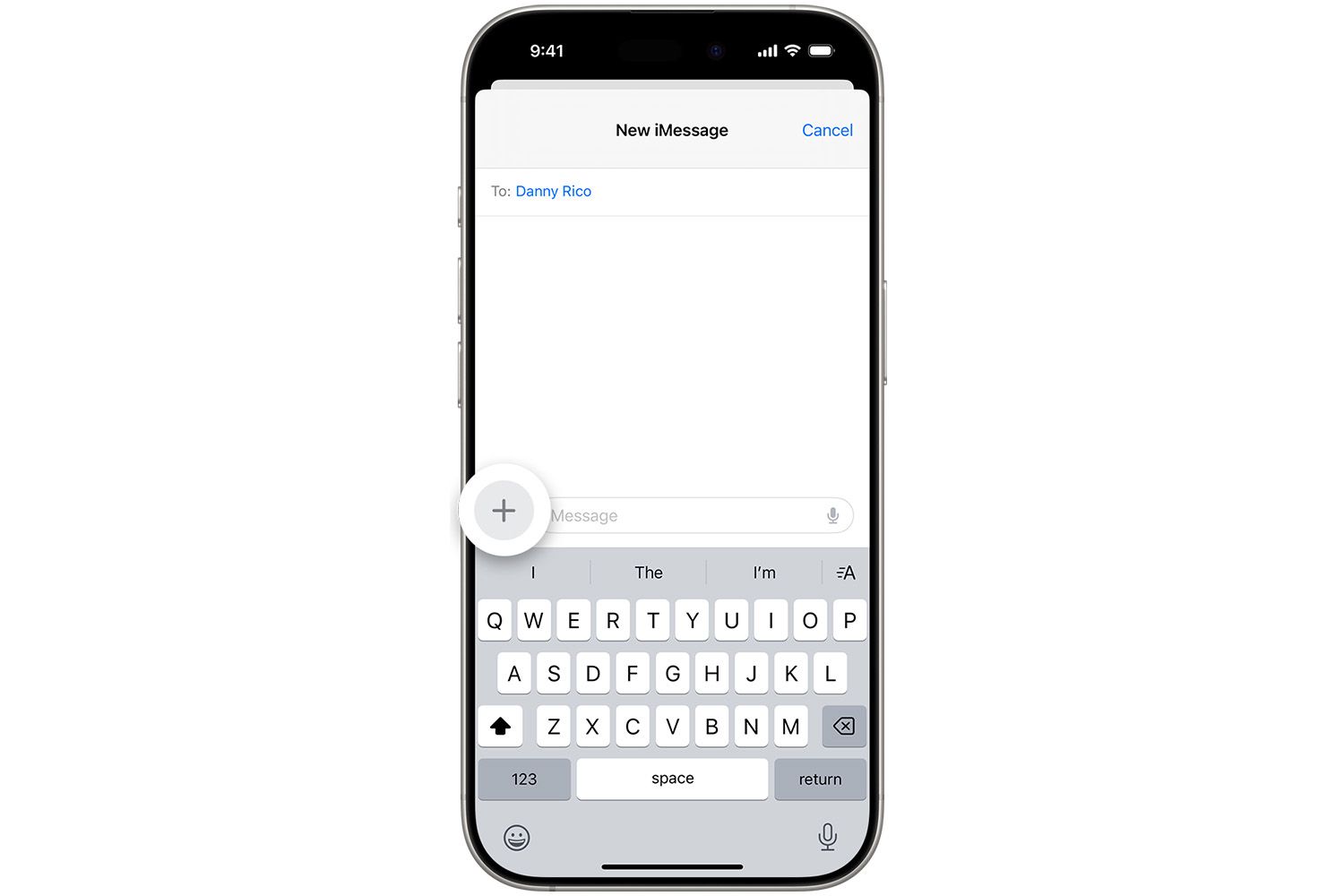
- Tap the “+” (Plus sign) located to the left of the text input field. This will bring up the iMessage app drawer.
- If you don’t see
#imagesimmediately, tap “More” and then select#imagesfrom the list. If you still don’t see it you may need to enable it in the “Manage” settings
Searching for the Perfect GIF
Once the #images app is open, you’ll see a selection of trending or recently used GIFs. To find something specific, use the search bar:
- Tap the “Find images” search field.
- Enter a keyword related to the GIF you’re looking for (e.g., “happy,” “excited,” “fail,” “eye roll”).
- Browse the search results and select the GIF that best fits your message.
Completing and Sending Your Message
After finding the perfect GIF:
- Tap the GIF to add it to your message. It will appear in the text field.
- Add any additional text you want to include with the GIF.
- Tap the send button (the blue arrow) to send your message.
Leveraging the GIPHY App for Messages
For an even wider selection of GIFs, consider downloading the GIPHY app for iMessage. GIPHY is the internet’s largest library of animated GIFs, and integrating it directly into your Messages app gives you access to a massive catalog.
- From within the Messages App Tap the + (Plus sign) located to the left of the text input field. This will bring up the iMessage app drawer.
- Tap “Store” This will open the Apple App store with the focus within iMessage apps.
- Search for the GIPHY iMessage App
- Download and Install the GIPHY App
Once installed, you can access GIPHY directly from the iMessage app drawer, providing a robust search interface and countless GIF options.
Adding GIFs Saved on Your iPhone
Sometimes, you might have a collection of GIFs saved on your iPhone from various sources. Fortunately, it’s easy to add these GIFs to your messages as well.
Accessing Your Photos Library within Messages
Here’s how to send GIFs on iPhone from your Photos app:
- Go to the message you want to add a GIF to.
- In the iMessage app toolbar (the same place where you found
#images), tap “Photos.” If it’s not there, tap the “+” icon to reveal it. - Select “All Photos” to view your entire photo library.
Locating and Inserting Your GIF
- Find the GIF you want to add. In iOS 11 and later, GIFs are conveniently located in an “Animated” folder under “Media Types.”
- Tap the GIF to select it.
- Tap “Done” to add the GIF to your message.
- Complete the message with any additional text and send it.
Sending GIFs From the Web
Do you have a favorite GIF website or use Google Images to find the perfect reaction GIF? You can easily add these GIFs to your iPhone messages by copying and pasting.
Finding the GIF Online
- Search Google Images or visit your favorite GIF website (e.g., GIPHY, Tenor).
- Find the GIF you want to use.
Copying the GIF
- Tap and hold the GIF to display a menu.
- Select “Copy.” In some cases, you might need to look for an option specifically labeled “Copy GIF” or “Copy Image Address.”
Important Note: Some websites may require you to save the GIF to your phone before you can copy it. Look for a “Download” or “Save Image” option if “Copy” isn’t available.
Pasting the GIF into Your Message
- Go to the message you want to add the GIF to.
- Tap the text-entry bar to bring up the keyboard.
- Tap and hold the text bar and select “Paste” to add the copied GIF to your message.
- Complete the message and send it.
Saving GIFs From the Web for Future Use
If you frequently use GIFs from the web, consider saving them to your Photos app for easier access in the future:
- Find the GIF online.
- Tap and hold the GIF.
- Select “Save to Photos.”
- The GIF will now be available in your Photos app, as described in the previous section.
GIF Management and Organization
As you start using GIFs more frequently, you might find it helpful to organize your collection.
Using Third-Party GIF Management Apps
Apps like GIFwrapped (mentioned in the original source) can help you manage and organize your GIFs. These apps often offer features like:
- Tagging and Categorizing: Easily sort and find GIFs based on keywords or themes.
- Cloud Storage: Backup and access your GIF library across multiple devices.
- Advanced Search: Powerful search functionality to quickly locate the perfect GIF.
While GIFwrapped is one option, many other GIF management apps are available on the App Store. Explore different apps to find one that suits your specific needs.
Tips for Effective GIF Usage
- Consider Your Audience: Make sure the GIFs you use are appropriate for the recipient and the context of the conversation.
- Don’t Overdo It: Using too many GIFs can be overwhelming and distracting.
- Use GIFs to Enhance, Not Replace, Text: GIFs should complement your message, not be the sole form of communication.
- Be Mindful of Data Usage: Sending and receiving GIFs can consume data, especially if you’re on a limited data plan.
Conclusion: Express Yourself with GIFs
Mastering the art of sending GIFs on your iPhone is a simple yet effective way to enhance your communication and add personality to your conversations. Whether you’re using the built-in #images app, saving GIFs from the web, or managing your collection with a third-party app, there are plenty of ways to send GIFs on iPhone. So go ahead, experiment with different GIFs, and discover how they can transform your text messages from mundane to memorable.
What are your favorite GIFs to use? Share your go-to reactions and GIF tips in the comments below!
Sources & Further Reading:
Original article at www.lifewire.com


