
The Windows Startup Survival Guide: From Safe Mode to USB Rescue
Introduction
What do Windows crashes, malware infestations, and mysterious boot failures have in common? They can transform your reliable PC into an expensive paperweight within seconds. With over 1.4 billion Windows devices worldwide (StatCounter, 2023), startup failures aren’t rare glitches—they’re inevitable. My own Windows 10 machine recently refused to boot, threatening my productivity and sanity. Instead of panicking, I deployed two essential Windows startup repair techniques: Safe Mode and a bootable USB recovery drive. These tools aren’t just tech jargon; they’re crucial lifelines when your system flatlines. Understanding them could save you hours of frustration and hundreds in repair bills. Let’s explore how to turn catastrophe into a quick fix.
Understanding Safe Mode: Your First Line of Defense
Windows Safe Mode is a diagnostic state that launches your OS with minimal drivers and services. By loading only critical components, it isolates software conflicts, driver issues, or malware that cause boot failures—much like an emergency room for your PC. Introduced in Windows 95, this decades-old tool remains vital even on Windows 11 due to its simplicity.
Why Safe Mode works when nothing else will:
- Conflict detection: Faulty drivers or startup apps crash standard boots but are disabled here.
- Malware evasion: Many viruses deactivate in Safe Mode, allowing removal.
- Resource efficiency: Uses minimal RAM/CPU, ideal for unstable systems.
Table: Safe Mode Variations & Uses
| Type | Key Features | Best For |
|———-|——————|————–|
| Safe Mode | Basic drivers only | Removing corrupt drivers/apps |
| Safe Mode w/ Networking | Adds internet access | Downloading fixes or cloud scans |
| Safe Mode w/ Command Prompt | Text-based interface | Advanced system repairs via commands |
Step-by-Step Guide: Booting into Safe Mode
Method 1: The Restart Shortcut (From Login/Locked Screen)
- Hold Shift and click Restart in the Start Menu or login screen.
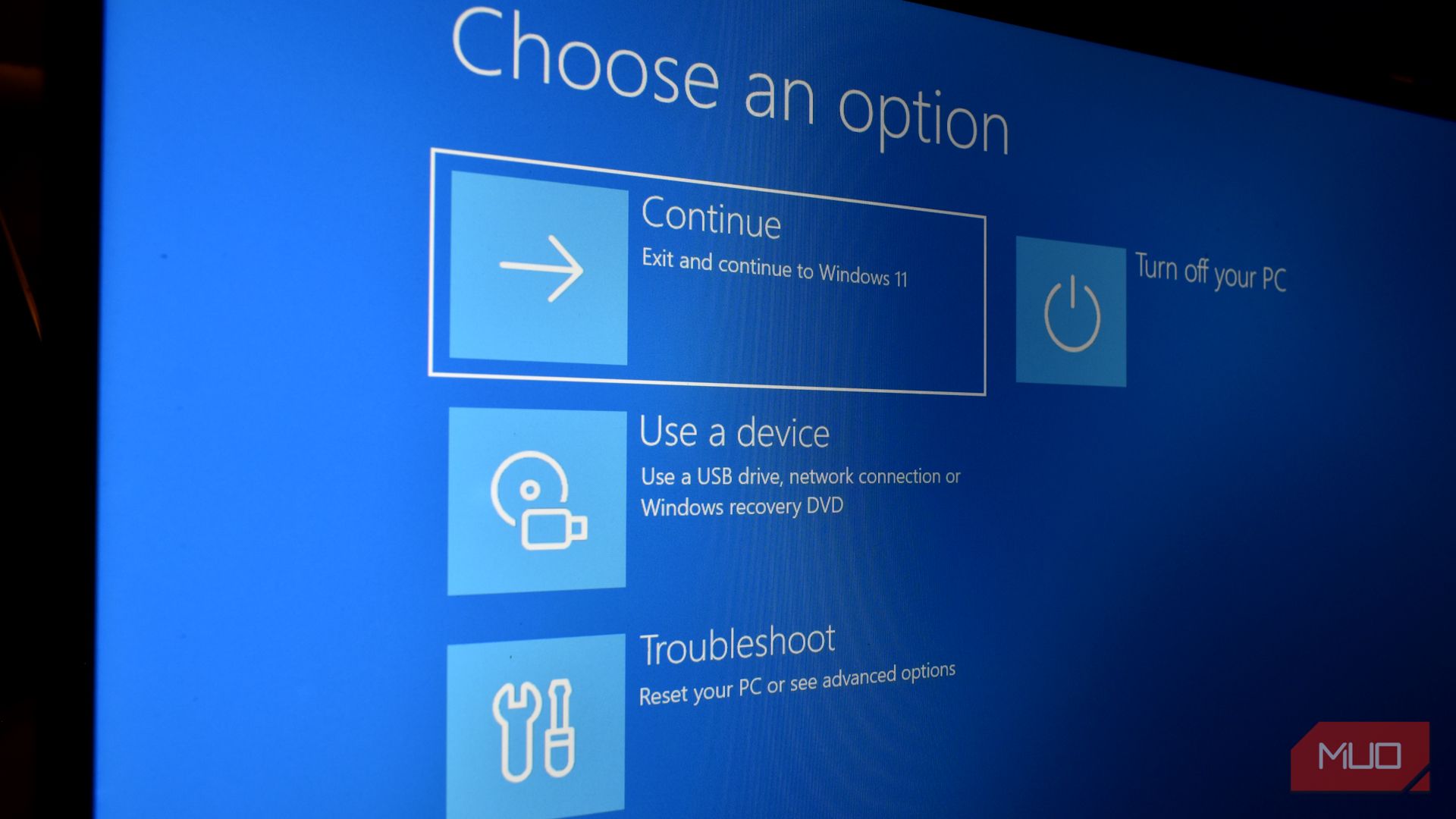
- After reboot, select: Troubleshoot → Advanced Options → Startup Settings.
- Press Restart, then choose Safe Mode or Safe Mode with Networking (F4/F5).
Pro Tip: Disable networking if malware is suspected to prevent spread.
Method 2: System Configuration (MSConfig)
- Press Win + R, type
msconfig, hit Enter. - Under the Boot tab:
- Check Safe boot
- Select Minimal (standard) or Network (for internet).
- Click OK → Restart.
Use this method if Windows boots partially but crashes under normal loads. Remember to uncheck Safe Boot in MSConfig afterward to avoid looping.
Beyond Safe Mode: The Bootable USB Savior
When Safe Mode fails—like after severe malware corruption or bootloader damage—a bootable USB recovery drive is your nuclear option. It bypasses damaged Windows installations completely, offering:
- Offline malware removal via pre-boot scanners. Ransomware like WannaCry (67% spike in 2023, SonicWall) often targets boot sequences.
- System file repairs using
sfc /scannoworDISM. - Full reinstalls without data loss (chosen wisely).
Creating a Bootable USB Drive: Preparation Beats Panic
- Download Microsoft’s Media Creation Tool.
- Choose “Create installation media for another PC”.
- Use a 8GB+ USB drive as the target (Note: Data is erased!).
Deploying Your USB Rescue Toolkit
-
Boot Prioritization:
- Insert USB → Restart.
- Mash BIOS/UEFI entry key (F2, Del, F12, varies per device).
- Under Boot Order, set USB as first device (see motherboard manual).
-
Critical Recovery Options:
- Startup Repair: Automatically fixes boot issues (40% success rate per Microsoft’s support stats).
- System Restore: Reverts settings to a working point.
- Command Prompt: For manual repairs via tools like chkdsk or bootrec.
For stubborn malware, bootable tools like Kaspersky Rescue Disk or Windows Defender Offline run scans without loading infected OS files.
Proactive Strategies: Avoiding Startup Disasters
- Build Recovery Media NOW – 43% of users lack recovery tools when failures strike (Backblaze Survey).
- Schedule Backups: Use Windows’ built-in File History or cloud services.
- Update Wisely: Defer major Windows updates if stability is key—test first.
- Monitor Hardware: 61% of boot issues originate from failing drives (Backblaze HDD Report 2023).
Critical Recovery Timeline:
| Symptom | Action | Tool Needed |
|————-|————|—————–|
| PC boots but crashes quickly | Safe Mode + app/driver removal | MSConfig |
| Login screen inaccessible | USB Recovery → Startup Repair | Bootable USB |
| BIOS splash screen absent | Hardware diagnostics | Hardware Diagnostic Kit |
When Nothing Works: Expert Insights
- Persistent BSODs may indicate RAM/SSD failure—run
Windows Memory Diagnostictool. - If UEFI firmware doesn’t detect your boot media, disable Secure Boot in BIOS.
- Cloud-based Windows 365 subscribers can stream PCs from any device, bypassing hardware failures (Microsoft Azure).
Conclusion
Mastering Safe Mode and bootable USB drives transforms you from a victim of Windows calamities into a savvy troubleshooter. These tools tackle everything from driver conflicts to apocalyptic malware infections, saving time, money, and your critical files. Yet preparation is non-negotiable—create that recovery USB today, before disasters strike. Empower yourself to diagnose flaws and enact fixes with confidence. Whether it’s a glitchy update or a ransomware invasion, your Windows startup toolkit is the ultimate safeguard.
What’s the worst Windows crash you’ve faced, and how did you recover? Share your stories below!
Sources & Further Reading:
Original article at www.makeuseof.com


