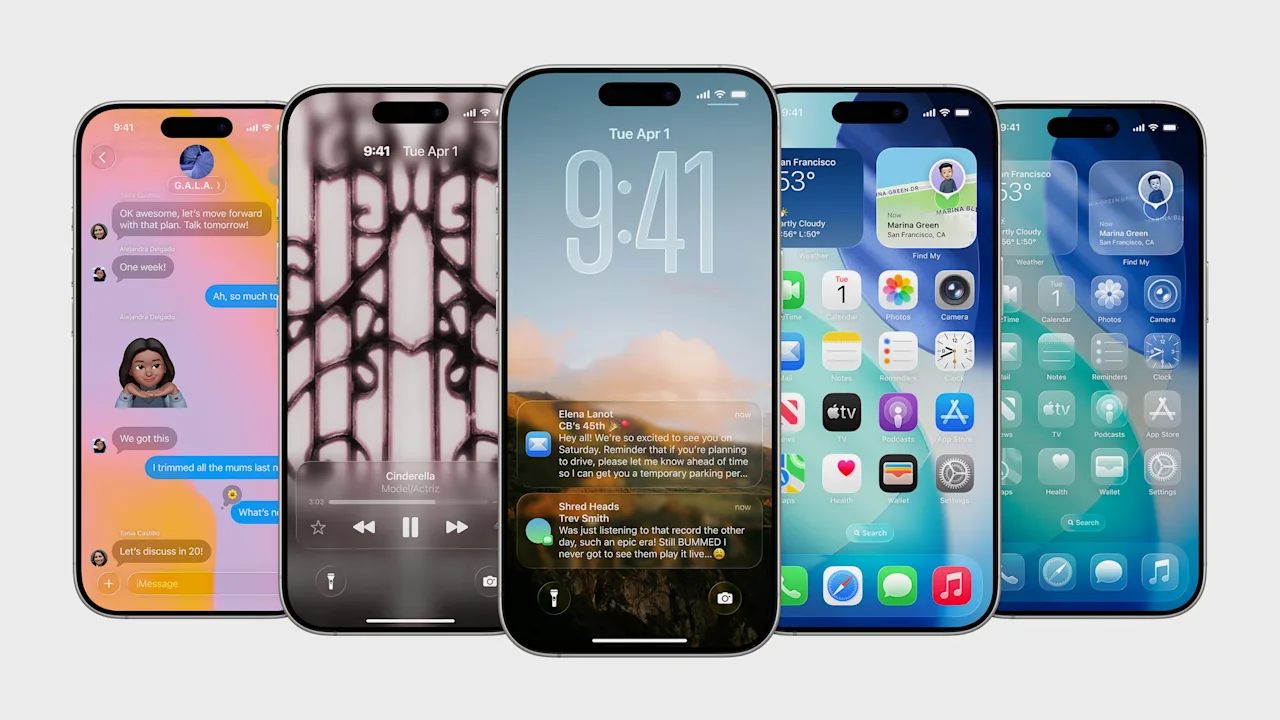

The Liquid Glass Revolution: Prepping Your iPhone for iOS 26’s Landmark Update
Is your iPhone ready for its most dramatic transformation in over ten years? Apple’s unveiling of iOS 26 marks a paradigm shift, replacing the familiar flat aesthetics with the fluid transparency of “Liquid Glass” and introducing powerful new AI tools, a transformed calling experience, a dedicated Games app, and substantial upgrades across Maps, Photos, Messages, and more. This isn’t just an update; it’s a complete reimagining of the iOS experience. Ensuring a seamless transition to iOS 26 is crucial, but excitement shouldn’t eclipse preparation. Before you dive into this sleek new world, several critical steps are essential to verify compatibility and safeguard your data. This guide equips you with everything you need to know to get your iPhone ready for Monday’s groundbreaking release.
Ensuring Your Device Makes the Cut: iOS 26 Compatibility
The first, non-negotiable step is confirming your iPhone can actually run iOS 26. Apple has cast a wide net in terms of device support – an impressive roster of over 30 models stretching back multiple generations. This commitment to supporting older hardware is commendable. However, the Liquid Glass interface and its computational demands come at a cost for the oldest devices still clinging to iOS 18.
- The Fallen Models: With iOS 26, support officially ends for the iPhone XS, iPhone XS Max, and iPhone XR. Released in fall 2018, these A12 Bionic-powered devices likely lack the sustained graphical processing muscle (GPU power) and potentially sufficient Neural Engine capabilities required to render the intricate transparency effects and animations of Liquid Glass smoothly. It’s a generational cut-off point driven by technological requirements, not artificial obsolescence.
- The Supported Fleet: If your iPhone launched in 2019 or later, you’re in luck. This includes every model from the iPhone 11 series onwards (including Pros, minis, and Plus variants), both the 2nd and 3rd generation iPhone SE, and even the anticipated iPhone 17 lineup scheduled later in the year.
- Important Caveat: While iOS 26 will install and run on all supported devices back to the iPhone 11 and iPhone SE (2nd gen), not all features are created equal. Apple Intelligence, the suite of advanced on-device and cloud-based AI capabilities, demands the power of the latest chips. Only iPhone 15 Pro models and the upcoming iPhone 17 series will unlock the full potential of these next-generation AI tools. Complex image generation, enhanced Siri functionality with contextual understanding, and certain deep system integrations require the neural processing prowess of the A17 Pro or newer silicon.
Apple’s iOS 26 Compatibility List:
| Device Line | Models | Notes |
| :———————- | :———————————————– | :———————————— |
| iPhone 17 (Future) | iPhone 17, 17 Air, 17 Pro, 17 Pro Max | Pre-installed |
| iPhone 16 (Future) | iPhone 16e, iPhone 16, 16 Plus, 16 Pro, 16 Pro Max | Pre-installed |
| iPhone 15 | iPhone 15, 15 Plus, 15 Pro, 15 Pro Max | Full OS, Apple Intelligence requires 15 Pro/Pro Max |
| iPhone 14 | iPhone 14, 14 Plus, 14 Pro, 14 Pro Max | Full OS, No Apple Intelligence |
| iPhone 13 | iPhone 13, 13 mini, 13 Pro, 13 Pro Max | Full OS, No Apple Intelligence |
| iPhone 12 | iPhone 12, 12 mini, 12 Pro, 12 Pro Max | Full OS, No Apple Intelligence |
| iPhone 11 | iPhone 11, 11 Pro, 11 Pro Max | Full OS, No Apple Intelligence |
| iPhone SE | iPhone SE (3rd gen), iPhone SE (2nd gen) | Full OS (check performance limitations) |
Laying the Foundation: Updating Before You Upgrade
Before initiating the leap to iOS 26, it’s highly advisable to ensure your iPhone is running the current latest version of iOS (iOS 18.6.2 at the time of writing). While debated among tech enthusiasts, the theory persists that upgrading incrementally – from the current OS build directly to the next major version – can lead to a more stable installation process and better data integrity preservation. Think of it as clearing the path before a major journey. It eliminates variables like lingering bugs or minor incompatibilities in older iOS versions that might interfere with the massive update package. Even if the advantage is marginal, the process is simple and risk-free.
How to Check and Update:
- Open the Settings app.
- Tap General.
- Tap Software Update.
- Your iPhone will check for available updates. If iOS 18.6.2 (or newer) is listed, tap Update Now. Follow the on-screen prompts.
Clearing the Decks: Tackling iPhone Storage
Major iOS updates aren’t small. The installer files alone for iOS 26, coupled with the space needed to unpack and install the new system, can demand a significant chunk of free storage – often 10GB or more, depending on your specific iPhone model. Attempting the upgrade without sufficient space is a guaranteed roadblock. Common culprits hogging storage include large apps (especially games), high-resolution photos and videos, accumulated messages with attachments, downloaded music, movies, and podcasts. Aggressively purging this digital clutter isn’t just about the update; it also provides a performance boost.
Strategies for Freeing Space:
- Offload Unused Apps: This clever feature (found under
Settings > General > iPhone Storage) removes the app but keeps its documents and data. Re-downloading it later restores everything. Perfect for space-heavy games you rarely play. - Review Photos & Videos: Use the built-in Photos review tools (“Review Personal Videos”, “Review Screenshots”) or manually delete blurry shots, duplicates, and unimportant recordings (Tools like Google Photos or iCloud Photos help manage cloud backups if storage is constantly tight).
- Clear Message History: Set messages older than 1 year to auto-delete (
Settings > Messages > Message History). Manually delete large media attachments within threads. - Manage Streaming Content: Delete downloaded movies, podcasts, or music you’ve already consumed.
- Utilize Storage Recommendations: Settings > General > iPhone Storage provides excellent insights. The “Recommendations” section offers one-tap options like optimizing photos, enabling iCloud Photos, offloading unused apps, and reviewing large attachments. It also displays apps sorted by storage consumption.
Prioritizing Deletions Officially Recommended by iOS
- Enable “Offload Unused Apps”
- Review Large Attachments (in Messages)
- Clear Safari Website Data
- Review Downloaded Videos (e.g., from streaming services)
Your Safety Net: Backing Up Your iPhone
This step is non-optional. While iOS upgrades are generally reliable, any major system overhaul carries a tiny inherent risk of data corruption or a failed installation. Backing up your iPhone is your insurance policy. If anything goes wrong during the iOS 26 install, you can erase the phone and restore it entirely from your backup, ensuring your photos, messages, app data, settings, and passwords come back intact. Apple offers multiple backup methods:
- iCloud Backup: The most convenient, wireless method.
- Requires sufficient iCloud storage space (paid tiers often necessary beyond 5GB).
- Turn on iCloud Backup (
Settings > [Your Name] > iCloud > iCloud Backup) and tap “Back Up Now”. Ensure Wi-Fi is connected. - Verify the backup completed successfully in
Settings > [Your Name] > iCloud > iCloud Backup– check the backup timestamp and size.
- Backup via Mac (Finder): Connect your iPhone to a Mac running macOS Catalina (10.15) or later.
- Open Finder, select your iPhone in the sidebar, choose “General”, then “Back up all of the data on your iPhone to this Mac”.
- Optionally encrypt the backup for sensitive data inclusion (passwords, Health data).
- Backup via PC (iTunes): Connect your iPhone to a PC with iTunes installed.
- Click the device icon, choose “Summary”, then “Back Up Now”.
- Also, enable “Encrypt local backup” for full security.
Why iCloud Backup Wins for Most Users (Despite Cost Considerations):
- Automatic: Can be set to back up daily when charging and on Wi-Fi.
- Accessible Anywhere: Restores are possible without needing your computer.
- Integrated: Seamless experience within the iOS ecosystem.
- Official Apple Guide: Apple provides comprehensive backup instructions for all methods on their Support website.
Embracing the New Era
Monday’s arrival of iOS 26 heralds a transformative moment for iPhone users, defined by the striking Liquid Glass aesthetic and potent new capabilities spanning AI-enhanced tools to dedicated gaming features. The journey into this revamped experience is exciting, but hinges on proper preparation. Confirming your device’s place on the compatibility list, ensuring it’s updated to the latest iOS version, freeing up ample storage space for the installer, and crucially, creating a reliable backup are indispensable steps. By taking these measures, you safeguard your data and pave the way for a smooth transition into one of the most significant iPhone operating system upgrades in recent memory. Liquid Glass isn’t just a visual change; it feels like the start of a new Apple Intelligence era – are you ready to explore it? What new feature are you most eager to try? Join the conversation below!


