
The Desktop Sync Trap: Why OneDrive Cost Me Productivity & How I Escaped
Have you ever expected your computer to pick up right where you left off after an upgrade, only to find critical files locked behind invisible barriers? Microsoft’s aggressive push to sync your entire desktop to OneDrive seems convenient but hides disruptive flaws that erode productivity. For many users—including myself—this feature transformed workflows into frustration campaigns. The pivotal moment arrived after a routine Windows reinstall. I signed into OneDrive, anticipating a seamless transition, but discovered my desktop was just a hollow shell. Icons appeared pristine, yet most files were inaccessible placeholders, forcing a digital scavenger hunt for essential documents. This epitomizes OneDrive’s fundamental problem: it doesn’t just mirror your files; it alters how your desktop functions, prioritizing cloud convenience over user control.
The Allure and Pitfalls of Desktop Syncing
Microsoft markets OneDrive desktop sync as a streamlined solution for accessibility. During Windows setup, it’s often enabled by default, creating a false sense of effortless continuity. However, this integration veers beyond backup functionality. By syncing the desktop, OneDrive establishes itself as an intermediary layer between you and your files. Windows now depends on OneDrive to render your workspace, injecting cloud-dependent behaviors into local computing. The consequences? Reinstalling Windows becomes a migraine-inducing ordeal. Desktop icons return as “ghost files”—visual proxies that lack actual content until manually downloaded. For professionals reliant on quick file access, this design flaw can derail deadlines, especially with slow or unstable internet.
Five Critical Flaws That Drove My Exodus
1. The Phantom Files Fiasco
After reinstalling Windows or migrating devices, OneDrive rebuilds your desktop using placeholder files. These deceptive icons mimic real documents but remain unusable until fully downloaded, a process requiring constant internet access. Even if you’d marked files “Always keep on this device,” resetting your PC deletes local copies. OneDrive then ignores prior preferences, forcing repetitive manual re-downloads. Imagine preparing for an offsite presentation only to find every file is a placeholder during setup—a scenario common among users with bandwidth constraints. This issue contradicts Microsoft’s own commitment to “seamless experiences,” as noted in their Files On-Demand documentation.
2. Visual Toxicity: Icons That Overwhelm
OneDrive stamps syncing statuses onto desktop icons via color-coded badges:
- Green checkmarks (synced)
- Blue circular arrows (syncing)
- Red X’s (errors)
While informative, this creates visual static—especially on busy desktops. Over time, the mental load compounds as users must constantly decode these symbols. Graphic designers, developers, and researchers with icon-heavy workspaces report heightened distraction and reduced efficiency. Unlike competitors (e.g., Dropbox’s minimalist toolbar alerts), OneDrive embeds this clutter directly into your workspace.
3. Duplication Debacles and Sync Conflicts
When editing files simultaneously across devices, OneDrive spawns duplicates labeled “YourFileName-PCName-Conflict.” Unlike version-control systems (e.g., Git) or Dropbox’s block-level syncing, OneDrive lacks intelligent merge capabilities. Instead, it floods your desktop with redundant copies, such as:
- Quarterly-Report-OfficePC-Conflict.docx
- Quarterly-Report-HomePC-Conflict.docx
This worsens with temp-happy apps like Photoshop or AutoCAD. Temporary save files trigger false “edits,” compounding duplicates. Cleaning these wastes hours monthly—a flaw highlighted in user complaints.
| Sync Conflict Handling Across Platforms |
|——————————————|——————————————|
| Service | Conflict Resolution Method |
| OneDrive | Creates duplicate conflict files |
| Dropbox | Smart merges; retains version history |
| Nextcloud | User-defined rules; manual/auto resolution|
4. Bandwidth Hijacking by Rogue Uploads
Drop a large video file onto your synced desktop? OneDrive instantly monopolizes upload bandwidth without throttling options. Critical tasks like video calls buffer endlessly while syncs crawl. Worse, files exceeding storage quotas (e.g., 100GB videos on a 5GB free plan) halt syncing silently—no warnings, just broken workflows. Users must manually pause syncs or face productivity paralysis. Comparatively, platforms like Google Drive offer transfer speed limits and priority settings.
5. The Cross-Device Layout Meltdown
Synced desktop shortcuts rely on device-specific paths, rendering them useless on other machines. Additionally, Windows stores icon positions as fixed screen coordinates. When OneDrive reconstructs desktops on differently sized monitors (e.g., a 15-inch laptop vs. 27-inch desktop), icons scatter chaotically. For organized users, this forces daily repositioning. Developers tracking this issue note OneDrive ignores Windows’ own resolution scaling protocols.
Liberation Route: My Self-Hosted Nextcloud Blueprint
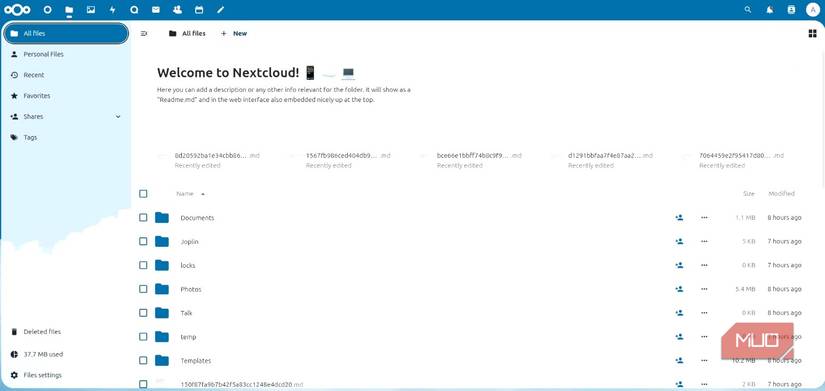
Frustrated by subscription fees and opaque data handling, I migrated to a self-hosted Nextcloud server—a privacy-focused alternative. Here’s how:
- Hardware: Repurposed an old laptop (Intel i5, 8GB RAM)
- OS: Installed lightweight Linux Mint
- Virtualization: Used Docker Compose for containerized deployment
- Apps: Integrated Nextcloud with OnlyOffice for real-time collaboration
Why it trumps OneDrive:
- Absolute data ownership—zero third-party access
- Customizable sync rules, including conflict handling and bandwidth limits
- Desktop shortcuts remain device-local unless explicitly synced
- Offline access is guaranteed; no placeholder hell
Total cost? Under $0.01/month in electricity for my 1TB setup.
Reevaluating Cloud Dependencies
OneDrive’s desktop sync gamble prioritizes vendor lock-in over reliability. While it suits minimalists with stable internet, power users risk productivity landmines. If switching isn’t feasible, mitigate headaches by:
- Never syncing desktop folders
- Using selective folder syncing under
C:\Users\[Name]\ - Setting Files On-Demand to “Download all files” in settings
Self-hosting via Nextcloud or Syncthing offers true autonomy. For enterprises, hybrid solutions like ownCloud balance control with accessibility. The cloud should simplify—not complicate—our workflows. When tools demand constant troubleshooting, it’s time to reclaim your digital sovereignty.
What’s your biggest cloud storage pet peeve? Share your escape stories below—let’s redefine digital freedom together.


