
The OneNote Shutdown: Why Microsoft’s App Consolidation Could Make or Break Your Digital Notes
Ever find yourself drowning in multiple versions of the same app, each with slightly different features? If you’re one of the millions relying on Microsoft OneNote, that chaos is officially ending – but not without significant action required on your part. Microsoft has confirmed it will discontinue the “OneNote for Windows 10” app in October 2025, aligning with the end of support for Windows 10 Home and Pro. Post-deadline, this familiar version will switch to read-only mode, freezing your notebooks in time unless you migrate. This strategic, albeit disruptive, move aims to resolve years of confusing application duplication, centralizing efforts on the unified “OneNote on Windows” platform. Understanding the implications and executing a smooth OneNote for Windows 10 discontinuation is now critical for users who depend on this powerful note-taking tool to avoid losing access to their vital information.
OneNote’s Identity Crisis: A Tale of Two (or More) Apps
For nearly a decade, OneNote users on Windows have navigated a fragmented landscape:
- OneNote for Windows 10 (The “Old” App): This was the Universal Windows Platform (UWP) app introduced alongside Windows 10. Optimized for touchscreens and simplicity, it arrived pre-installed, becoming the default for many. However, it notably lacked some advanced features found in its older sibling.
- OneNote (Desktop) / OneNote on Windows (The “New” App): This is the evolution of the classic Win32 desktop application, historically bundled with Microsoft Office. Post-2015, it transitioned to being downloadable via the Microsoft Store and included with Microsoft 365 subscriptions. Microsoft now brands it OneNote on Windows and positions it as the future.
- Legacy Versions: Older Office bundles might still include pre-2015 variations of the Win32 app, adding to potential confusion.
This fragmentation led to user frustration:
- Feature Discrepancies: Capabilities like advanced page templates, deep Outlook integration, local notebook storage, macro support (through OneGem add-ins), the full ribbon interface, and robust printing options were often exclusive to the desktop/Win32 (“new”) version.
- Conflicting Defaults: Depending on Windows setup, clicking a OneNote link could unpredictably open either app.
- Resource Duplication: Maintaining parallel codebases diverted Microsoft development resources.
Microsoft’s consolidation onto OneNote on Windows signals a long-overdue attempt to end this confusion and streamline development, centralizing feature innovations and support. The OneNote migration push is central to this unified vision. (Source: Microsoft Support – OneNote Versions)
The Impending Deadline: What End of Support Really Means (October 2025)
Microsoft’s plan is clear and imminent:
- Date: October 14, 2025 (coinciding with Windows 10 end-of-life).
- Action: OneNote for Windows 10 will enter a read-only state.
- Impact on Users:
- ✅ You CAN: View existing notes within the old app.
- ❌ You CANNOT:
- Create new notes or notebooks.
- Edit existing notes (text, images, ink, etc.).
- Add new sections or pages.
- Move, copy, or rename existing content.
- Synchronize changes to OneDrive or SharePoint. This is critical – edits made elsewhere (like on the web or mobile) won’t update the old local app cache, and vice-versa.
Fundamentally, the app becomes a static vault. To continue actively using OneNote beyond October 2025, migrating to the new OneNote on Windows is mandatory. Failure to migrate risks users getting locked out of updating essential notes stored exclusively within the old app’s structure.
Which OneNote Am I Running? Quick Identification Guide
Microsoft provides a straightforward method to check your version before the migration deadline:
- Launch your current OneNote application.
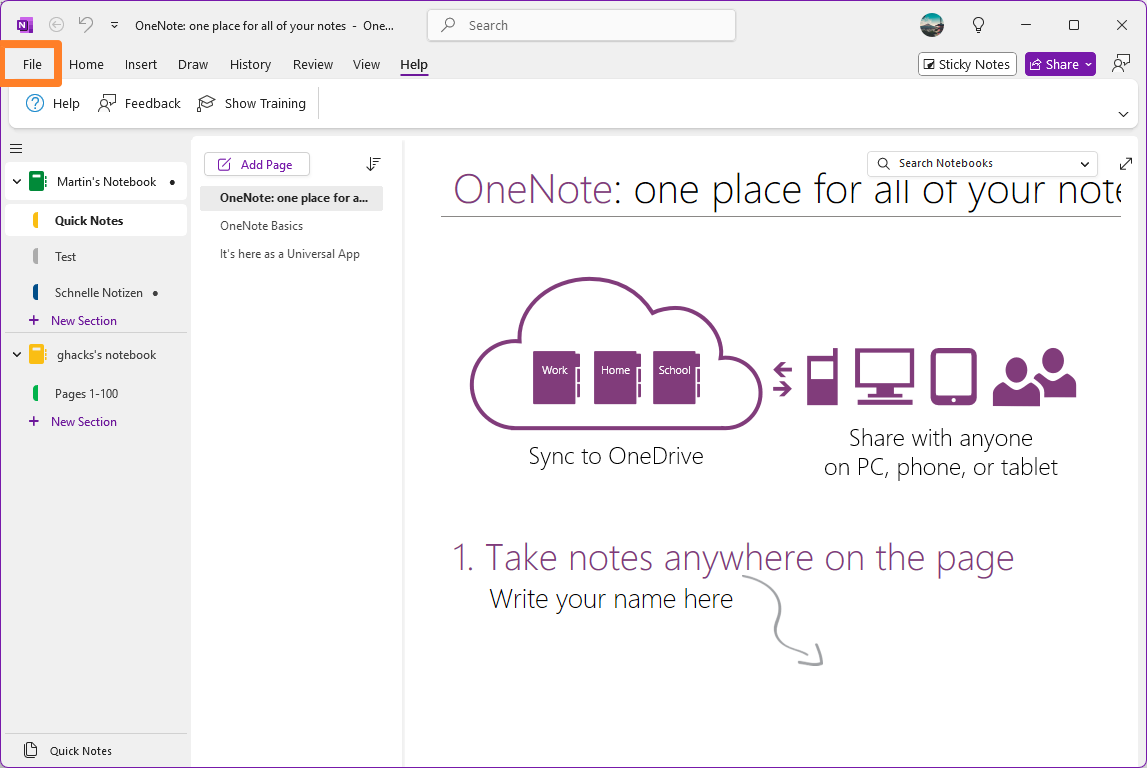
- Look at the Top-Left Corner for the traditional File menu.
- ✅ If you SEE a “File” menu (File, Home, Insert, Draw…): You are using OneNote on Windows (the new, unified app). You do NOT need to migrate.
- ❌ If you DO NOT SEE a “File” menu (interface is simplified, tab bar might be at the top): You are using OneNote for Windows 10 (the UWP app being retired). You MUST migrate.
OneNote Version Identification:
| Feature | OneNote for Windows 10 (Retiring) | OneNote on Windows (New) |
|---|---|---|
| User Interface | Simplified, often minimal top bar | Full Ribbon interface with File Menu |
| Installation Source | Microsoft Store (Win10 Pre-inst.) | Microsoft Store / Microsoft 365 Install |
| Pre-Oct 2025 Status | Active | Active |
| Post-Oct 2025 Status | READ-ONLY | Fully Functional |
| Requires Migration? | YES | NO |
| Key Disabled Features | All editing, creation, sync | N/A |
The Critical Migration Process: Avoiding Data Loss
Migrating isn’t just installing the new app; your notes need careful attention. Here’s Microsoft’s step-by-step migration guide with crucial nuance:
- Install OneNote on Windows: Download it from the Microsoft Store or ensure it’s installed via your Microsoft 365 subscription. (Link: Microsoft Store – OneNote)
- Sync EVERYTHING in the Old App: This is non-negotiable. Open OneNote for Windows 10.
- For Each Notebook:
- Right-click on the notebook name in the sidebar.
- Select “Sync This Notebook Now”. Repeat for every single notebook.
- For Each Account: If you use multiple Microsoft accounts, ensure you’ve added all notebooks from each account to the app and sync each individually.
- Check for Sync Errors: A small icon next to the notebook indicates sync status. Resolve any errors immediately! Unresolved errors mean data won’t transfer. Common fixes involve checking internet connectivity, ensuring sufficient OneDrive storage, or relinking notebooks.
- For Each Notebook:
- Check for “Misplaced Sections”:
- Go to the View tab in OneNote for Windows 10.
- Click “Misplaced Sections”. This area contains pages/sections accidentally detached from their notebooks.
- Move each misplaced section back into the appropriate notebook manually (drag-and-drop or right-click -> Move/Copy).
- Sync the notebook again after moving any sections.
- Verify in the NEW App: Launch OneNote on Windows.
- Your synced notebooks should automatically appear under the account they belong to (assuming you’re signed in with the same Microsoft account(s)).
- DOUBLE-CHECK: Methodically open notebooks and sections ensuring all content – text, images, ink notes, files – has migrated correctly. Pay special attention to large notebooks or complex formatting.
- Remove the Old App: Only uninstall “OneNote for Windows 10” after full verification in the new app.
Why Manual Sync is Crucial & Troubleshooting Tips:
- The Cloud is King: Your notebooks live on OneDrive/SharePoint. The migration ensures the new app links to the same cloud data. Syncing in the old app ensures the cloud copy is up-to-date before the new app accesses it.
- Potential Hitch: Manual Effort: Users with dozens of notebooks or multiple accounts face a tedious task. Budget time.
- Common Sync Issues & Fixes:
- Error: “This section is not available…”: Likely a misplaced section (Step 3).
- Error: “Sync failed. Need password?”: Re-authenticate your account via File > Account.
- Notebooks missing in new app?: Ensure you’re signed in to the new app with the same account where the notebooks reside. Check View > Navigation > Navigation Options > Show Notebooks.
Enterprise Considerations: Beyond the Individual User
For businesses, Microsoft provides specific resources acknowledging the larger scale:
- Deployment Guide: Microsoft offers official IT guidance for rolling out the new OneNote client and decommissioning the old UWP app across corporate environments. This includes Group Policy settings and deployment scripts. (Link: Microsoft Learn – Deploy OneNote for Windows)
- SharePoint/OneDrive for Business: Enterprise administrators must ensure seamless synchronization between the new client and corporate cloud storage solutions, potentially managing permissions during transition.
- User Training: Corporations should proactively inform users about the change, the manual sync requirement, and provide support to minimize downtime or data loss during the OneNote migration.
Is This Progress or Peril? Learning from Microsoft’s History
Microsoft pitches the OneNote for Windows 10 discontinuation as resolving “application chaos.” Consolidation simplifies the user experience long-term and focuses development. However, history tempers optimism:
- The Outlook Controversy: The ongoing forced migration to the “New Outlook for Windows” replacing the classic Mail and Calendar apps has been met with widespread user backlash due to missing features, performance issues, and workflow disruption. (Source: Wikipedia – Microsoft Outlook)
- Skype to Teams: While strategic, the sunsetting of Skype for Business caused significant disruption for businesses.
- Potential Feature Gaps: Despite convergence, some users report subtle differences in behavior, ink rendering, or specific integrations between the old UWP and new Win32 apps, though Microsoft is actively closing these.
The success of this migration hinges on:
- Smooth Data Transfer: Will the sync process truly be seamless for all users, including those with complex notebook structures and local issues? Manual intervention introduces risk.
- Feature Completeness: Does “OneNote on Windows” offer everything (especially touch optimizations and simplicity) that the UWP app’s users loved? While feature-rich, the Win32 app can feel heavier.
- Communication: Can Microsoft effectively guide millions of users, especially non-technical ones, through the necessary steps before the October 2025 deadline?
The deprecation is overdue from a technical debt perspective. Whether it becomes a “fiasco” depends entirely on execution and how well the remaining app fulfills the diverse needs of all former UWP app users. It’s a calculated business decision – streamline development, but risk alienating loyal OneNote for Windows 10 users if the transition is clunky or the unified app falls short.
Conclusion: Migrate or Risk Losing Access
The discontinuation of OneNote for Windows 10 isn’t a suggestion; it’s a hard deadline with concrete consequences. By October 14, 2025, your familiar notes app will become a digital museum piece – viewable but frozen. The path forward is clear: identify your app version today. If you lack the “File” menu, prioritize migrating to OneNote on Windows. This process hinges on meticulous manual syncing, resolving errors, verifying misplaced sections, and thorough validation before abandoning the old app. While Microsoft aims to simplify its ecosystem by retiring the OneNote for Windows 10 version, the responsibility for a smooth transition falls heavily on the user. Clumsy app transitions have plagued the company before; hopefully, the OneNote migration will buck this trend, preserving access to millions of digital notebooks without a hitch. Is this consolidation the end of needless confusion or the start of new frustrations? Have you started your migration yet? Share your experience and predictions about OneNote’s unified future in the comments below!
Sources & Further Reading:
Original article at www.ghacks.net


