
Unveiling the Key Concepts
- The AssistiveTouch feature in iPhone or iPad, an integral part of the device’s Accessibility features, allows you to rotate the screen without physically moving the device.
- After enabling AssistiveTouch, accessing the Rotate Screen function will provide direction options for desired orientation.
- The screen orientation can be locked using the Control Center, ensuring seamless function of the AssistiveTouch feature.
Navigate Your Apple Device’s Display—Hold That Tilt!
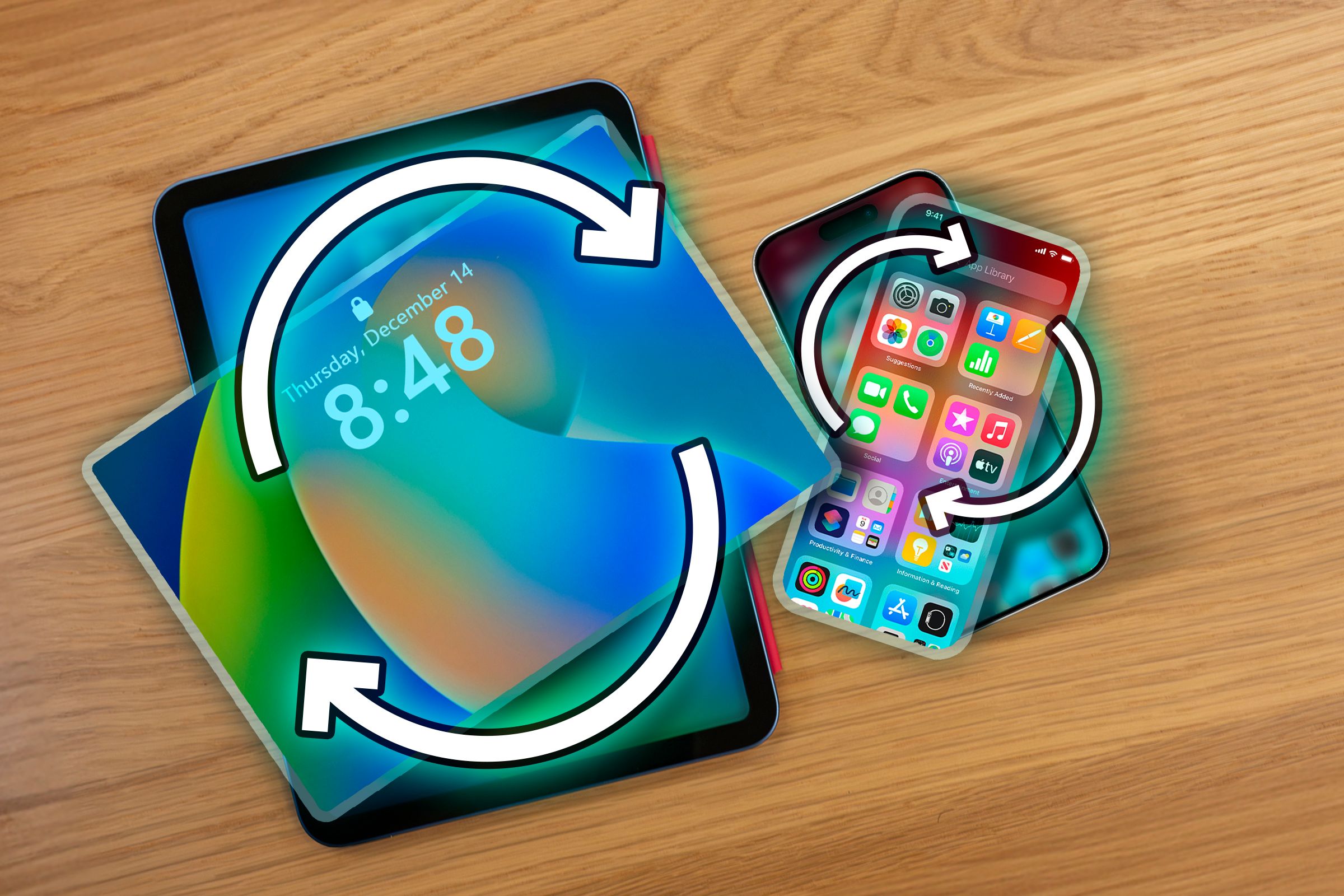
There could be times when you might wish to change the orientation of your iPhone or iPad’s screen without physically moving the device. If your device’s rotation sensor isn’t functioning properly or if it is challenging to tilt the device due to particular circumstances, it’s not the end of the world. An Accessibility feature present in your iPhone or iPad makes this possible.
A Step Towards Device Optimization: Rotating Screen Without Physical Movement
The AssistiveTouch feature is a boon crafted into the iPhone and iPad, offering a slew of functionalities that enhance your device interaction. AssistiveTouch lets you execute a variety of actions, from simulating physical gestures to adjusting screen orientation, all without maneuvering the device.
Here is how you can enable AssistiveTouch for rotating the screen:
- First, you need to open the Settings on your iPhone or iPad and navigate to “Accessibility.”
- In the Accessibility window, tap on Touch and subsequently head to the AssistiveTouch menu.
Once you enable AssistiveTouch, a button resembling a rounded gray rectangle with a white circle right at its middle will materialize near your screen edge.
After setting up AssistiveTouch, open the application whose display you wish to rotate. The AssistiveTouch button remains on display and turns translucent after certain times of non-activity. This button can be moved around the screen edge according to your convenience.
Revolutionizing Screen Orientation with AssistiveTouch
When you decide to rotate the screen, a single tap on the AssistiveTouch button will do the trick. From the ensuing menu, choose “Device,” followed by “Rotate Screen,” to find four rotational options.
It’s important to remember that these four options refer to absolute screen positions, rather than being relative to the current screen alignment. So, rotating the screen to the right continuously is not possible by persistently selecting the “Right” rotation button. For changing the orientation, click on the desired rotation direction.
Choosing an orientation will result in an immediate screen rotation. The device orientation can be reset either by choosing the AssistiveTouch > Device > Rotate Screen option or by rotating the device physically.
With Orientation Control, Lock the Screen and Unlock Convenience
Locking the screen orientation is beneficial if you want to avoid changes due to physical device movement. The Control Center, accessible through a swipe down from the screen’s top-right corner near the clock, houses the orientation lock button—a circular arrow encased in a lock.
The moment you close the Control Center, the device’s screen stays put in the orientation selected by you—no need to move the device physically.
The Art of Manual Screen Rotation: Unplugged
So there you have it, the art of rotating the iPhone or iPad screen manually without any physical movement. The suite of iPhone accessibility features, including the remarkable iOS 18 accessibility features, are there to make your device interaction a breeze.
Frequently Asked Questions
1. Is it possible to change the orientation of my iPhone or iPad display without physically moving the device?
Indeed, you can modify the screen orientation of your device without tilting it by utilizing the AssistiveTouch feature.
2. How do I ensure that the orientation of my iPhone or iPad’s screen doesn’t change?
To lock the screen orientation, all you need is to access the Control Center and tap on the orientation lock button.


