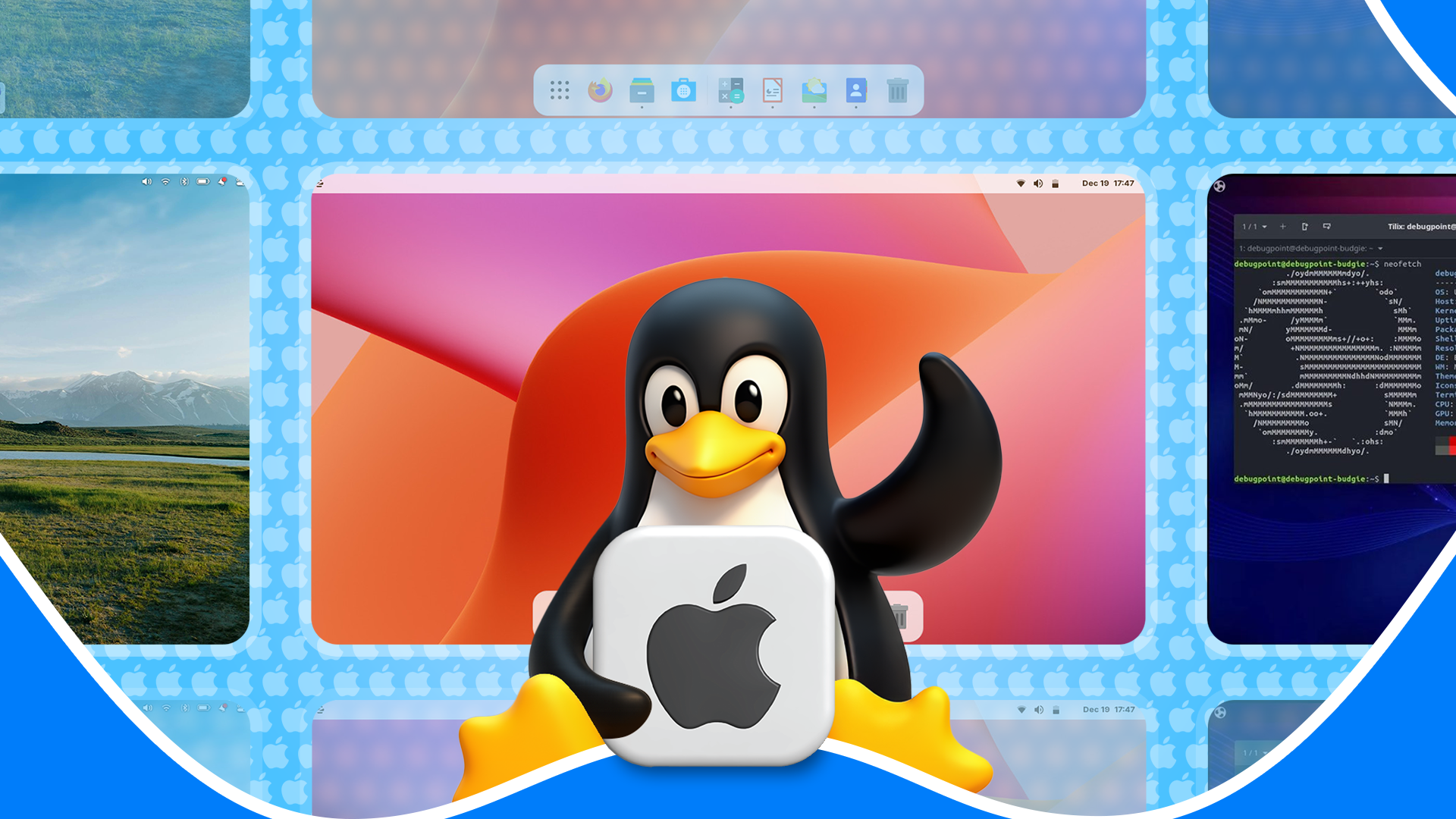

Ditch Windows, Embrace Linux: Mimic the macOS Experience
Tired of the limitations or cost of macOS but crave its intuitive interface? What if you could enjoy the best of both worlds – the power and flexibility of Linux combined with the sleek aesthetics of macOS? It’s more attainable than you think! A growing number of Linux distributions are meticulously designed to emulate the macOS look and feel, offering a seamless transition for Apple enthusiasts and a visually pleasing experience for anyone. This article explores some of the best Linux distros that bring the macOS vibe to your desktop, allowing you to enjoy a familiar environment with the freedom of open-source.
Top Linux Distributions That Look Like macOS
Several excellent Linux distributions cater to users seeking a macOS-like experience. Each offers its unique blend of design, functionality, and customizability. Let’s dive into a detailed look at three top contenders: Elementary OS, Zorin OS Pro, and Ubuntu Budgie.
Elementary OS: The Purist’s Choice for a macOS-Like Linux Distro
When discussing Linux distributions that resemble macOS, Elementary OS consistently tops the list. It stands out due to its Pantheon desktop environment, which is heavily inspired by Apple’s design language. The visual aesthetics, layout, and even window controls bear a striking similarity to macOS, creating a cohesive and user-friendly environment.
- Familiar Interface: Elementary OS features a macOS-style dock at the bottom of the screen and a top panel that houses system indicators, date, and time. This setup provides a familiar starting point for macOS users, easing the transition to Linux.
- Intuitive AppCenter: The built-in AppCenter functions similarly to the macOS App Store. Elementary OS prioritizes applications that adhere to its human interface guidelines, ensuring a consistent experience across the operating system. The integration of Flathub by default expands the available application selection.
- Mission Control Alternative: Elementary OS offers a Multitasking view that mirrors the functionality of Mission Control in macOS, allowing users to easily manage and switch between open windows and workspaces.
However, Elementary OS isn’t a perfect clone. Key features like the global menu and Spotlight search are absent. While Elementary’s search feature attempts to replicate Spotlight, it lacks the same level of functionality and depth.
Pros and Cons of Elementary OS
Here’s a quick summary of the advantages and disadvantages of Elementary OS:
Pros:
- Out-of-the-box macOS Look: Requires minimal customization to achieve a sleek, macOS-like appearance.
- Ease of Use: A shorter learning curve for users migrating from macOS or Windows.
- Clean and Minimalist Design: Focuses on simplicity and usability.
Cons:
- Limited Customization: Elementary’s design is quite opinionated, restricting extensive customization options.
- Manual Upgrades: Major releases require manual upgrades, lacking automated support.
Elementary OS System Requirements and Download
Before installing Elementary OS, ensure your system meets the following minimum requirements:
| Requirement | Specification |
|---|---|
| Processor | Recent Intel Core i3 or comparable dual-core 64-bit |
| RAM | 4GB |
| Storage | 32GB of available SSD space |
You can download Elementary OS from their official website: Download Elementary OS.
Zorin OS Pro: macOS Transformation With a Single Click
Zorin OS is renowned for its user-friendliness, making it an excellent choice for Linux beginners. Its standout feature is the built-in ability to switch between desktop layouts seamlessly. The “Zorin Appearance” tool allows users to select from a range of layouts, including one that transforms the desktop into a convincing macOS replica.
While the free version, Zorin Core, offers limited layouts, the Pro version unlocks six additional premium layouts, including the macOS-inspired theme. This eliminates the need for manual tweaking, making it an ideal option for users who prefer a hassle-free setup.
- One-Click Transformation: The macOS-like layout can be applied with a single click in Zorin OS Pro, simplifying the customization process.
- Comprehensive Software Center: Zorin OS boasts a “Software Center” that aggregates applications from various sources, including Flathub, Snap Store, and Ubuntu’s APT repositories, providing users with a wide range of software options.
- Polished Design: The macOS-inspired layout in Zorin OS Pro is clean and well-executed, featuring a bottom dock, a top bar with essential system information, and window controls on the left.
The main drawback of Zorin OS Pro is its cost. It requires a one-time purchase of $48, and while point release updates are free, major upgrades may necessitate another purchase.
Zorin OS Pro Advantages and Disadvantages
Let’s summarize the strengths and weaknesses of Zorin OS Pro:
Pros:
- Ease of Use: Incredibly user-friendly with a simple, one-click layout selection process.
- Pre-Installed Software: Comes preloaded with professional-grade creative and productivity applications.
- Beginner-Friendly: Designed for users new to Linux.
Cons:
- Paid Distribution: Requires a one-time purchase, unlike most free Linux distributions.
- Hardware Demands: Potentially unsuitable for older or less powerful hardware.
Zorin OS Pro System Requirements and Download
Before you buy, confirm you meet the minimum hardware demands:
| Requirement | Specification |
|---|---|
| Processor | 1GHz dual-core 64-bit processor |
| RAM | 1.5GB of RAM |
| Storage | 40GB of available disk space |
You can purchase and download Zorin OS Pro from their official website: Download Zorin OS Pro.
Ubuntu Budgie: A Customizable macOS-Like Experience
Ubuntu Budgie, a flavor of the popular Ubuntu Linux distribution, utilizes the Budgie Desktop Environment. While it may not resemble macOS out of the box as closely as Elementary OS, it provides all the necessary tools to achieve a similar visual aesthetic through customization.
- Customization Options: Ubuntu Budgie offers a range of customization options, including the “Makeover & Layouts” tool, Plank dock configuration, and top panel customization, allowing users to tailor the appearance to their preferences.
- Hot Corners Support: Includes a “Hot Corners” applet that functions similarly to the Hot Corners feature in macOS, enabling quick access to specific actions by moving the cursor to the corners of the screen.
- Ubuntu Foundation: Based on Ubuntu, ensuring a stable and reliable foundation and access to a vast selection of applications through the built-in App Center.
- Resource Efficiency: The Budgie Desktop Environment is more resource-efficient than Elementary’s Pantheon or Zorin’s GNOME, making it suitable for older or less powerful hardware.
The main drawback of Ubuntu Budgie is the need for customization to achieve a macOS-like appearance. It doesn’t offer an out-of-the-box solution like Elementary OS or Zorin OS Pro.
Ubuntu Budgie Advantages and Disadvantages
Here’s a summary of the benefits and drawbacks of using Ubuntu Budgie:
Pros:
- Resource Efficient: Less demanding on system resources compared to other desktop environments.
- Highly Customizable: Offers extensive customization options for both appearance and behavior.
- Stable Foundation: Built on the reliable Ubuntu base.
Cons:
- Customization Required: Doesn’t offer a macOS-like appearance without manual configuration.
- Learning Curve: Requires some effort to learn and utilize the available customization options.
Ubuntu Budgie System Requirements and Download
Ensure your system meets the minimum requirements before installing Ubuntu Budgie:
| Requirement | Specification |
|---|---|
| Processor | 2.4GHz processor |
| RAM | 4GB of RAM |
| Storage | 60GB of disk space |
You can download Ubuntu Budgie from their official website: Download Ubuntu Budgie.
Honorable Mention: Deepin
Deepin presents a clean, modern interface with macOS influences, particularly in its “Quick Actions” applet (similar to macOS Control Center), multitasking view, bottom dock, and search functionality. While free, its Chinese development raises privacy concerns for some.
Choosing the Right Linux Distro for Your Needs
Selecting the ideal Linux distro to emulate the macOS experience depends on your individual requirements and preferences.
- Elementary OS is the best choice for users seeking a clean, minimalist design that closely resembles macOS out of the box, requiring minimal customization.
- Zorin OS Pro is ideal for newcomers who want a hassle-free experience and are willing to pay for a one-click macOS transformation and access to premium software.
- Ubuntu Budgie is a solid option for users who value customization and want to tailor the appearance to their liking while benefiting from a stable Ubuntu core.
If you’re unsure, try each distro in a virtual machine (VM) to get a feel for the interface and functionality. Note that Elementary OS may not perform optimally in a VM. Oracle’s VirtualBox is a free option you can use.
Getting Started with Your Chosen Distro
Once you’ve decided on a distro, download the ISO file from the official website. You’ll need a tool to flash the ISO onto a USB drive for installation. The Raspberry Pi Imager is a reliable option for Windows and macOS, while Impression is a Flatpak package for Linux. Back up your important data before proceeding. Boot your computer from the USB drive and follow the on-screen instructions to install the Linux distro. Consider consulting a guide on how to install Linux for additional assistance.
Conclusion: Enjoy a macOS-Like Experience on Linux
Switching to Linux doesn’t mean sacrificing the aesthetics of macOS. By choosing the right Linux distribution and potentially applying some customization, you can enjoy a familiar and visually pleasing environment with the power and flexibility of open-source software. Elementary OS, Zorin OS Pro, and Ubuntu Budgie offer distinct approaches to emulating the macOS experience, catering to different user preferences and technical skill levels. So, ditch those limitations and embrace the world of Linux.
Which of these distros are you most excited to try? Do you have any experience with using Linux distros that look like macOS? Share your thoughts and experiences in the comments below!
Sources & Further Reading:
Original article at www.howtogeek.com


