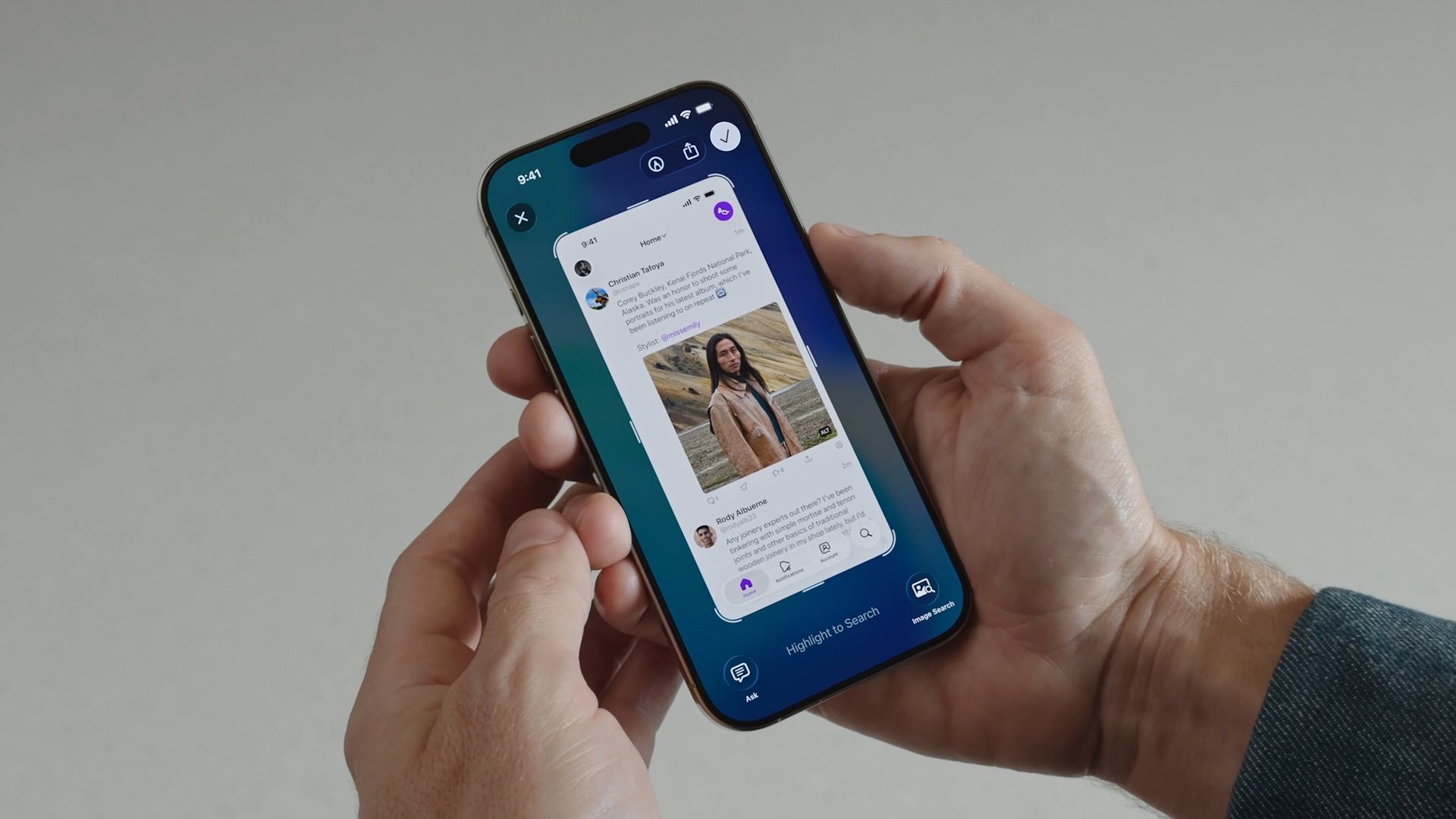

Beyond the Pixel: iOS 26’s HDR Screenshots Redefine iPhone Screen Capture Forever
(Word Count: ~1,230)
Introduction
Ever captured a stunning sunset on a streaming app or a brilliantly designed interface, only to find your screenshot looks flat, washed out, or loses all its intricate shadow details? You’re not alone. Standard screenshots often fail to faithfully represent the vibrant, high-contrast visuals modern iPhones display. Enter Apple’s iOS 26 HDR screenshots, currently in beta, offering a revolutionary upgrade. This isn’t just an incremental tweak; it’s a fundamental shift in how your iPhone captures what’s on its screen. By enabling High Dynamic Range (HDR) capture for both stills and recordings, iOS 26 preserves the rich colors and intricate details often lost with traditional methods. For designers, content creators, app reviewers, and anyone who relies on sharing true-to-life screen visuals, this feature is a game-changer for visual fidelity. Let’s delve into what makes this upgrade essential.
The Evolution and Power of iOS 26 HDR Screenshots
For years, iOS screenshots (PNG) and screen recordings were fundamentally limited to Standard Dynamic Range (SDR). While functional, SDR captures a narrower range of brightness and color compared to the capabilities of iPhone OLED displays, especially noticeable with ProMotion and Pro XDR screens. Details in extreme highlights (brilliant whites) or deep shadows would often be clipped or muddied.
- What HDR Solves: HDR (specifically HDR10 used here) tackles this head-on. It captures a vastly wider brightness range (luminance) and color gamut.
- How iOS 26 Achieves This: When capturing, the system now accurately samples the higher dynamic range data being rendered live on the display. Instead of compressing everything into the limited SDR bucket, it preserves the actual bright highlights and deep blacks present in HDR videos, photos with rich contrast (like sunsets, bright UIs on dark mode), and detailed graphics.
- The Core Benefit: Fidelity. The result is a screenshot or screen recording that looks incredibly close to what you actually saw on your iPhone. Colors appear more vibrant yet natural, extreme highlights retain texture (not blown-out white blobs), and shadows reveal nuance instead of becoming featureless black holes.
When Does an HDR Screenshot Shine? Practical Applications
The value of iPhone HDR screen capture isn’t universal for every mundane screenshot. Its prowess emerges in specific high-contrast scenarios:
- Capturing HDR Videos & Photos: Trying to share a frame from an Apple TV+ HDR movie, a Dolby Vision clip you shot, or a vivid ProRAW photo? SDR screenshots drastically undersell the original. HDR preserves the intended brilliance and depth.
- App Interfaces & UI/UX Work: Developers and designers documenting interfaces benefit immensely. Dark mode UIs with bright buttons, subtle gradients, notification badges with specular highlights – all retain their intended look and feel. SDR often crushes shadow detail or flattens highlights crucial for UI clarity.
- High-Contrast Content: Think infographics with dark backgrounds and vibrant charts, complex game graphics featuring explosions or dark scenes, artistic websites, or eBooks with richly illustrated pages.
- Detailed Documentation: Tech support, tutorials, and reviews gain immense value. Showing an error message within a dark-themed app or demonstrating photo editing tools with a high-dynamic-range example is far more accurate and helpful with HDR.
- Sharing Visual Inspiration: When you see something visually stunning on your screen that must be shared accurately – whether a piece of digital art, a cinematic moment, or a clever animation – HDR ensures your recipient sees it as intended.
Table: HDR vs. SDR Screenshots – A Quick Comparison
| Feature | SDR Screenshot (PNG) | HDR Screenshot (iOS 26) |
|---|---|---|
| Dynamic Range | Limited | Wide (HDR10) – Preserves extreme highlights & shadows |
| Color Gamut | Standard (sRGB) | Wider (P3 or Rec.2020) – More vibrant & accurate hues |
| Ideal For | Basic screen grabs, low-contrast text | HDR content, high-contrast UIs, detailed visuals |
| File Format | PNG | HDR image format (e.g., HEIF with gain map) |
| File Size | Smaller | Larger (due to extra luminance data) |
| Compatibility | Universal | Best viewed on HDR-capable displays (iPhone, Mac, HDR monitors) |
Enabling the Future: A Simple Guide to iOS 26 HDR Capture
Activating HDR screen capture on iOS 26 is remarkably straightforward, reflecting Apple’s focus on accessibility for powerful features:
- Open Settings: Launch the Settings app.
- Navigate to General: Scroll down and tap “General.”
- Access Screen Capture Settings: Find and tap “Screen Capture.”
- Select HDR Format: Under the “Format” section, tap “HDR”. This instantly switches your screenshot capture from standard SDR to HDR, and your screen recordings to HEVC HDR10 format.
That’s it! Your iPhone will now capture the screen with dramatically enhanced quality. The system handles the complex HDR rendering behind the scenes. To revert, simply return to Settings > General > Screen Capture > Format and select “SDR (Most Compatible)”. [Source: Apple iOS Beta documentation & testing]
Balancing Brilliance and Bytes: The File Size Factor
The leap in quality comes with a tangible iOS 26 trade-off: increased file size. HDR screenshots store significantly more luminance data across a wider range.
- Rough Estimates: Expect HDR screenshots to be 1.5x to 2x larger than equivalent SDR PNGs. An SDR screenshot might be ~300KB; its HDR counterpart could be ~500-700KB. Video files (HEVC HDR10 vs. HEVC SDR) see even more substantial size increases due to the frame-by-frame HDR data.
- Storage & Sharing Implications: This matters if you capture screenshots frequently or have limited iCloud/storage space. Large video files take longer to upload, text, or email. Use HDR selectively – enable it when you need the extra fidelity, and switch back to SDR for routine captures.
Supercharged Screen Recordings: HEVC HDR10
The HDR upgrade extends fully to iOS 26 screen recording. When you start a screen recording with HDR enabled in settings:
- Format: Recordings use HEVC (H.265) encoding with the HDR10 metadata profile. This is the standard format for HDR video.
- Benefit: Just like screenshots, recordings of in-app gameplay, HDR video playback, UI demos, or dynamic presentations will retain the full visual impact viewers experience live on the device.
- Platform Edge: This places iOS firmly ahead of many desktop operating systems regarding native HDR screen recording simplicity.
Beyond HDR: iOS 26’s Expanded Screen Capture Toolkit
Apple hasn’t stopped at HDR. The new “Screen Capture” menu in iOS 26 Groups Settings consolidates several useful options:
- Full-Screen Previews: Toggle this to prevent that thumbnail preview from popping up after a screenshot. The screenshot just saves directly to Photos – faster workflow, less screen interruption.
- Automatic Visual Look Up: Leveraging iOS’s AI recognition, enabling this allows the system to automatically analyze screenshots for objects, landmarks, animals, or plants, making it easier to initiate Look Up actions later. Useful for research or curiosity.
- CarPlay Screenshots: Toggles the ability to capture screenshots while your iPhone is connected to CarPlay. Useful for documenting in-car interfaces or potential issues, but potentially disabled by organizations focused solely on driver safety.
Under the Hood: The Tech Driving HDR Capture
How does iOS 26 pull off this HDR capture feat? While Apple doesn’t share every detail, the process leverages existing advanced hardware and formats:
- Display Pipeline: Modern iPhones render the entire UI with high dynamic range capability (especially Pro/Promotion/Pro XDR models). The capture mechanism taps directly into this pipeline.
- Wide Color Gamuts (P3, Rec.2020): The UI and rendered content often utilize wider color spaces. HDR captures preserve this accurately.
- File Format Innovation: iOS likely uses the HEIF (High Efficiency Image Format) container for HDR screenshots, potentially incorporating ‘gain maps’ – a technology that allows a single file to store both base SDR image data and the additional information needed for HDR displays to reconstruct the full range. This aids backward compatibility. [Source: High Efficiency Image File Format (HEIF) – Wikipedia]
- HDR10 Compatibility: Leveraging this standardized metadata ensures compatibility with a wide range of HDR displays beyond Apple’s ecosystem when the files are shared.
Conclusion
The introduction of iOS 26 HDR screenshots and HEVC HDR10 screen recordings marks a significant leap forward for iPhone users who rely on accurate visual documentation. This isn’t mere eye candy; it’s a foundational upgrade for fidelity. By preserving the vibrant colors, intense highlights, and deep shadows inherent in modern displays and content, Apple ensures that what you capture is finally what you saw. While the larger file sizes necessitate mindful usage, the benefits for sharing high-contrast app interfaces, HDR media, detailed graphics, and cinematic moments are undeniable. Combined with other thoughtful additions like full-screen previews and Visual Look Up integration, iOS 26 significantly elevates the screen capture experience from a basic function to a powerful creation and communication tool. As HDR displays become ubiquitous, this feature positions iOS as a leader in capturing the full richness of the on-screen experience.
What do you think? Are enhanced screenshot fidelity and larger file sizes a worthwhile trade-off? Will you switch to HDR capture permanently or toggle it situationally? Share your thoughts and any questions in the comments below!
Sources & Further Reading:
Original article at www.macrumors.com


