
Is Instagram’s New Location Sharing Feature a Privacy Nightmare Waiting to Happen?
Are you comfortable with your Instagram followers knowing exactly where you are at any given moment? Meta’s recent rollout of a new location sharing map feature on Instagram is sparking considerable debate, with many users expressing concerns about potential privacy violations. This feature, which allows users to share their real-time location with friends, aims to enhance connection and discovery but also raises critical questions about data security and the potential for misuse. Understanding the implications of this new feature and how to manage your privacy settings is now more crucial than ever.
Understanding the Instagram Location Sharing Map
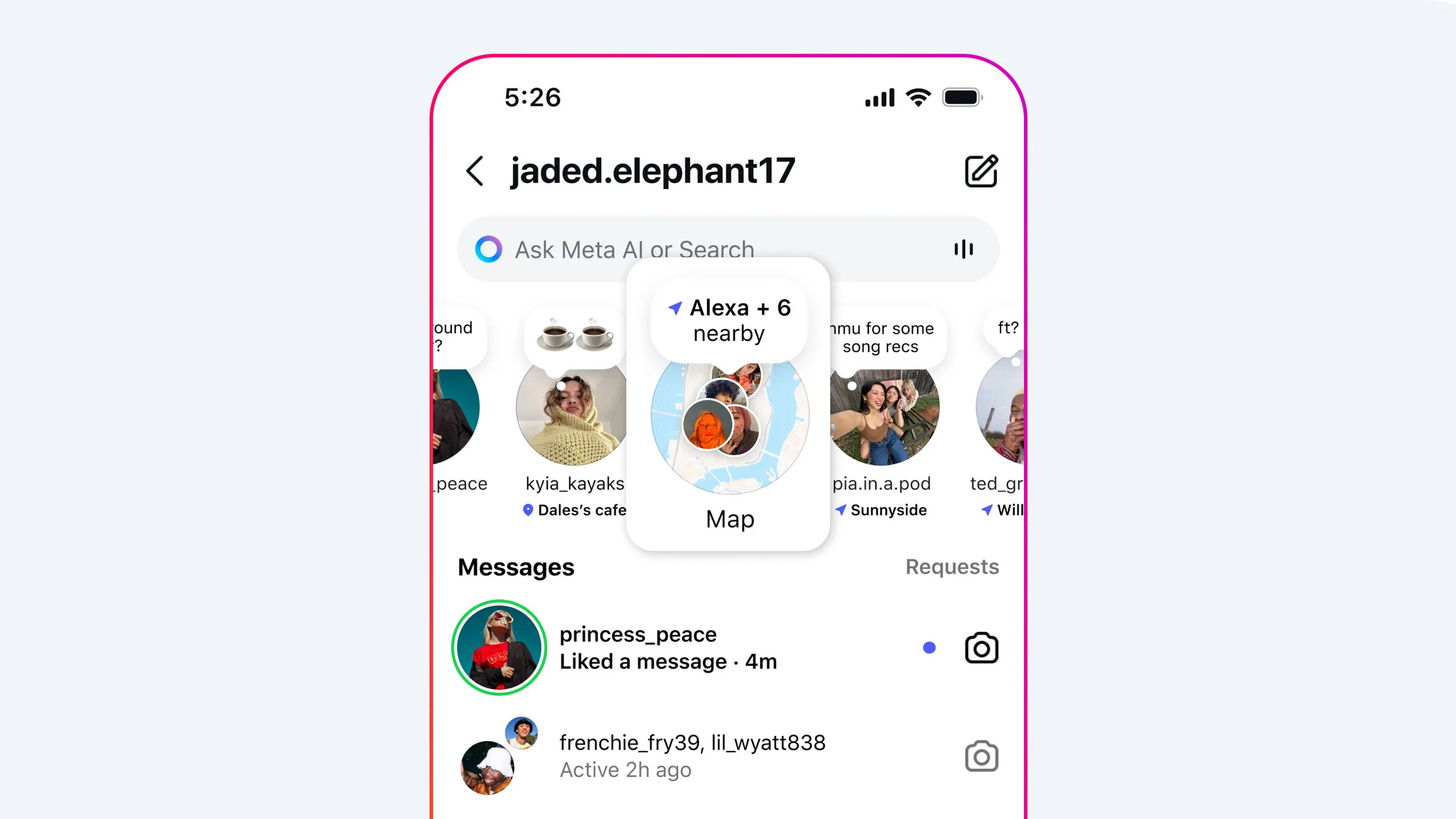
The new Instagram map feature mimics similar functionalities found in Snapchat’s Snap Map and Apple’s Find My app. It allows users within the U.S. to share their locations with selected contacts and view location-based content from friends who have opted into sharing. According to Meta, the feature is opt-in and disabled by default, placing the initial control firmly in the hands of the user. However, understanding how to exercise that control is paramount.
Accessing and Navigating the Map Feature
Here’s a step-by-step guide on accessing the new Instagram location sharing map:
-
Open Instagram and go to Messages: Tap the arrow icon in the top right corner of your home feed to access your direct messages.
-
Find the Map Option: The Map option should be prominently displayed at the top of your inbox.
-
Set Your Sharing Preferences: The first time you open the map, you’ll be presented with the “Who can see your location” screen. Here, you have several options:
- Friends (followers you follow back): Share your location with mutual followers.
- Close Friends List: Share your location only with members of your curated Close Friends list. This is arguably the safest and most controlled option.
- Selected Users: Choose specific individuals from your follower list to share your location with.
- No One: Opt out of sharing your location altogether.
Managing and Customizing Your Location Sharing Settings
Beyond the initial setup, you can fine-tune your location sharing preferences at any time. Here’s how to update your settings:
- Go to Your Profile: Navigate to your Instagram profile page.
- Access Settings: Tap the menu icon (usually three lines or dots) in the top-right corner.
- Go to “Story, Live and Location”: Scroll down and select “Story, Live and location”.
- Choose “Location Sharing”: Tap the “Location Sharing” option to adjust your preferences.
From this menu, you can modify who sees your location, effectively turning sharing on or off, and manage the specific contacts who have access to your whereabouts.
Understanding the Map Icons
Instagram uses different icons to visually represent your location sharing status on the map:
- Blue Arrow: Indicates that you are currently sharing your location with your selected audience. This means your contacts can see your approximate location on the map.
- Red Dot: Signifies that you are not sharing your location. Your location will not be visible to your contacts.
- Orange Triangle: Alerts you to the fact that you need to enable location permissions within your device settings to share your location. Instagram requires permission to access your device’s location services to function.
Privacy Concerns and Potential Risks of Location Sharing
While the Instagram location sharing map offers a convenient way to connect with friends, it’s crucial to acknowledge the potential privacy risks associated with sharing your whereabouts:
- Stalking and Harassment: Sharing your location can make you vulnerable to unwanted attention, stalking, or harassment. Individuals with malicious intent could potentially use this information to track your movements and endanger your safety.
- Burglary and Theft: Sharing your location, especially if you frequently post about being away from home, can inadvertently alert potential burglars to your absence, increasing the risk of home invasion and theft.
- Data Security and Misuse: While Meta claims to prioritize user privacy, there’s always a risk of data breaches or misuse of location data by third parties. Companies collect, store, and analyze massive datasets, and breaches can compromise sensitive user information. See Wikipedia: Data Breach
- Loss of Control: While you have control over who sees your location, you have less control over how that information is used. Even sharing with trusted friends carries the risk of accidental oversharing or misuse.
- Reduced Personal Freedom: Knowing that your location is being tracked, even by friends, can subconsciously alter your behavior and limit your personal freedom.
Complete Control: Turning Off Location Services for Instagram
For users who are deeply concerned about privacy, the safest approach is to completely disable location services for Instagram at the device level. Here’s how to do it on both iOS (iPhone) and Android devices:
On iPhone:
- Open Settings: Navigate to the Settings app on your iPhone.
- Go to Privacy & Security: Tap on “Privacy & Security”.
- Select Location Services: Choose “Location Services”.
- Scroll to Instagram: Find Instagram in the list of apps.
- Select “Never”: Set the location permission to “Never” to completely block Instagram from accessing your location.
On Android:
- Open Settings: Open your phone’s settings app.
- Go to Apps: Scroll to and select “Apps”.
- Select Instagram: Find and tap on Instagram.
- Tap Permissions: Choose “Permissions”.
- Choose Location: Tap on “Location”.
- Select “Don’t allow”: Choose “Don’t allow” to completely block location access. You can also choose “Allow only while using the app” or “Ask every time” for more granular control. Additionally, you can toggle off “Precise location” for a less specific location reading.
| Feature | Description | Privacy Level | Control Level |
|---|---|---|---|
| Location Sharing (Map) | Shares your location with selected friends on the Instagram map. | Low | High |
| Precise Location (Device) | Allows Instagram to access your exact location. | Very Low | Medium |
| Location Services (Off) | Prevents Instagram from accessing your location at all. | High | High |
Parental Controls for Teen Users
Meta has implemented parental controls to help parents supervise their teen’s usage of the Instagram location sharing feature. Parents with supervision enabled can:
- Control whether their child has access to location sharing.
- See who their child is sharing their location with.
- Receive notifications if their child turns on location sharing.
These controls provide parents with a level of oversight, helping them to guide their children’s decisions regarding location sharing and online safety.
Conclusion: Balancing Convenience with Privacy
Instagram’s new location sharing map presents users with a trade-off: enhanced connection and convenience versus potential privacy risks. While the feature offers a novel way to interact with friends, it’s essential to understand the implications of sharing your location and to exercise caution when managing your privacy settings. By carefully considering the potential risks and utilizing the available controls, users can make informed decisions about whether to use this feature and how to protect their personal information.
Ultimately, the decision of whether or not to use the Instagram location sharing map rests with the individual user. Weighing the benefits against the potential risks is crucial to making an informed choice that aligns with your personal privacy preferences. What do you think about this new feature? Share your thoughts and concerns in the comments below!
Sources & Further Reading:
Original article at www.fastcompany.com


