
Level Up Your Smart Home: Essential Accessories for Home Assistant
Are you ready to transform your home into a smart, interconnected haven? With the rise of smart home technology, controlling everything from lighting to security systems from a single hub is no longer a futuristic fantasy. Home Assistant is a powerful, free, and open-source platform that can turn this dream into reality. While Home Assistant can run on basic hardware, certain accessories can significantly enhance its capabilities and unlock its true potential. This article explores the essential accessories for your Home Assistant setup, helping you build a truly robust and personalized smart home.
Unleashing the Power of Home Assistant: Must-Have Accessories
Home Assistant is incredibly versatile, capable of integrating with a vast ecosystem of devices. However, to truly maximize its potential, you’ll need to consider adding some key accessories. These accessories facilitate communication between devices, expand storage capacity, and overcome common connectivity challenges. Let’s delve into the specifics:
Expanding Connectivity with Wireless Radio Dongles
One of the primary strengths of Home Assistant is its ability to bring together devices from different manufacturers using various communication protocols. To facilitate this, consider the following wireless radio dongles:
Zigbee Radio: Connecting a World of Devices
Zigbee is a low-power wireless communication protocol widely used in smart home devices. Dating back to the mid-2000s, it offers a robust and reliable mesh network, ideal for connecting devices like smart plugs, bulbs, and sensors. Many popular brands, including IKEA, Tuya, and Sonoff, utilize Zigbee.
- Why Zigbee? Zigbee’s maturity translates to a vast selection of compatible devices, often available at budget-friendly prices. Its mesh network topology extends the effective range and improves reliability, allowing devices to communicate even if they’re not directly in range of the Home Assistant server.
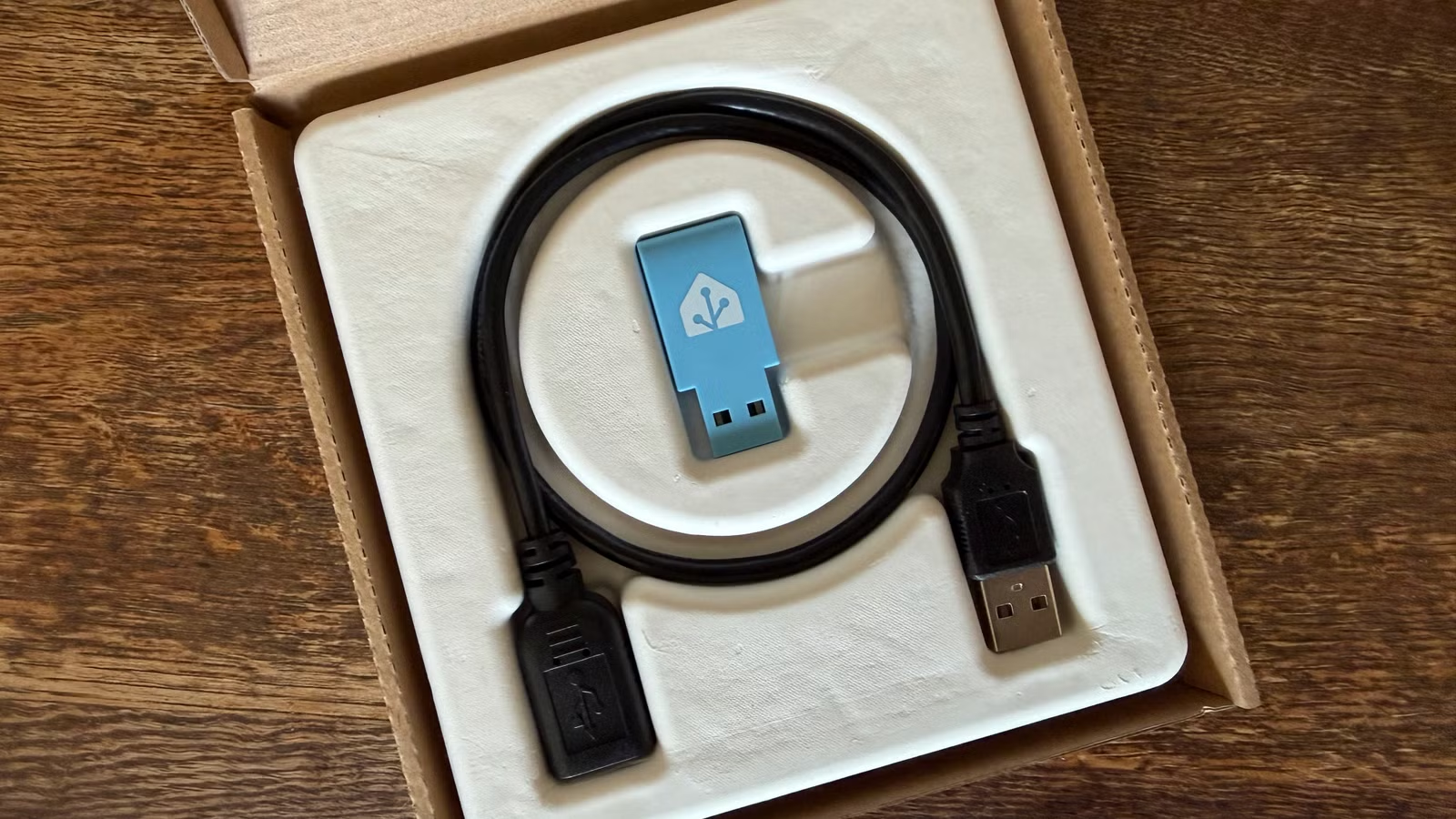
- How to Integrate Zigbee: To use Zigbee devices with Home Assistant, you’ll need a USB Zigbee radio. The Home Assistant Connect ZBT-1 (formerly SkyConnect) is a popular choice, offering plug-and-play compatibility. Alternative options include the Sonoff Zigbee 3.0 USB Dongle Plus and the ConBee II.
- Zigbee Home Automation (ZHA) vs. Zigbee2MQTT: Home Assistant offers native Zigbee support through the ZHA integration. However, for an even wider range of supported devices and advanced configuration options, you can use the MQTT protocol with Zigbee2MQTT.
Z-Wave Radio: Long-Range Communication for Security and Automation
Z-Wave is another established wireless communication protocol designed specifically for home automation. It boasts a longer range than Zigbee, making it suitable for larger homes or installations where devices are spread out. Z-Wave is frequently used in security systems, smart locks, and other critical applications.
- Why Z-Wave? Z-Wave’s extended range (300-2500 feet) provides superior coverage compared to Zigbee. This is particularly advantageous for controlling devices in detached garages, backyard sheds, or multi-story homes.
- Integrating Z-Wave: Similar to Zigbee, Z-Wave requires a USB radio. The Home Assistant Connect ZWA-2 is a dedicated Z-Wave adapter designed for optimal range. Other options include the Zooz Z-Wave Long Range 800 Stick and the HomeSeer SmartStick G8.
- Z-Wave Security: Z-Wave incorporates robust security features, making it a popular choice for smart locks and alarm systems.
Zigbee vs Z-Wave Comparison
| Feature | Zigbee | Z-Wave |
|---|---|---|
| Range | 30-300 feet | 300-2500 feet |
| Device Variety | Very High | High |
| Cost | Generally Lower | Generally Higher |
| Typical Use Cases | Lighting, sensors, smart plugs | Security systems, smart locks, switches |
| Mesh Network | Yes | Yes |
Thread (Matter) Radio: The Future of Smart Home Interoperability
Thread is a relatively newer wireless protocol that’s gaining traction as part of the Matter standard. Matter aims to unify smart home ecosystems, promoting interoperability between devices from different manufacturers.
- Why Thread/Matter? The promise of seamless integration between different smart home platforms is the main draw of Matter. Thread, as one of the underlying communication protocols, offers low latency, end-to-end encryption, and improved compatibility with IP-based networks.
- Setting Up Thread: Using Thread requires a “border router,” which acts as a gateway between the Thread network and your home network. Some smart speakers and hubs already have this functionality built-in. Alternatively, the Home Assistant Connect ZBT-1 can be configured as a Thread border router.
- The State of Matter: While the Matter standard has been adopted by major players like Amazon, Google, Apple, and Samsung, its implementation is still evolving. Device support is currently limited compared to Zigbee and Z-Wave, and Matter-compatible devices tend to be more expensive.
Enhancing Functionality with a Bluetooth Dongle
Many modern devices use Bluetooth for communication, and Home Assistant can leverage this to integrate with Bluetooth-enabled sensors, trackers, and other peripherals.
- Built-in vs. USB Dongle: Some Home Assistant installations, particularly those running on Raspberry Pi, may already have built-in Bluetooth functionality. Check your Home Assistant settings to see if the Bluetooth integration is available. If not, a USB Bluetooth dongle is a simple and cost-effective solution.
- Bluetooth Use Cases: Bluetooth allows you to connect directly to devices like the SwitchBot Meter Plus thermometer or track the presence of Bluetooth devices for automation purposes.
- Compatibility: Most generic Bluetooth adapters are compatible with Home Assistant. Consult the Home Assistant Bluetooth integration page for a list of supported devices.
Expanding Storage with External USB Storage
While Home Assistant itself doesn’t require a massive amount of storage, adding external storage via a USB hard drive or SSD can unlock new possibilities.
- Local Video Storage: Store security camera footage locally to avoid expensive cloud storage fees. Tools like Frigate NVR can be configured to save video recordings to an external drive.
- Backups: Regularly back up your Home Assistant configuration to an external drive using the Samba Backup integration. This protects against data loss in case of hardware failure.
- Media Server: Transform your Home Assistant server into a media server using software like Jellyfin. This allows you to stream your personal media library to devices throughout your home.
- Personal Cloud: Host your own cloud storage solution with Nextcloud, giving you more control over your data.
Overcoming Port Limitations with a USB Hub
As you connect more devices to your Home Assistant server, you may quickly run out of available USB ports. A USB hub provides a simple way to expand connectivity.
- Powered vs. Unpowered: For single-board computers like the Raspberry Pi, a powered USB hub is generally recommended to ensure sufficient power delivery to all connected devices.
- USB 2.0 vs. USB 3.0: USB 3.0 ports can sometimes interfere with wireless radio signals. Consider using a USB 2.0 hub for radio dongles to minimize interference. The Home Assistant Connect devices are designed to minimize interference by physically separating the USB port from the antenna.
Conclusion: Building Your Ideal Smart Home Ecosystem
Expanding your Home Assistant setup with the right accessories can dramatically improve its functionality and versatility. From wireless radio dongles that connect a wide range of devices to external storage for local data management, these accessories empower you to create a truly personalized and robust smart home experience. Consider your specific needs and the types of devices you want to integrate to determine which accessories are right for you.
What accessories have you found most valuable in your Home Assistant setup? Share your thoughts and experiences in the comments below!
Sources & Further Reading:
Original article at www.howtogeek.com


