
Is Your Fire Stick Up-to-Date? A Guide to Ensuring Peak Performance
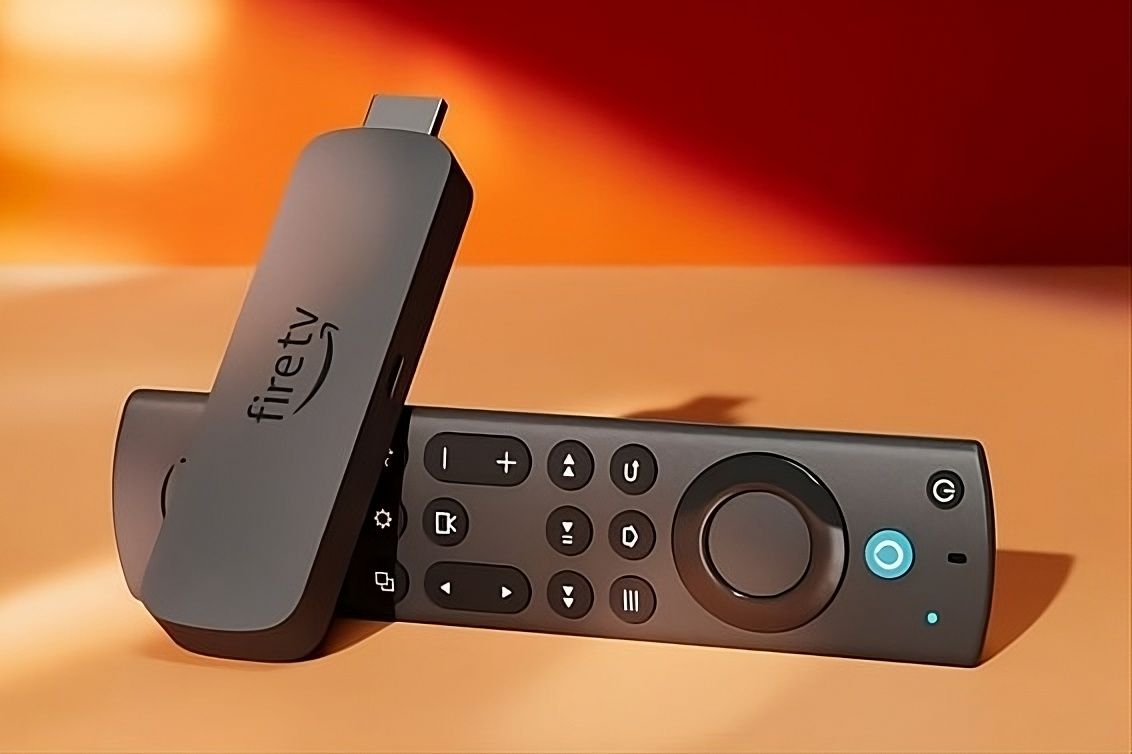
Have you ever experienced sluggish performance or glitches while streaming on your Amazon Fire Stick? Often, the simplest solution is ensuring your device is running the latest software. The Amazon Fire Stick is a popular and affordable way to stream content, but like any device, it requires regular maintenance in the form of software updates. Keeping your Fire Stick updated is essential for optimal performance, security, and access to the latest features. This article will guide you through the process of how to update a Fire Stick, troubleshoot common issues, and understand why staying current is crucial.
Manually Updating Your Amazon Fire Stick: A Step-by-Step Guide
While Fire Sticks are designed to update automatically, sometimes a manual check is necessary. This process is straightforward, though the location of the update option can be a little hidden. Here’s how to ensure your Fire Stick is running the latest software:
Step 1: Navigating to Settings
From the Fire TV home screen, use your remote to navigate to the “Settings” menu. This is typically located at the far right of the menu bar. It’s represented by a gear icon.
Step 2: Accessing “My Fire TV”
Within the Settings menu, scroll down and select “My Fire TV.” Depending on your Fire Stick model and software version, this option might also be labeled “Device & Software,” “Device,” or simply “System.”
Step 3: Finding the “About” Section
Inside the “My Fire TV” menu, locate and select the “About” option. This section provides information about your Fire Stick, including its model number, software version, and network details.
Step 4: Checking for System Updates
Within the “About” section, you’ll find the “Check for System Update” option. Select this to initiate a search for available updates.
Step 5: Installing the Update
If an update is available, the Fire Stick will automatically begin downloading it. Once the download is complete, you’ll be prompted to “Install System Update.” Select this to begin the installation process. Your Fire Stick will restart during the installation. Alternatively, the update will install automatically the next time you restart the Fire TV, or after the device is idle for more than 30 minutes.
Why Should You Update Your Fire Stick?
While the manual update process is simple, you might be wondering why it’s necessary in the first place. Here are several key reasons to keep your Fire Stick software up-to-date:
- Improved Performance: Updates often include optimizations and bug fixes that can improve the overall performance of your Fire Stick. This can translate to faster loading times, smoother streaming, and a more responsive user interface.
- Enhanced Security: Software updates frequently address security vulnerabilities that could potentially expose your device to malware or other threats. Keeping your Fire Stick updated helps protect your personal information and privacy.
- New Features and Functionality: Amazon regularly introduces new features and functionalities through software updates. These updates can enhance your streaming experience, provide access to new apps, and improve the overall usability of your Fire Stick.
- Bug Fixes: No software is perfect, and Fire Stick software is no exception. Updates often include fixes for known bugs and glitches that can affect your streaming experience.
Troubleshooting Common Fire Stick Update Issues
While the update process is usually seamless, occasionally, users may encounter problems. Here are some common issues and how to troubleshoot them:
Connection Problems
| Problem | Solution |
|---|---|
| No Internet Connection: | Ensure your Fire Stick is connected to a stable Wi-Fi network. Check your router and internet connection. If you have a 1st or 2nd generation Fire TV box or a Fire TV Cube, consider using an Ethernet cable for a more stable connection. |
| Slow Download Speeds: | Try restarting your router and Fire Stick. Move your Fire Stick closer to your router to improve signal strength. Close any unnecessary apps running in the background. |
Installation Problems
| Problem | Solution |
|---|---|
| Update Stuck During Installation: | Restart your Fire Stick by disconnecting the power cord for about three seconds and then reconnecting it. Alternatively, press and hold the Select and Play/Pause buttons simultaneously for five seconds. |
| Error Messages: | Note the specific error message and search for solutions online. Contact Amazon customer support for assistance. Reset your Fire Stick to factory settings as a last resort (note: this will erase all your data). |
Fire Stick Not Responding
If your Fire Stick is frozen or unresponsive, try these steps:
- Restart Your Fire Stick: Disconnect the power cord for a few seconds and then reconnect it.
- Use the Remote’s Restart Function: Press and hold the Select and Play/Pause buttons simultaneously for five seconds.
- Factory Reset: If all else fails, perform a factory reset. This will erase all your data, so use it as a last resort.
How Often Should You Check for Updates?
Amazon typically releases Fire Stick software updates every few months. While automatic updates should keep your device current, it’s a good idea to manually check for updates every month or two to ensure you’re running the latest version.
The Importance of a Stable Internet Connection
A stable and reliable internet connection is crucial for both downloading and installing Fire Stick updates. A weak or intermittent connection can interrupt the download process, leading to errors or incomplete updates. As mentioned earlier, if you are experiencing WiFi issues, and own a Fire TV device with an Ethernet port, plugging directly into your router can provide a much more stable connection.
Conclusion: Keep Your Fire Stick Performing at its Best
Keeping your Amazon Fire Stick updated is a simple yet crucial step in ensuring a smooth and enjoyable streaming experience. By following the steps outlined in this article, you can easily check for and install the latest software updates, troubleshoot common issues, and maintain your device for optimal performance. Remember to check for updates regularly and ensure you have a stable internet connection.
Do you have any tips or tricks for updating your Fire Stick? Share them in the comments below!
Sources & Further Reading:
Original article at www.lifewire.com


