
Is Windows 11 Forcing You to Ditch Your Favorite Features? How to Reclaim Control
With Windows 10 support officially ending on October 14, 2025, many users are weighing their upgrade options, and some are even considering leaving the Windows ecosystem altogether. While Windows 11 boasts a modern interface, its changes aren’t universally loved. One frequent complaint centers around the Windows 11 context menu, which, in its pursuit of simplicity, has often made common tasks more cumbersome. This article explores the issues with the new context menu and offers a practical solution using ExplorerPatcher to restore the classic Windows experience.
The Windows 11 Context Menu Conundrum: Simplicity at What Cost?
The Windows 11 context menu, the menu that appears when you right-click on a file, folder, or the desktop, has been redesigned with a sleeker, more minimalist aesthetic. While visually appealing, this simplification comes at the expense of functionality and efficiency for many users. Let’s delve into the specific problems.
The Extra Click: A Minor Annoyance with Major Impact
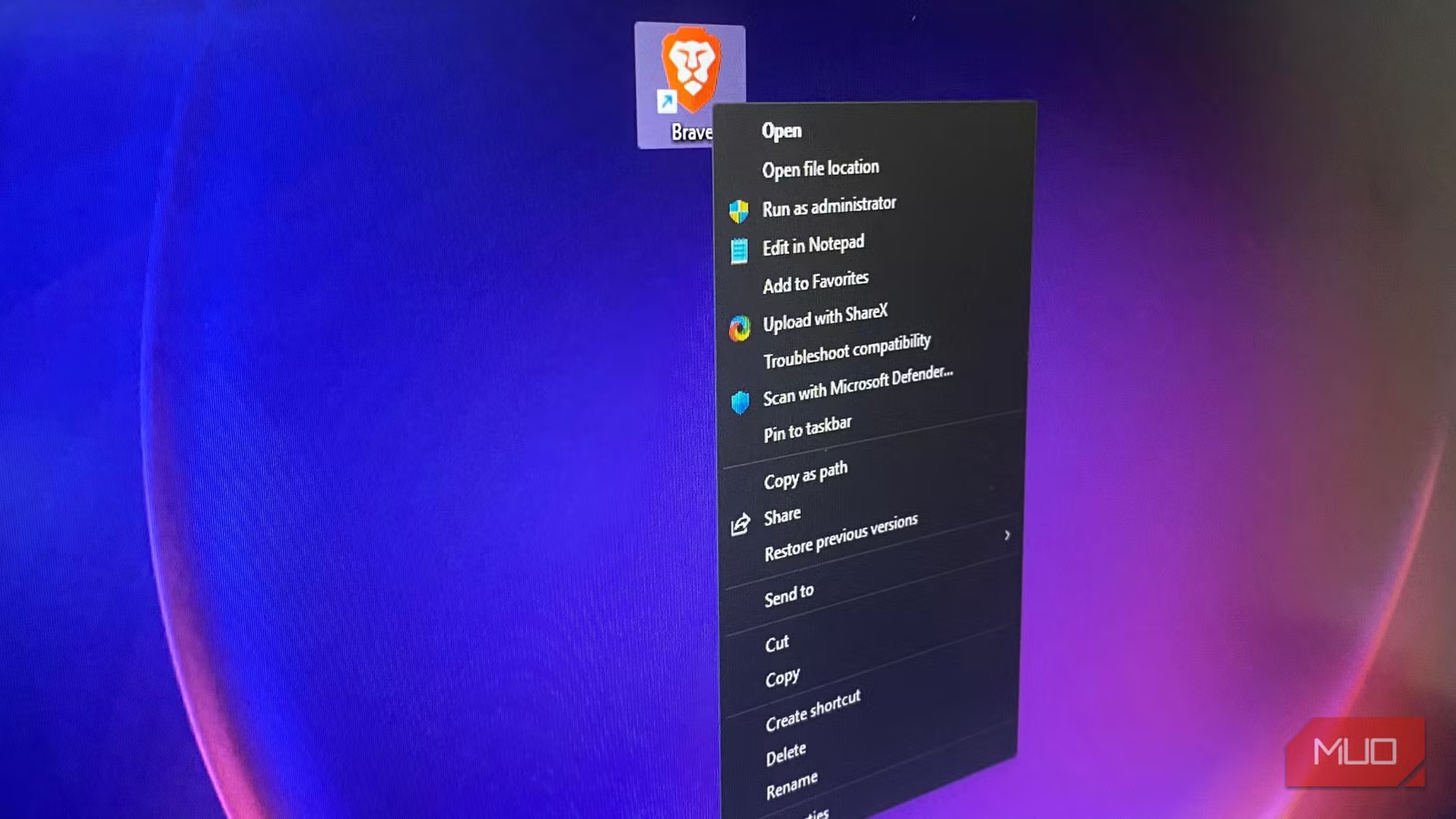
The most common complaint about the Windows 11 context menu is the introduction of an extra click for accessing frequently used options. Microsoft, in its quest for a cleaner interface, has condensed the context menu and relegated many familiar options under a “Show more options” entry. This seemingly minor change adds a frustrating step to everyday tasks like copying, pasting, renaming, or deleting files.
While a Shift + Right-click workaround exists to bypass the condensed menu, it’s hardly intuitive or convenient for regular use. The extra click disrupts workflow and slows down productivity, particularly for users accustomed to the direct access offered by the Windows 10 context menu.
Compatibility Issues with Legacy Tools
Another significant issue with the Windows 11 context menu is its compatibility with older applications and shell extensions. Many tools, such as older versions of popular archiving utilities like 7-Zip and WinRAR, rely on COM (Component Object Model) shell extensions to integrate their features into the context menu.
These older extensions are not always optimized for the modern API favored by Windows 11. This can result in the right-click menu not displaying options for these tools or even causing lag and performance issues. While the tools themselves aren’t necessarily broken, their integration with the operating system is hampered by Microsoft’s shift in API preference.
This incompatibility can be particularly frustrating for users who rely on these legacy tools for their daily workflow, forcing them to find alternative methods or abandon their preferred applications.
Performance Degradation: The Case of the Lagging Context Menu
Beyond compatibility issues, the Windows 11 context menu can also suffer from performance problems. When you right-click, each shell extension associated with the item you’ve clicked needs to load. If one or more of these extensions are faulty or poorly optimized, it can cause significant lag in the appearance of the context menu.
This lag might be negligible initially, but it can become increasingly noticeable and disruptive over time. Users may experience delays of several seconds before the context menu appears, leading to frustration and hindering productivity. The problem can be exacerbated by the new menu’s animation and loading process itself, which can add to the overall delay.
ExplorerPatcher: Your Ticket Back to the Classic Context Menu
Fortunately, there’s a solution to these Windows 11 context menu woes: ExplorerPatcher. This free and open-source tool allows you to restore the classic Windows context menu, along with other familiar features from older versions of Windows.
How ExplorerPatcher Works: Under the Hood
ExplorerPatcher re-enables the legacy IContextMenu path that Windows 11 still supports. It essentially bypasses the condensed modern menu and restores the traditional context menu layout. Unlike some other methods that involve directly modifying system files, ExplorerPatcher uses code injection (hooking into the Explorer process) and registry modifications to alter how the Windows shell renders UI elements.
This approach is safer and more reliable than directly patching system files, as it avoids modifying protected system components. Furthermore, ExplorerPatcher allows you to easily undo the changes through its settings, and it should automatically revert all modifications upon uninstallation, leaving no residual traces.
Beyond the Context Menu: A Comprehensive Customization Tool
While its ability to restore the classic context menu is a major draw, ExplorerPatcher offers a wide range of customization options. It allows you to selectively configure various elements of the Windows 11 interface, including:
- Taskbar: Revert to the Windows 10 taskbar style, including the ability to move it to the top of the screen.
- System Tray: Restore the classic system tray icons and functionality.
- File Explorer: Customize the appearance and behavior of File Explorer.
- Start Menu: Bring back the Windows 10 Start Menu.
- Update-Related UI Elements: Manage and customize update-related notifications and behaviors.
This fine-grained control allows you to tailor Windows 11 to your specific preferences, maximizing productivity without completely overhauling the look and feel of the operating system.
Important Considerations: Potential Risks and Stability
It’s crucial to remember that ExplorerPatcher is an unofficial, community-made tool and is not supported by Microsoft. As a shell-patching tool, it carries an inherent risk of temporary instability, particularly after system updates.
While many users report no issues with ExplorerPatcher, it’s essential to proceed with caution and create a system restore point before installation. Be prepared to troubleshoot any potential conflicts or instability that may arise after installing system updates. Despite the risks, it can be worth the gain of returning the Windows shell to a familiar, productive environment.
The Bigger Picture: Customization, User Choice, and the Future of Windows
The Windows 11 context menu controversy highlights a larger issue: the importance of customization and user choice in operating system design. Microsoft’s decision to prioritize simplicity and touch support, while understandable, has alienated many users who value efficiency and control over their computing environment.
The Case for Customization: A Key Strength of Windows
Customization has always been one of the key strengths of Windows. It allows users to tailor the operating system to their specific needs and preferences, creating a personalized computing experience. Removing customization options, even in the name of simplicity, can alienate power users and reduce overall satisfaction.
Finding a Balance: Design and Choice
Microsoft needs to strike a better balance between modern design and user choice. While the company’s efforts to create a more streamlined and intuitive interface are commendable, they should not come at the expense of functionality and customizability.
A simple solution would be to offer a dedicated setting to switch between the modern and legacy context menus. This would allow users to choose the interface that best suits their needs, preserving Microsoft’s modern aesthetics while respecting individual preferences.
Until Microsoft embraces a more flexible approach, community tools like ExplorerPatcher will continue to fill the gap, reminding the company that customization remains a crucial aspect of the Windows experience.
Alternatives
| Solution | Description | Pros | Cons |
|---|---|---|---|
| Shift + Right Click | A built in workaround to see more options in the context menu. | No need to download external programs. | Slow, extra step. |
| Registry edits | Modify the registry to bring back the classic context menu. | Does not require downloading external programs. Free. | Complicated, can break system if done incorrectly, may be overwritten by future updates. |
| Open source tools | Such as ExplorerPatcher, it will change the look and feel of Windows. | Customizable. Free. | Shell patches can break system stability, may need updates after Windows updates. |
Conclusion: Reclaim Your Workflow and Embrace Customization
The Windows 11 context menu, while visually appealing, has proven to be a point of contention for many users due to its extra click, compatibility issues, and potential performance problems. While Microsoft may not revert to the classic menu design anytime soon, tools like ExplorerPatcher provide a valuable solution for those who prioritize efficiency and control over their computing experience.
By restoring the classic context menu and other familiar Windows features, ExplorerPatcher allows you to reclaim your workflow and create a more personalized and productive computing environment. So, if you’re struggling with the Windows 11 context menu, give ExplorerPatcher a try and see if it helps you rediscover the joy of using Windows.
What do you think about the Windows 11 context menu? Are you happy with the changes, or do you prefer the classic version? Share your thoughts in the comments below!
Sources & Further Reading:
Original article at www.makeuseof.com


