
Are You Drowning in Browser Notifications? Google Chrome is Coming to the Rescue
Have you ever felt bombarded by a relentless barrage of pop-up messages from websites vying for your attention? You’re not alone. Many users find themselves overwhelmed by the sheer volume of browser notifications they receive daily. This constant stream of alerts can be distracting, disruptive, and even detrimental to productivity. Recognizing this widespread issue, Google is taking steps to combat notification overload in its Chrome browser, aiming to provide a more streamlined and less intrusive browsing experience. This article will delve into Google’s plan, its potential impact, and how you can manage notifications to reclaim control of your digital life.
Google’s Plan to Tame the Notification Beast
Google’s upcoming changes in Chrome are designed to automatically manage website notifications, reducing the noise and improving user experience. This isn’t the first time Google has addressed this problem. Chrome 80, released in 2020, introduced “quieter notifications.” However, this latest effort promises a more proactive approach.
Automatic Unsubscription from Infrequent Sites
The core of Google’s new strategy revolves around automatically unsubscribing users from website notifications if they haven’t interacted with the site recently. This addresses the common scenario where users grant notification permissions to websites they visit once or infrequently, leading to a build-up of unwanted alerts over time.
- How it Works: Chrome will track your interaction with websites. If you haven’t visited a site recently, the browser will automatically revoke its permission to send notifications.
- Platform Availability: This feature will be available on both Chrome for Android and desktop versions.
- Underlying Technology: This change will land in Chromium, the open source core of the browser. It is therefore likely that other Chromium-based browsers, such as Microsoft Edge, Vivaldi, Brave, or Opera, will also get the feature in the future.
Why Now? The Statistics Speak Volumes
Google’s decision to address notification overload is data-driven. According to their internal statistics, less than one percent of website notifications receive user interaction. This stark figure highlights the significant proportion of notifications that are essentially ignored, contributing to a cluttered and overwhelming browsing experience.
Review and Restore: Giving Users Control
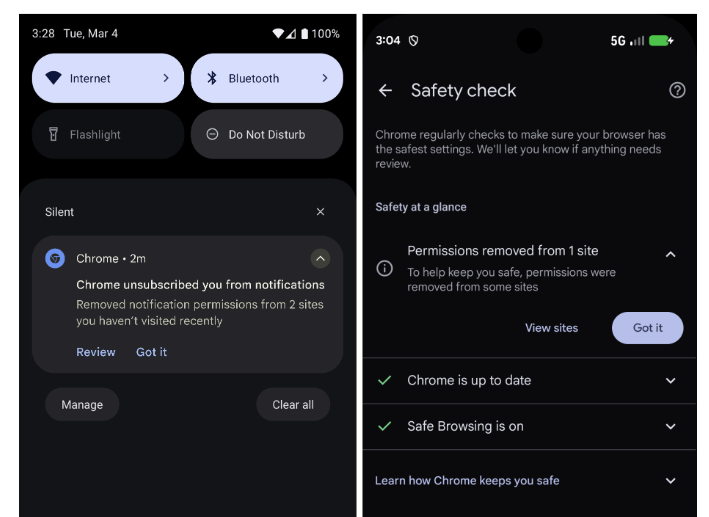
While Chrome will automatically unsubscribe users from inactive sites, it also provides a safety net. When a website’s notification permission is revoked, Chrome will display a notification (ironically) informing the user of the action. This notification includes an option to review the changes and restore notification access for any sites where notifications are still desired.
- Accessing the Safety Check: Clicking the review option will redirect users to the Safety Check page within Chrome’s settings.
- Restoring Notifications: The Safety Check page displays a list of websites from which notification permissions have been revoked. Users can easily restore access with a single click.
This “review and restore” mechanism ensures that users retain ultimate control over their notification settings, preventing unintended blocking of important alerts.
Opt-Out Option: For the Notification Enthusiast
Recognizing that not everyone wants this automated management, Google provides an option to disable the feature entirely. Users who prefer to keep all website notifications, regardless of their interaction frequency, can turn off the automatic unsubscription functionality. This caters to users who may rely on notifications for specific purposes, even if they don’t actively engage with them regularly.
Impact on Chromium-Based Browsers
Because Chrome is built on Chromium, Google’s changes are expected to propagate to other Chromium-based browsers, including Microsoft Edge, Vivaldi, Brave, and Opera. This means that users of these browsers will likely benefit from the improved notification management features in the future. It’s worth noting that while the core functionality will likely be the same, the implementation and user interface may vary slightly between different browsers.
The Safety Check Integration: A Holistic Approach
The new notification management feature is integrated into Chrome’s existing Safety Check functionality. Safety Check is a tool that regularly scans your browser for security issues, outdated extensions, and compromised passwords. The addition of notification checks to this feature provides a more holistic approach to browser security and privacy, ensuring that users are aware of and in control of their website permissions.
Managing Notifications: Beyond the Automatic Solution
While Google’s upcoming changes will undoubtedly help reduce notification overload, there are other steps you can take to further refine your notification experience.
Understanding Notification Permissions: A Crucial First Step
Before diving into specific settings, it’s essential to understand how website notifications work. When you visit a website, it may request permission to send you notifications. This permission is typically granted through a pop-up prompt that appears in your browser. Accidentally clicking “Allow” can lead to unwanted notifications in the future.
Chrome’s Notification Settings: Your Control Panel
Chrome provides a comprehensive set of settings for managing website notifications. To access these settings:
- Click on the three dots in the top-right corner of the Chrome window to open the menu.
- Select “Settings.”
- Type “notifications” in the search bar.
- Click on “Site Settings” then “Notifications.”
This page allows you to:
- Block All Notifications: Completely disable all notification requests from websites.
- Allow Specific Sites: Manually add websites to the “Allowed to send notifications” list.
- Block Specific Sites: Manually add websites to the “Blocked” list.
- Use Quieter Messaging: Enable Chrome’s built-in notification management feature (similar to the upcoming automatic unsubscription functionality).
Proactive Notification Management: Best Practices
In addition to Chrome’s built-in features, adopting proactive notification management practices can significantly improve your browsing experience.
- Be Selective: Think twice before granting notification permissions to a website. Ask yourself if you truly need to receive alerts from the site.
- Use Focus Mode: Take advantage of your operating system or browser’s focus mode to temporarily silence all notifications when you need to concentrate. This can be a great way to minimize distractions and boost productivity. Both Windows and Mac OS have built-in Focus assist features to help with this.
- Regularly Review Permissions: Periodically review your website notification permissions and revoke access for any sites that you no longer need or want to receive alerts from. Make it a monthly habit to check if you are still finding the notifications useful.
Conclusion: A Quieter, More Focused Browsing Experience Awaits
Google’s upcoming changes to Chrome are a welcome step towards addressing the pervasive problem of notification overload. By automatically unsubscribing users from inactive sites and providing tools for review and management, Google is empowering users to reclaim control of their browsing experience. Coupled with proactive notification management practices, these changes can significantly reduce distractions, improve focus, and ultimately lead to a more enjoyable and productive online experience.
What are your thoughts on these changes? Do you find yourself overwhelmed by browser notifications? Share your experiences and tips in the comments below!
Sources & Further Reading:
Original article at www.ghacks.net


