
Reclaiming Your FPS: Practical Tweaks That Transformed My Windows 11 Gaming Experience
Isn’t it frustrating when your cutting-edge gaming rig, capable of pushing pixels at breakneck speeds, suddenly feels sluggish after a seemingly routine Windows upgrade? What if harnessing peak gaming performance on Windows 11 wasn’t about installing dubious optimization apps, but mastering a few fundamental system settings? That realization clicked for me after a rocky transition to Microsoft’s latest OS. Disappointingly, my upgraded system suffered from noticeable UI lag, lethargic boot times, and crucially, stuttering gameplay and FPS drops in my favorite titles. As someone who uses their PC almost exclusively for gaming, compromised frame rates were a deal-breaker. My initial desperation led me down the costly path of trying PC Game Booster 7, a paid “optimization” tool promising a quick fix. Yet, I quickly recognized these apps offer nothing you can’t achieve manually – smarter and for free. If you’re battling performance issues in Windows 11 games, skip the snake oil and implement these foundational Windows 11 gaming optimization strategies instead.
Harness the Power of Built poverty Goods:** Master Game Mode
Ever wonder why your game chugs despite having powerful hardware? Windows is constantly bustling with background processes – system maintenance scans, telemetry reports, app notifications – all silently consuming precious CPU and RAM resources. These essential tasks starve your game, leaving it grappling for horsepower precisely when it needs it most.
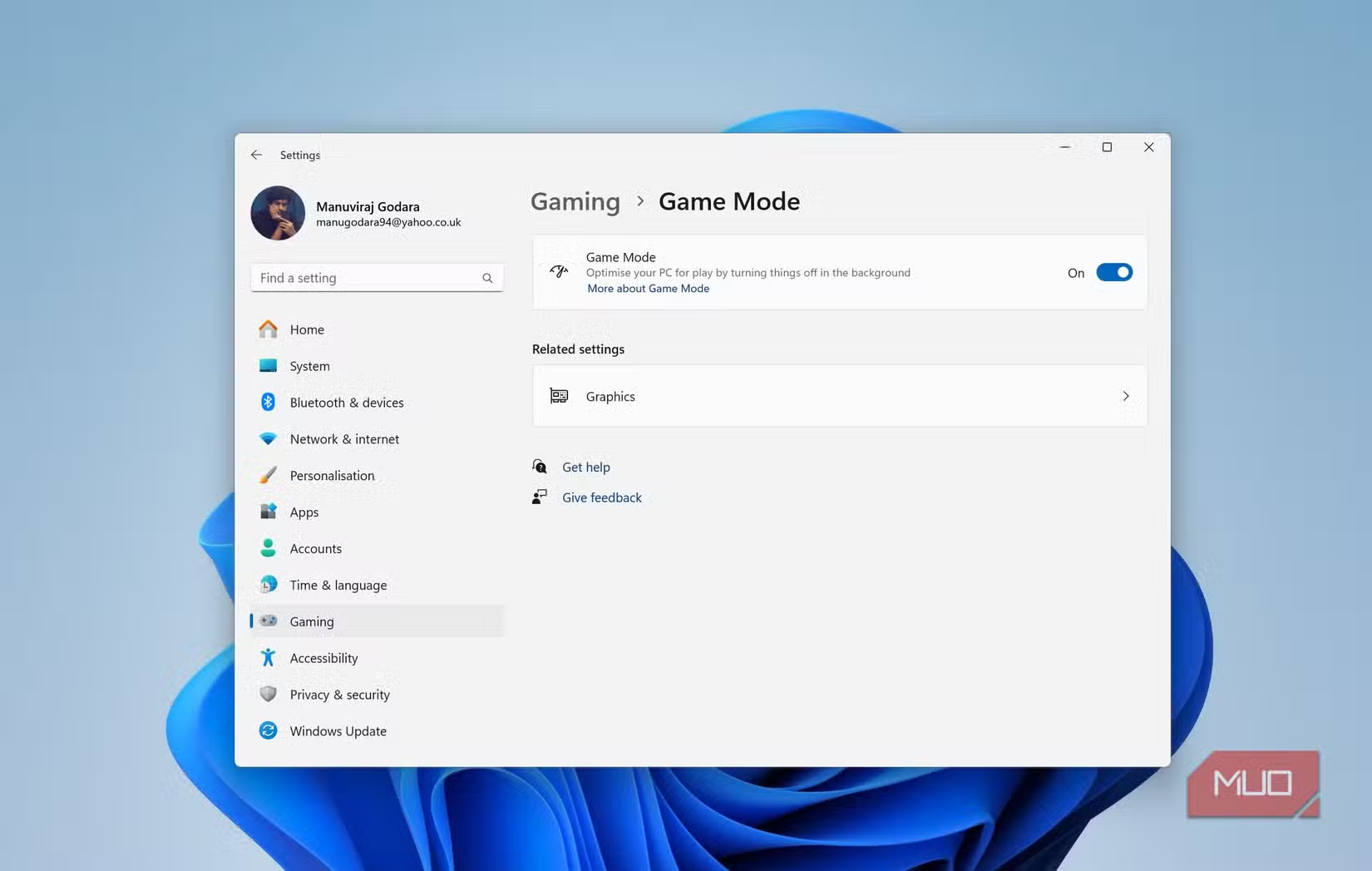
Here’s where Windows’ native Game Mode shines. Found deep within Settings (Settings > Gaming > Game Mode), this simple toggle instructs Windows 11 to prioritize active gameplay above nearly everything else. When activated:
- Resource Reallocation: Your game receives top priority for CPU cycles and RAM allocation.
- Background Suppression: Non-essential background tasks (like Windows Update scans and certain notifications) are minimized or throttled significantly.
- Core Focus: System processes critical for gameplay are given precedence over less urgent operations.
Turning this on provided an immediate baseline stability improvement for me. While it won’t magically double your frame rate, it addresses resource contention – a primary culprit behind stuttering. Crucially, note that Game Mode doesn’t pause large downloads (Windows Store or Updates). One nuance: in rare instances, Game Mode can clash with essential peripherals’ background software. Personally, plasmoids encountered a temporary hiccup cycling DPI settings via Razer Synapse. Simply launching Synapse manually resolved it. Overall, activating Game Mode remains one of the simplest yet most impactful Windows 11 performance tweaks for any gamer.
Dive Deeper: Unlocking Advanced Graphics Settings
Game Mode’s settings page holds hidden treasures beyond its primary function. Navigating further to Graphics > Change default graphics settings reveals three potent options:
- Hardware-Accelerated GPU Scheduling (HAGS): This modern feature shifts significant scheduling responsibilities from your CPU to your GPU’s dedicated hardware scheduler. CPU overhead reduction is the key benefit, particularly impactful in CPU-bound scenarios prevalent in competitive titles like Counter-Strike 2, Valorant, Fortnite, and esports settings. In my testing with CS2, enabling HAGS yielded a noticeable ~8-10% uplift in average FPS. Its effectiveness diminishes if your GPU is already pushing its limits at 100% utilization (GPU-bound scenario).
- Variable Refresh Rate (VRR): If you have a compatible monitor (e.g., with NVIDIA G-SYNC or AMD FreeSync), enabling VRR ensures Studio-smoothe gameplay by synchronizing the monitor’s refresh rate dynamically with your GPU’s frame output. This massively reduces screen tearing and minimizes stuttering for a fluid experience. Enabling this is non-negotiable with compatible hardware.
- Optimizations for Windowed Games: For gamers multitasking, playing in border之比dwindowed or windowed full-screen mode is convenient. Traditionally, this came with a latency penalty compared to exclusive full-screen mode. This setting mitigates that gap by optimizing how resources are handled. Testing DirectX 11 and 12 games revealed significantly smoother gameplay and reduced input lag in windowed modes, making alt-tabbing less disruptive.
| Feature | Primary Benefit | Best Use Case | Potential Drawback |
|---|---|---|---|
| Hardware-Accelerated GPU Scheduling (HAGS) | Reduces CPU overhead | CPU-intensive games (Fortnite, CS2) | Minor effect on GPU-bound games; Potential rare compatibility issues |
| Variable Refresh Rate (VRR) | Eliminates tearing & stuttering | All gameplay with compatible monitor | Requires compatible monitor & GPU |
| Optimizations for Windowed Games | Reduces latency in windowed modes | Gamers multitasking/chatting | Minimal effect in true exclusive full-screen |
Activating these settings leverages Microsoft’s own optimizations possible through Windows 11’s graphics stack and modern hardware capabilities.
A Calculated Risk: Disabling Memory Integrity (HVCI) for Maximum FPS
Prepare for Caveat Emptor. Memory Integrity, also known as Hypervisor-Protected Code Integrity (HVCI) or Core Isolation, is a vital security pillar within Windows 11. It utilizes hardware-based virtualization to prevent malware from exploiting vulnerabilities in kernel memory – a sophisticated shield core processes +Wikipedia: Hardware-assisted virtualization.
However, this robust protection layer imposes a performance cost, particularly noticeable in latency-sensitive tasks like gaming. Numerous benchmarks and anecdotal reports (including my own testing) suggest disabling HVCI Boost Windows gaming performance measurably. While yields vary greatly (5-20%, depending on hardware, drivers, and specific game titles), the gains are substantial. In my rig, disabling HVCI delivered the single most perceptible FPS uplift across multiple games.
The Trade-Off Is Significant Security: Turning off先驱 Memory Integrity markedly weakens defenses against sophisticated malware targeting the kernel. For my machine – strictly tools used for gaming with no critical data or work tasks – the risk calculation favored performance. If you use your PC for personal finance, store sensitive documents, or operate in high-risk environments, disabling HVCI recklessly is inadvisable.
How to Disable: Go to Windows Security > Device Security > Core Isolation details > Toggle off “Memory integrity”. A system is required.
Decluttering Your Digital Jungle: Startup Apps and Uninstalling Bloat
It’s astounding how much accumulates stealthily launching alongside Windows. Over months or years, various software adds itself to the startup sequence – launchers (Steam, Epic, Ubisoft Connect), chat apps, utility tools, peripheral software, and pre-installed manufacturer utilities. Each demands fragments of memory and CPU cycles, hindering your boot speed and persistently robbing resources best reserved for your game engine.
Solution titles: Optimize Windows 11 gaming by ruthlessly pruning:
- Disable Startup Apps:
- Invoke Task Manager (
Ctrl + Shift + Esc). - Navigate to the “Startup apps” tab.
- Disable anything non-essential for immediate booting (especially game launchers you use infrequently!). Prioritize everything launched unnecessarily.
- Invoke Task Manager (
- Purge Unused Software: Many installation programs lurk silently with background services consuming precious RAM even when the main app is closed.
- Navigate to Settings > Apps > Installed apps.
- Scour the list meticulously. If you haven’t used an app in the last 6 months, boldly uninstall it. Focus on redundant tools, bloatware accompanying downloads, or inefficiently coded utilities. Be ruthless.
This housekeeping directly frees tangible system resources (especially RAM) Windows can then allocate to your games, resulting in smoother performance and faster load times.
Steer Clear of the Optimization Abyss
The essential pitfall facing gamers seeking better performance is the siren call of deep, complex tweaks. Countless forums and dubious “ultimate optimization guides” promote risky maneuvers:
- Registry Tweaks: Modifying specific keys nominally might offer micro-improvements but carries enormous risk of instability or system malfunctions.
- Aggressive Power Plan Schemes: Most “performance” power plans introduce negligible boosts compared to “High performance” while increasing heat and wear. “Ultimate performance” largely benefits servers [Microsoft Documentation].
- Questionable “Stripping” Tools: Applications claiming to “debloat” Windows or disable core services often cause unintended consequences like update failures or driver conflicts.
My mantra became “Keep it simple, stupid.” Trust proven, documented features like Game Mode, HAGS, VRR, optimized windowing, mindful HVCI management, and resource decluttering—focus where the gains are authentic and substantial without courting instability.
Leveling Up Your Play
Revitalizing my Windows 11 gaming rig didn’t require expensive utilities or perilous descent into


