
Is Apple Finally Listening? New Controls for the Controversial Liquid Glass Effect
Did the flashy “Liquid Glass” interface of iOS 26, iPadOS 26, and macOS Tahoe 26 leave a bad taste in your mouth? You’re not alone. The redesign, intended to enhance the user experience with its translucent elements, instead sparked a wave of criticism. Now, it seems Apple is responding to the outcry, offering users a bit more control over this divisive visual feature. This article delves into the controversy surrounding Liquid Glass and explores the new toggle Apple is introducing to address user concerns.
Understanding the “Liquid Glass” Controversy
When Apple rolled out its latest operating system updates, a key element of the redesign was the introduction of “Liquid Glass.” This new visual effect aimed to create a sense of depth and sophistication by making elements like buttons, menus, and bars appear translucent. However, the implementation wasn’t universally welcomed.
Why Did Users Dislike Liquid Glass?
The complaints surrounding Liquid Glass were multifaceted:
- Visual Clutter: Many users found the transparency distracting and visually overwhelming, making it harder to focus on the content. The translucent elements often blended with the background, reducing readability and clarity.
- Accessibility Issues: For individuals with visual impairments or sensitivities to light, the transparent interface proved problematic. The lack of contrast made it difficult to distinguish between elements, hindering usability.
- Performance Concerns: Beyond aesthetics, Liquid Glass appeared to impact device performance, particularly on older models. The animations and processing required for the effect put a strain on the CPU, leading to stuttering and lag. This was especially noticeable on iPhones and iPads with limited memory.
- Lack of Customization: The biggest frustration was the lack of options to disable or adjust the Liquid Glass effect. While users could reduce motion effects and transparency in general settings, these workarounds didn’t eliminate the effect entirely and often made it look even worse.
The Previous Attempts to Mitigate the Effects Were Unsuccessful
Previously, users attempted to reduce the strain of the “Liquid Glass” interface by:
- Reducing motion effects – Settings > Accessibility > Motion > Reduce Motion
- Reducing transparency – Settings > Accessibility > Display & Text Size > Reduce Transparency
These setting changes did not completely remove the unwanted interface changes, and many users were left frustrated.
Apple’s Response: A Toggle for Clear and Tinted Modes
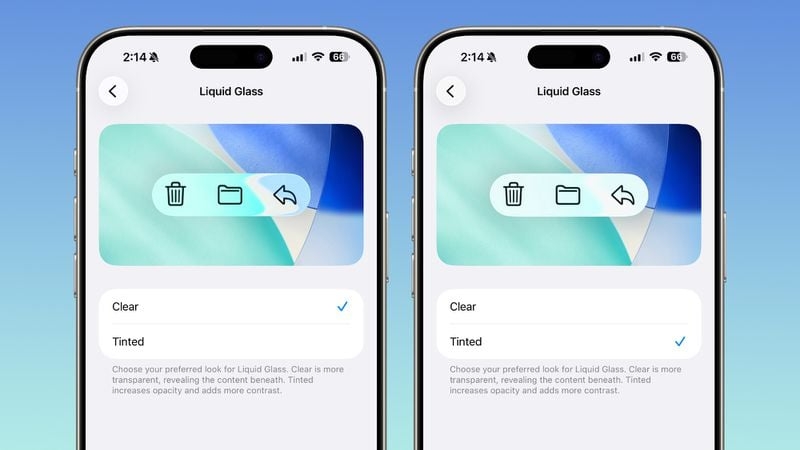
Acknowledging the negative feedback, Apple is now introducing a toggle that allows users to switch between two Liquid Glass modes: “Clear” and “Tinted.” This toggle is currently being tested in the beta versions of iOS 26.1, iPadOS 26.1, and macOS Tahoe 26.1.
How the New Toggle Works
- Clear: This is the default option, retaining the original Liquid Glass effect with its transparent buttons, bars, and menus.
- Tinted: This option makes the interface elements opaque, providing more contrast and potentially improving readability. The “Tinted” mode aims to address the visual clutter and accessibility issues raised by users.
Where to Find the New Toggle
- iPhone and iPad: Navigate to Settings > Display and Brightness to find the Liquid Glass toggle.
- Mac: Access the toggle through System Settings > Appearance.
Analyzing the New Liquid Glass Control
While the introduction of the “Clear” and “Tinted” toggle is a step in the right direction, it’s not a perfect solution.
Pros:
- Increased Customization: It offers users at least some control over the Liquid Glass effect, addressing the major complaint of a lack of options.
- Improved Accessibility: The “Tinted” mode should improve readability and contrast for users with visual impairments.
- Performance Relief: While not explicitly stated, the opaque elements in “Tinted” mode might reduce the processing load on devices compared to the full transparency of “Clear” mode.
Cons:
- Limited Control: The toggle only offers two preset options – “Clear” and “Tinted.” A slider allowing for granular control over the transparency level would have been a more versatile solution.
- Subtle Difference: The difference between “Clear” and “Tinted” modes is relatively subtle. Some users may find that even the “Tinted” mode doesn’t fully address their concerns about visual clutter or contrast.
- Performance Fix Still Needed: This fix is likely to only address the visual problems with the feature. Users are still reporting performance issues on older devices.
What About the Animations?
It’s important to note that the new toggle primarily addresses the transparency aspect of Liquid Glass. The animations, which have also been a source of complaints due to glitches and performance issues, are not directly affected by this control. Apple may need to consider further optimizations or customization options for these animations in future updates.
Potential Improvements and Future Considerations
Apple’s initial response to the Liquid Glass controversy is a welcome sign, but there’s room for improvement:
- Granular Transparency Control: Implementing a slider to adjust the transparency level would provide users with more precise control over the visual effect, allowing them to fine-tune the interface to their individual preferences.
- Animation Options: Offering options to disable or customize the Liquid Glass animations would address performance concerns and cater to users who find them distracting or visually jarring.
- Performance Optimization: Apple should continue to optimize the Liquid Glass effect to minimize its impact on device performance, particularly on older models.
Comparing Current Options to Potential Improvements
| Feature | Current Options | Potential Improvements |
|---|---|---|
| Transparency | Clear (default), Tinted | Transparency slider for granular control |
| Animations | No direct control | Option to disable or customize animations |
| Performance | Some performance improvements (Tinted) | Further optimization for older devices |
Conclusion: A Step in the Right Direction, But More Work Needed
The introduction of the “Clear” and “Tinted” toggle for Liquid Glass represents a positive step towards addressing user concerns about this controversial interface element. By providing at least some control over the transparency, Apple is acknowledging the diverse needs and preferences of its user base. However, the limited nature of the toggle highlights the need for more comprehensive customization options, including granular control over transparency and options for managing animations. As Apple continues to refine its operating systems, it’s crucial to prioritize user feedback and strive for a balance between aesthetic innovation and practical usability.
What are your thoughts on the new Liquid Glass toggle? Do you think it goes far enough in addressing user concerns? Share your opinions and experiences in the comments below!
Sources & Further Reading:
Original article at www.ghacks.net


