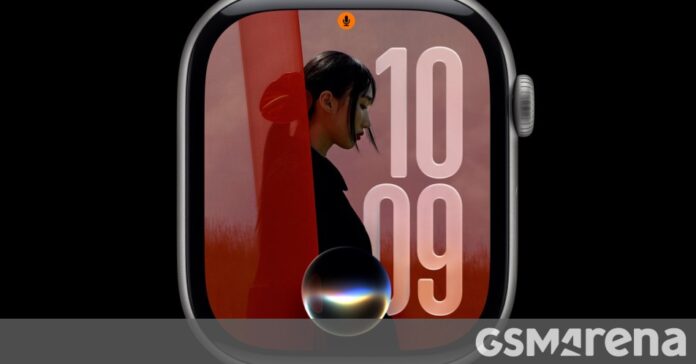

I have used an Apple Watch for the better part of a decade, yet I am somehow still discovering new things. Here are some of the not-so-obvious tricks I have learned along the way.
1. Ping and Flash Your iPhone LED
You probably know you can ping your iPhone from your Apple Watch by pressing the Side button and tapping the phone icon in Control Center. But did you know that if you hold the button down, the LED flash on the back of your iPhone will also blink? This is a lifesaver when you have lost your phone in the dark or in a loud environment.
2. Cinema Mode
Press the Side button to open Control Center and tap the theater masks icon. This enables Cinema Mode, which disables “raise to wake” so your screen stays dark in a movie theater. You can still tap the screen or press the Digital Crown to check the time, and slowly rotating the Digital Crown will subtly increase brightness. Haptics still work for notifications.
3. Silent Mode That Still Alerts You
When your Apple Watch is in Silent Mode, it still taps you on the wrist for notifications. But if you cover the watch face with your palm for three seconds, it activates Silent Mode automatically. It also mutes incoming calls—perfect for quick silence in a meeting.
4. Walkie-Talkie Mode
Yes, your Apple Watch has a walkie-talkie feature. Open the Walkie-Talkie app, add a contact, and tap to talk. It works over Wi-Fi or cellular and is surprisingly reliable for quick conversations.
5. Take a Screenshot
Press the Side button and the Digital Crown simultaneously to capture whatever is on your Apple Watch screen. The screenshot saves to your iPhone’s Photos app.
6. Unlock Your Mac with Your Watch
If you own a Mac, you can set it to automatically unlock when you are wearing your Apple Watch. Go to System Settings > Touch ID & Password on your Mac and enable “Use Apple Watch to unlock apps and your Mac.” It works seamlessly.
7. Find Your iPhone with Sound
We covered the LED flash trick, but even the standard ping is more useful than you think. Swipe up to Control Center, tap the phone icon, and your iPhone plays a sound. If you long-press the icon, your iPhone plays the sound and flashes the LED.
8. Water Lock Mode
Before swimming or showering with your watch, swipe up to Control Center and tap the water drop icon. This locks the screen to prevent accidental touches. When you are done, rotate the Digital Crown to eject water from the speaker.
9. Use Siri for Quick Health Data
Ask Siri “How is my heart rate?” or “What was my sleep like last night?” and it will give you a quick summary without opening any apps. This works surprisingly well for most health metrics.
10. Customize Your Dock
Press the Side button to see your docked apps. You can customize which apps appear here by opening the Watch app on your iPhone and going to Dock > Favorites. Add your most-used apps for faster access.
11. Share Your Watch Face
Found a watch face you love? Hard-press on the watch face, tap the Share icon, and send it to a friend via Messages or Mail. They can install it with a single tap.
12. Use Your Watch as a View Finder
Open the Camera Remote app on your watch, and it turns into a live viewfinder for your iPhone’s camera. You can see the frame, tap to focus, and trigger the shutter—perfect for group photos or timed shots.


