
How One Excel Feature Is Reducing Errors for Thousands of Businesses
Picture this: an employee accidentally edits a single cell within thousands of spreadsheet formulas, triggering weeks of faulty reporting. For countless teams relying on Microsoft Excel 365, 2021, or 2024, a powerful solution hides in plain sight: dynamic array functions and their revolutionary spill functionality. One function, in particular, transforms cumbersome workflows—the MAP function. By returning multiple results dynamically into adjacent cells, MAP eliminates repetitive tasks and safeguards against costly mistakes. Mastering it unlocks next-level efficiency.
Transforming Multi-Column Logic Forever
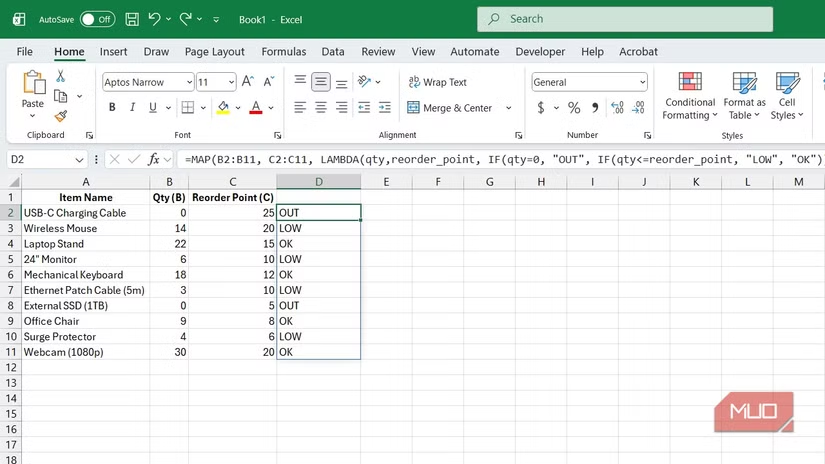
Forget dragging formulas down endless columns. The MAP function enables complex comparisons across entire arrays within one elegant calculation. Think inventory checks (Stock Qty vs. Reorder Point), pricing rules (Price vs. Customer Tier), or logistics (Weight vs. Shipping Zone). Input multiple arrays directly into a single LAMBDA function.
excel
=MAP(B2:B11, C2:C11, LAMBDA(qty, reorder_point, IF(qty = 0, “OUT”, IF(qty < reorder_point, “Reorder”, “OK”))))
This single formula dynamically spills “OUT,” “Reorder,” or “OK” down the entire column, replacing thousands of individual:
excel
=IF(B2=0, “OUT”, IF(B2<C2, “Reorder”, “OK”))
The Impact:
- Eliminates manual fills: No dragging formulas; results populate automatically.
- Prevents performance lag: One compressed formula replaces thousands.
- Ensures consistency: Identical calculation logic applied row-by-row.
Slashing Spreadsheet Errors Dramatically
Manual formula chains invite disaster. MAP functions centralize logic, making spreadsheets exponentially safer:
| Traditional Method | MAP Function Approach |
|---|---|
| Thousands of editable formulas | One protected source formula |
| Error-prone manual propagation | Automatic, spill-driven results |
| Debugging = “Needle in haystack” | Errors traced to one location |
Consider inventory managed via traditional IF grids. Adjusting one parameter accidentally breaks analysis silently.
Map moves logic into secure LAMBDA functions that cannot be altered downstream. Only the source cell is editable. If a value is wrong, you fix it once—not hunt through rows.
Boost Auditing Clarity With Named LAMBDAs
Simplify complex MAP logic using named LAMBDA functions via Excel’s Name Manager:
- Go to Formulas > Define Name
- Name:
CheckStock - Refers to:
excel
=LAMBDA(qty, reorder, IF(qty = 0, “OUT”, IF(qty < reorder, “Reorder”, “OK”)))
Deploy instantly anywhere:
excel
=MAP(B2:B100, C2:C100, CheckStock)
Benefits:
- Ultimate readability:
CheckStockclarifies the formula’s purpose. - Reusable logic: Define once; use everywhere.
- Reduced editing risk: Prevents formula fragmentation.
Handling Discounts Intelligently & Transparently
Clear tiered pricing rules replace cell-reference spaghetti:
excel
=MAP(A2:A50, LAMBDA(price, IF(price > 100, price 0.85, price 0.95)))
Versus the opaque alternative: =IF(A2>100, A2*0.85, A2*0.95) copied downwards.
MAP enhances transparency by:
- Explicitly declaring variable names (
price) - Encapsulating logic flow in one location
- Avoiding reliance on cryptic cell coordinates
Cleaning Chaotic Data Effortlessly
Raw text normalization is MAP’s ideal use case. Replace:
excel
=PROPER(TRIM(A2)) // Copied down manually
With one spill-enabled solution:
excel
=MAP(A2:A1000, LAMBDA(text, PROPER(TRIM(text))))
No dragging means no overlooked rows. Scale to 50,000 rows without workflow changes.
The MAP function—paired with dynamic arrays—redefines robust Excel modeling. By consolidating formulas, enforcing logic integrity, and enabling molecular-scale auditing, it prevents spreadsheet disasters. Stop chasing errors; embrace MAP for inventory, pricing, cleaning, and beyond.
What’s your biggest Excel headache? Could MAP solve it? Share below! (Seeking user interaction)


