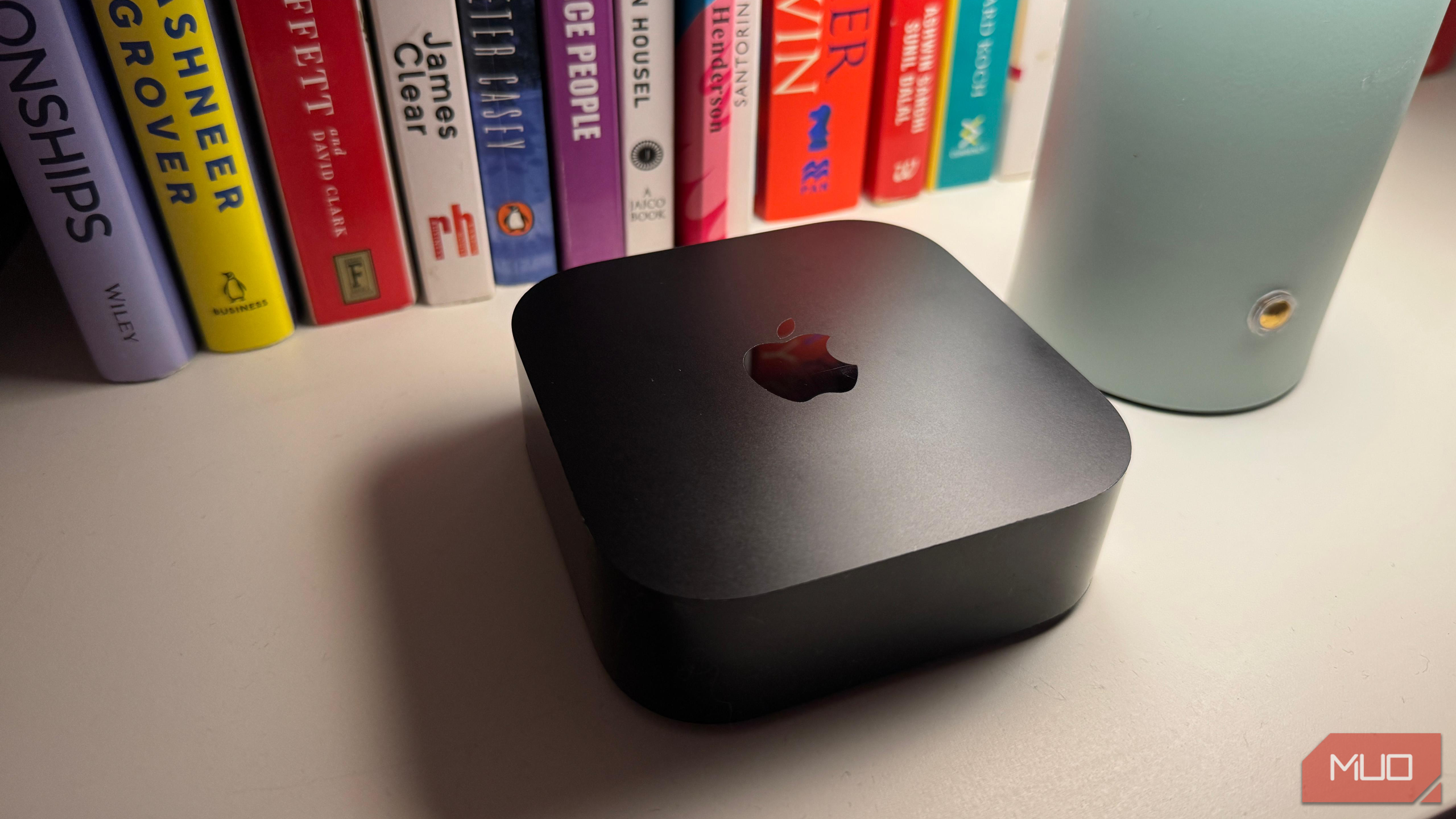

Bridging the Divide: Control Your Apple TV with Your Android Phone
Frustrated by Apple’s walled garden? It’s no secret that Apple prefers you stay within its ecosystem. But what if you’re an Android user who also owns an Apple TV? Is it possible to seamlessly integrate these two worlds? While Apple doesn’t officially support using an Android phone as an Apple TV remote, don’t despair! This article will show you how to control Apple TV with Android, offering practical solutions to bridge this gap and enhance your viewing experience. Let’s explore how to unlock the potential of your Android device and use it as a functional remote for your Apple TV.
Overcoming Apple’s Ecosystem: Making Android Play Nice with Apple TV
Apple’s strategy often involves keeping its products and services tightly integrated. This can be frustrating for users who prefer a mix of devices. One glaring example is the lack of an official Apple TV Remote app for Android.
The Problem: No Official Apple TV Remote for Android Users
The primary obstacle for Android users wanting to control their Apple TV is the absence of an official remote app from Apple. Apple’s official stance is clear: the primary control methods are the Siri Remote and iOS devices. This leaves Android users feeling left out and seeking alternative solutions. This omission is surprising, especially considering Apple offers some apps like Apple Music on the Google Play store. The lack of an official Apple TV app for Android is frustrating.
The Solution: Third-Party Apps to the Rescue
Thankfully, the Android community is known for its ingenuity and resourcefulness. Recognizing the need, third-party developers have stepped in to fill the void, creating apps that allow Android devices to function as Apple TV remotes. While these apps may not offer the same level of tight integration as an iOS device, they provide a functional and often surprisingly effective way to navigate, control playback, and even input text.
Exploring Android-Based Remote Control Options for Apple TV
Now, let’s dive into the practical ways you can use your Android phone to control your Apple TV. There are two main methods: leveraging third-party apps and utilizing your phone’s IR blaster (if available).
Option 1: Third-Party Apple TV Remote Apps for Android
The Google Play Store is teeming with apps claiming to control your Apple TV. However, not all apps are created equal. Many are riddled with ads, have unintuitive interfaces, or lock essential features behind paywalls. After testing numerous options, one app stands out:
- Remote for Apple TV: This free app (supported by ads) provides a user-friendly experience with both click-based and touchpad controls. Crucially, it doesn’t restrict basic functions, making it a superior choice compared to many alternatives.
Getting Started with “Remote for Apple TV”: A Step-by-Step Guide
The setup process is relatively straightforward:
- Install and Open the App: Download “Remote for Apple TV” from the Google Play Store and open it on your Android phone.
- Connect to Your Apple TV: Tap “Not Connected” at the top of the screen.
- Select Your Device: Choose your Apple TV from the list of available devices. Make sure your Apple TV is turned on and connected to the same Wi-Fi network as your phone.
- Enter the Pairing Code: A four-digit code will appear on your Apple TV screen. Enter this code into the app on your Android phone.
- Enjoy Control: Once paired, your Android phone becomes a fully functional remote.
Key Features of the “Remote for Apple TV” App
- Intuitive Interface: The app’s design is clean and easy to navigate, with three main tabs.
- D-Pad or Swipe Controls: Choose your preferred navigation method.
- Dedicated Media Controls: Easily play, pause, rewind, and fast-forward content.
- Home and Back Buttons: Navigate the Apple TV interface with ease.
- Keyboard Input: Makes searching and entering text much simpler than using the on-screen keyboard with the standard remote.
- Quick App Launching: Customize the app to show your three favorite apps for quick access.
- App List: Directly open installed apps from your phone.
- Customization Options: Adjust vibration feedback, tap sounds, and language preferences in the settings.
- Apple TV Wake-Up: The app can even wake your Apple TV, even when the physical remote is out of reach.
| Feature | Description |
|---|---|
| Navigation | D-pad, swipe controls |
| Media Control | Play/pause, rewind/fast forward |
| Text Input | Integrated keyboard for easier searching |
| App Launching | Ability to launch apps directly from the phone |
| Customization | Vibration, sound, and language options |
| Apple TV Wake-up | Can wake the Apple TV from sleep mode |
| Connection Method | WiFi |
Option 2: Utilizing Your Phone’s IR Blaster
An alternative method, particularly useful if you prefer not to rely on Wi-Fi or third-party apps, involves using your phone’s built-in IR (infrared) blaster.
The Power of IR Blasters: A Connection Without Wi-Fi
Some Android phones, especially those from brands like OnePlus, Oppo, Xiaomi, and Vivo, come equipped with an IR blaster. This small sensor, usually located on the top edge of the phone, allows the phone to communicate with devices using infrared signals, just like a traditional remote control.
Checking for IR Blaster Compatibility
To determine if your phone has an IR blaster, look for the small sensor on the top edge or consult your phone’s specifications on the manufacturer’s website. Unfortunately, many mainstream phones, such as those from Google or Samsung, no longer include IR blasters.
Using the IR Blaster: Simple and Reliable
If your phone has an IR blaster, you can use it with a compatible IR remote app (often pre-installed by the manufacturer) to control your Apple TV.
Advantages and Disadvantages of Using an IR Blaster
-
Advantages:
- No Wi-Fi Required: Works even when your Wi-Fi is down.
- Direct Control: Simple and direct communication with the Apple TV.
-
Disadvantages:
- Limited Features: May not offer advanced features like keyboard input or quick app launching.
- Line of Sight: Requires a direct line of sight between the phone and the Apple TV.
Why Doesn’t Apple Just Offer an Official App?
This is the million-dollar question. Apple’s reluctance to offer an official Android remote app for Apple TV likely stems from its desire to keep users within its ecosystem. By restricting access to Apple TV control to iOS devices, Apple encourages users to purchase and use more Apple products. While understandable from a business perspective, this approach can be frustrating for users who prefer a mix of devices.
People Also Ask:
- Why can’t I find the Apple TV Remote app on the Google Play Store? Because Apple does not offer one.
- Is it safe to use third-party Apple TV remote apps for Android? Exercise caution and choose apps from reputable developers. Read reviews and check permissions before installing.
- Can I use my Android phone to control other Apple devices? The methods outlined here are specific to Apple TV. Control over other Apple devices may require different solutions.
Conclusion: Bridging the Gap, One App (or IR Blast) at a Time
While Apple may not make it easy, it is indeed possible to control Apple TV with Android. Whether you opt for the feature-rich “Remote for Apple TV” app or leverage your phone’s IR blaster, you can enjoy a seamless viewing experience without being locked into the Apple ecosystem. Although third-party solutions offer a viable alternative, an official Apple TV remote app for Android would significantly enhance the user experience for millions of Android users.
What do you think? Do you find these methods helpful? Share your experiences and preferred solutions in the comments below!
Sources & Further Reading:
Original article at www.makeuseof.com


