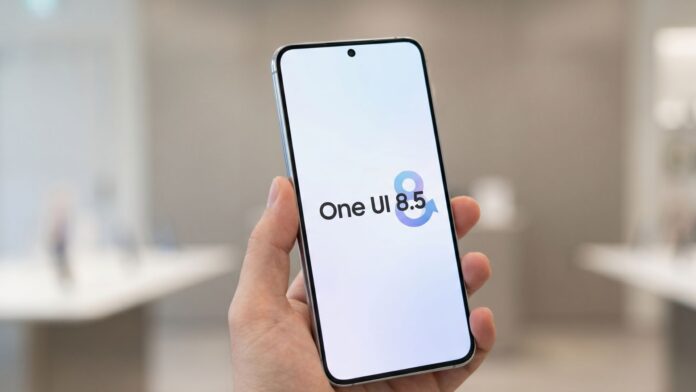

Samsung pushed the stable One UI 8.5 update on May 6, 2026, starting with the Galaxy S25 series in South Korea before expanding globally on May 11. The Galaxy S24 series, Z Fold 7, Z Flip 7, and foldables like the Z Fold 6 and Z Flip 6 followed shortly after.
Any major software update comes with a settling-in period, and One UI 8.5 is no different. Within days of the rollout, users across Samsung’s community forums, Reddit, and tech publications started flagging a range of problems, from aggressive battery drain to missing camera features and app crashes.
Most of these are confirmed bugs Samsung is actively fixing. Others are intentional changes that caught users off guard. This article covers all of them and tells you exactly what to do about each one.
One UI 8.5 problems covered in this article
Here’s a quick look at everything this article addresses:
- Battery drain on the Galaxy S25 after the stable update
- Galaxy Enhance-X losing photo editing features after updating
- Voice Recorder crashing when summarizing recordings
- Key Galaxy S26 features missing on the Galaxy S25
- Notification panel button jumbled and shifting position
- Dual Recording and Single Take moved out of the Camera app
Problem 1: Battery drain on the Galaxy S25
Galaxy S25, S25+, and S25 Ultra users are reporting heavy battery drain after installing stable One UI 8.5. One user on Samsung Members posted on May 12, 2026, that their Galaxy S25 drained 85% of its battery overnight, with only 3 hours and 46 minutes of screen-on time. Their description: the drain was far more aggressive than during the beta phase.
The same pattern is showing up on unlocked S25 Ultra models in the US and on some S24 Ultra devices that got the stable build around May 9 to 11.
How to fix it
After a major OS update, your phone spends a few days re-optimizing background apps and reindexing storage. This can cause temporary battery drain. Give your phone 7 to 14 days before concluding. If the drain continues past that, work through these steps:
- Clear app cache on your most-used apps. Go to Settings > Apps, open each app you use heavily like Chrome, Gmail, Instagram, or WhatsApp, tap Storage, and pick Clear cache. Do this for your five or six most-used apps. Samsung removed the full cache partition wipe option from the recovery menu with the February 2026 security patch, so clearing app cache individually is now the recommended approach.
- Reset battery stats. Open the Phone dialer and type *#9900#. Scroll all the way down to Battery stats Reset and tap it. Turn off Auto Blocker first (Settings > Security > Auto Blocker) and switch it back on after rebooting.
- Update all Samsung apps. Open Galaxy Store, tap the menu icon, and pick Updates. Install everything pending.
- Run Galaxy App Booster. Open Good Lock, go to Good Guardians, and run a boost to clear resource-heavy background processes.
- Check background app limits. Go to Settings > Battery > Background usage limits, and put heavy apps like Facebook and TikTok into deep sleep.
T-Mobile users: There’s a specific fix for you
A Samsung US community moderator has confirmed that the latest version of the Cellular Services system app is causing abnormally heavy battery consumption on T-Mobile Galaxy S25 devices. Samsung says a proper patch is coming, but you can fix it yourself right now:
- Open Settings and tap Apps.
- Tap the sort or filter icon at the top right of the app list.
- Toggle on Show System Apps.
- Look for Cellular Services and open it.
- Take a screenshot of the version number at the bottom of the info page for your own reference.
- Tap the three-dot menu in the top right corner, then tap Uninstall updates.
- Confirm by tapping OK, then reboot your phone.
The app rolls back to its factory version, and the drain stops. This workaround has also helped non-T-Mobile users, so if your carrier is different and you’re still seeing a drain, it’s worth trying.
Problem 2: Galaxy Enhance-X loses features after the One UI 8.5 update
After updating to stable One UI 8.5, some Galaxy users open the Enhance-X photo editing app and find that features like Filter Styles and Glow are simply gone, with no error or explanation. The app shows as installed and up to date, but those editing tools have disappeared from the in-app library.
There’s an important warning attached to this bug. One user tried to fix it by uninstalling Enhance-X and reinstalling from Galaxy Store. After uninstalling, the app stopped appearing in Galaxy Store search entirely, leaving no way to get it back. Samsung has not documented a re-installation route for this case.
Samsung’s camera team has officially acknowledged the bug and confirmed that they are working on a fix. The plan is to roll it out in stages, device by device, and the moderator said it could take up to a few days once the rollout begins.
What to do right now
The one important thing: do not uninstall Enhance-X. Wait for Samsung to push the fix automatically. Here’s what to do for the time being:
- Leave Enhance-X installed. Do not touch the uninstall option.
- Check Galaxy Store for a pending update. Open Galaxy Store, tap the menu icon, and go to Updates. When Samsung’s staged fix reaches your device, it’ll appear here.
- If Enhance-X shows an Update prompt inside the app that leads nowhere, ignore it for now — the fix will arrive through Galaxy Store when it’s ready for your device.


