

Google is rolling out Play Store version 52.1 with a series of backend improvements designed to make app installations smoother across the entire Android ecosystem. Rather than focusing solely on download speeds, this update targets the infrastructure that handles how apps are installed on everything from phones to cars.
A broader role than raw speed
The update centers on memory management during the installation process. Google says Play Store v52.1 helps devices use memory more carefully when adding new apps, reducing the strain that can make installations feel sluggish or unstable. This matters because the installation pipeline now needs to work reliably across phones, tablets, Wear OS watches, Google TV, Android TV, Android Auto, and vehicles running Android Automotive.
A flagship phone, a smartwatch, and a car dashboard don’t share the same hardware resources. By optimizing how the Play Store handles installations across such a wide range of devices, Google is aiming for consistency where before there were noticeable gaps. Users may not always think of the Play Store as shared infrastructure, but it determines how apps arrive on devices that behave very differently once storage, memory, and screen size come into play.

For the end user, most of these changes will be invisible. App installations should simply feel faster and more reliable, especially on devices with tighter memory budgets, older chipsets, or less processing headroom.
What else is new in v52.1
Play Store v52.1 also introduces clearer labeling when developers use AI-generated media in their app listings. Users will see a more obvious indicator when promotional images may not accurately reflect the actual in-app experience after installation.
Gaming discovery is getting attention too. Google is adding support for game-specific creator and developer videos within game listings, complete with full-screen playback and picture-in-picture support. It hasn’t clarified which titles will support the feature first, so that part of the rollout still needs more detail.
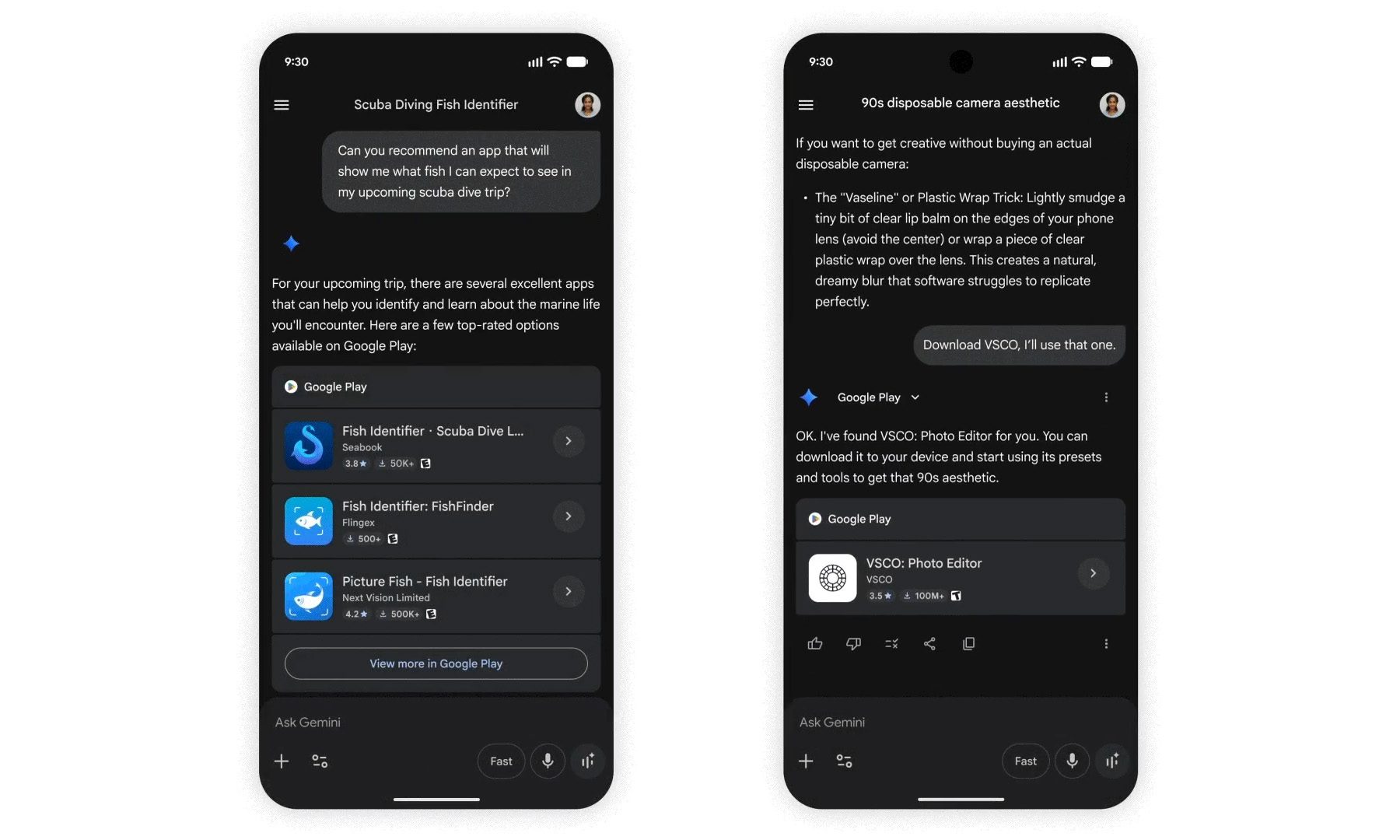
Google also recently opened app discovery through Gemini, letting users find and install apps through voice conversations with the assistant. Combined with the new AI labeling, the Play Store is becoming more proactive about guiding users before they tap install.
How to check for the update
The easiest place to start is the Play Store itself. Tap your profile icon, open Settings, scroll to About, and check the Play Store version update option. Android also offers update paths through Google Play Services and the Google Play system update menu in Settings. Start with the Play Store route, then check system updates if v52.1 hasn’t appeared yet.


