
Exploring the realm of running Android applications on your Windows PC? Luckily, numerous Android emulators cater to this need. Whether you’re an Android developer seeking app testing, a gaming enthusiast yearning for a larger-screen gaming experience, or someone keen on exploring the Android ecosystem from your Windows PC, these emulators offer an excellent solution. In this article, we’ll delve into the top 10 Android emulators tailored for Windows 10 and Windows 11 in the year 2024.
List of Best Android Emulators for Windows 11
1.Bluestacks
BlueStacks stands tall as one of the finest Android emulators available for Windows users. Notably acclaimed for gaming, it offers an excellent avenue for general users seeking to experience Android apps on their Windows PCs. Evolving over time, the latest iteration of BlueStacks is rooted in Android 9 (Pie), empowering users to run high-end games like Genshin Impact flawlessly on Windows.
One of its standout features is that BlueStacks 5 doesn’t necessitate a dedicated graphics card, making it accessible even on low-end Windows PCs. Its compatibility extends to both AMD and Intel-based systems, ensuring a broader user base.
For gaming enthusiasts, BlueStacks introduces the innovative BlueStacks X interface in its fifth version, bringing forth cloud gaming functionality. With access to over 2 million games via BlueStacks X, a stable internet connection with a minimum speed of 5 Mbps is all that’s required.
BlueStacks doesn’t merely stop at gaming; it presents a gamut of useful features like Game Controls, Multi-Instance, Eco Mode, Performance Mode, Trim Memory, and native support for Xbox and PS4 controllers. The gaming performance on BlueStacks is refined, eliminating any sense of platform limitations when playing Android games on Windows.
Moreover, its support for older Windows versions such as 7 and 8.1 adds to its appeal, making BlueStacks an excellent choice, particularly for Windows 7 users. All things considered, if you seek the ultimate Android emulator for PC encompassing a blend of gaming prowess and overall performance, BlueStacks stands out as the prime choice.
2. Gameloop (Tencent Gaming Buddy)
Gameloop stands as a dedicated gaming emulator tailored for enthusiasts seeking top-notch Android gaming experiences on their desktop PCs. Developed by Tencent, formerly known as Tencent Gaming Buddy, this platform originated as an experiment merging desktop and mobile gaming.
Initially serving as a means to play PUBG Mobile on PC, Gameloop has evolved to encompass an extensive array of Android games. Now, it extends support to a broad selection, including titles like Free Fire and Call of Duty.
One of Gameloop’s noteworthy aspects is its provision for the Google Play Store. Users can access the Play Store through a separate module available within the setup. This grants access to a plethora of popular Android games, accompanied by mouse and keymapping support.
In essence, Gameloop shines as an optimal choice for those seeking an Android emulator specifically tailored for PUBG and various other games on Windows 11. Notably, it offers keyboard mapping capabilities in games like PUBG, enabling users to seamlessly utilize touch-oriented interfaces with a keyboard and mouse, enhancing the overall gaming experience.
3. Android Studio
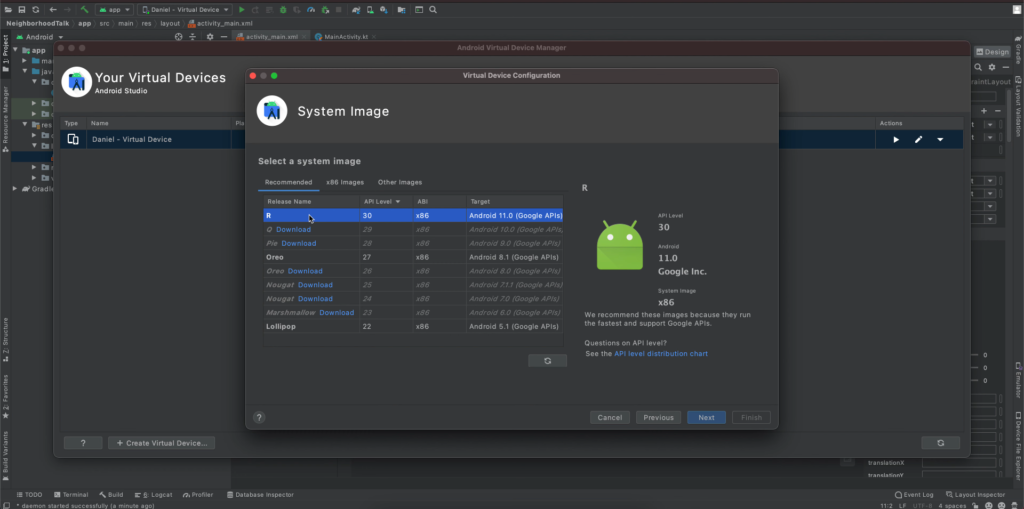
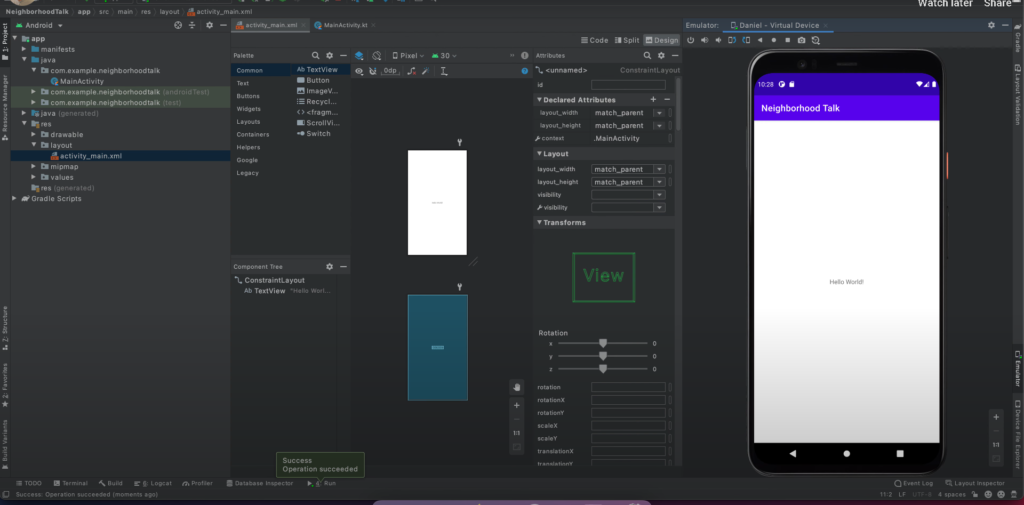
Android Studio, developed by Google, serves as the primary emulator for Android app developers. It comes equipped with the Android Software Development Kit (SDK), providing developers access to the latest Android versions for testing purposes. Despite not being the swiftest emulator, it stands out for its comprehensive support in simulating various functionalities crucial for app testing, such as gestures, accelerometers, gyroscopes, and more. This tool is specifically tailored to assist developers in ensuring the functionality and compatibility of their Android applications across different devices and Android OS versions.
4. LDPlayer

LDPlayer is an emerging Android emulator gaining popularity for gaming on Windows 11. Built on Android 9, it delivers strong performance, especially on popular games like Genshin Impact and Blue Archive. Compatible with both Intel and AMD PCs, LDPlayer utilizes Virtualization Technology to boost its performance. Whether you’re a gamer or an everyday user, LDPlayer offers a straightforward yet robust Android experience on Windows.

5. MEmu Play
MEmu Play stands as an exceptional Android emulator designed for Windows users. Boasting a wide array of features, it caters to both Intel and AMD CPUs, ensuring compatibility and versatility. One of its remarkable abilities lies in the capacity to run multiple app instances concurrently, accommodating various versions of the Android operating system at the same time.
This emulator’s reach extends across the Windows spectrum from version 7 to 10, offering seamless compatibility throughout. Whether engaging in gaming endeavors or everyday tasks, MEmu Play delivers outstanding performance, elevating the user experience for both entertainment and general usage.
6. Nox Player
Nox Player emerges as a feature-packed Android emulator tailored for Windows users. Beyond its prowess in gaming, it stands out for offering a holistic Android experience. This emulator elevates gaming experiences through optimized gameplay, controller adaptability, and the flexibility to modify the Android device’s build.prop.
Built upon Android Pie, Nox Player showcases support for multi-instance synchronization, enabling users to indulge in multiple games concurrently. A standout feature lies in its seamless root access, simplifying the process for users.
Understanding Android Emulators
Android emulators are essentially virtual machines operating on top of platforms like Windows or other systems. This concept is akin to running Windows within Linux or using Linux on a Chromebook in a virtualized environment. Technically, they work as isolated containers, distinct from the underlying operating system.
Since Android operates on ARM architecture, emulating it on an x86-64 machine (Intel or AMD) poses challenges. To bridge this gap, developers utilize QEMU, an open-source project that translates ARM instructions for Intel or AMD CPUs, enabling ARM emulation on-the-fly.
Emulation has significantly improved, offering nearly native performance on compatible hardware, particularly when processors support Kernel-based Virtual Machine (KVM), such as Intel’s VT-x or AMD-V. Emulators come packed with Android SDKs and dependencies, ensuring smooth operation across various architectures.
Installing Android Emulators on Your PC
Installing an Android emulator on a PC is simple. Emulators typically provide an EXE file for download. Once downloaded, run the EXE file to start the installation wizard. During installation, certain emulators like Nox and MEmu may download additional libraries. After installation, sign in with your Google account within the emulator to access the Play Store or other app sources.
Preparing for Emulator Usage
Before using an Android emulator on Windows, ensure virtualization is enabled in the BIOS settings for optimal performance. Additionally, in the emulator’s Settings, activate hardware-based acceleration to utilize virtualization efficiently.
For gaming purposes, customize keyboard and mouse settings to suit your preferences. Removing preinstalled unnecessary software from the emulator can notably enhance performance.
Security Considerations
It’s advisable to use a secondary account when logging into the emulator due to potential security risks. Emulators often utilize older OS versions for compatibility, which can pose security concerns. Some emulators have been linked to malicious activities like background bitcoin mining (e.g., Andy emulator). If concerned, perform a security check on your Google account.
Running Android Apps on Windows 11
With Windows 11, native support for running Android apps is available, potentially eliminating the need for an Android emulator. This native support allows users to directly install and run Android apps on Windows 11 without using an emulator.
Frequently Asked Questions (FAQs)
1. Can I use these emulators on Windows 10?
Yes, all the emulators mentioned in this article are compatible with Windows 10, as well as other versions like Windows 8, 8.1, 7, and XP.
2. Are these emulators safe to use?
Yes, the emulators listed here are safe to use. However, it is always recommended to download emulators from official sources to ensure you are getting the legitimate and secure software.
3. Can I use a gaming controller with these emulators?
Yes, several emulators mentioned, such as BlueStacks and Nox Player, offer support for gaming controllers. You can connect your Xbox or PS4 controller to enhance your gaming experience.
4. Can I run multiple instances of apps or games using these emulators?
Yes, emulators like MEmu Play and Nox Player allow you to run multiple instances of apps or games simultaneously. This can be useful if you want to play multiple games or use multiple apps simultaneously.
5. Can I run these emulators on a low-end PC?
While some emulators may require a higher-end PC for optimal performance, there are options like Android Studio that are less resource-intensive and can run on lower-end systems. It is recommended to check the system requirements of each emulator before installation.
6. Can I use these emulators for testing Android apps?
Yes, emulators like Android Studio are specifically designed for developers to test their Android apps. These emulators provide a simulated environment for testing and debugging purposes.


