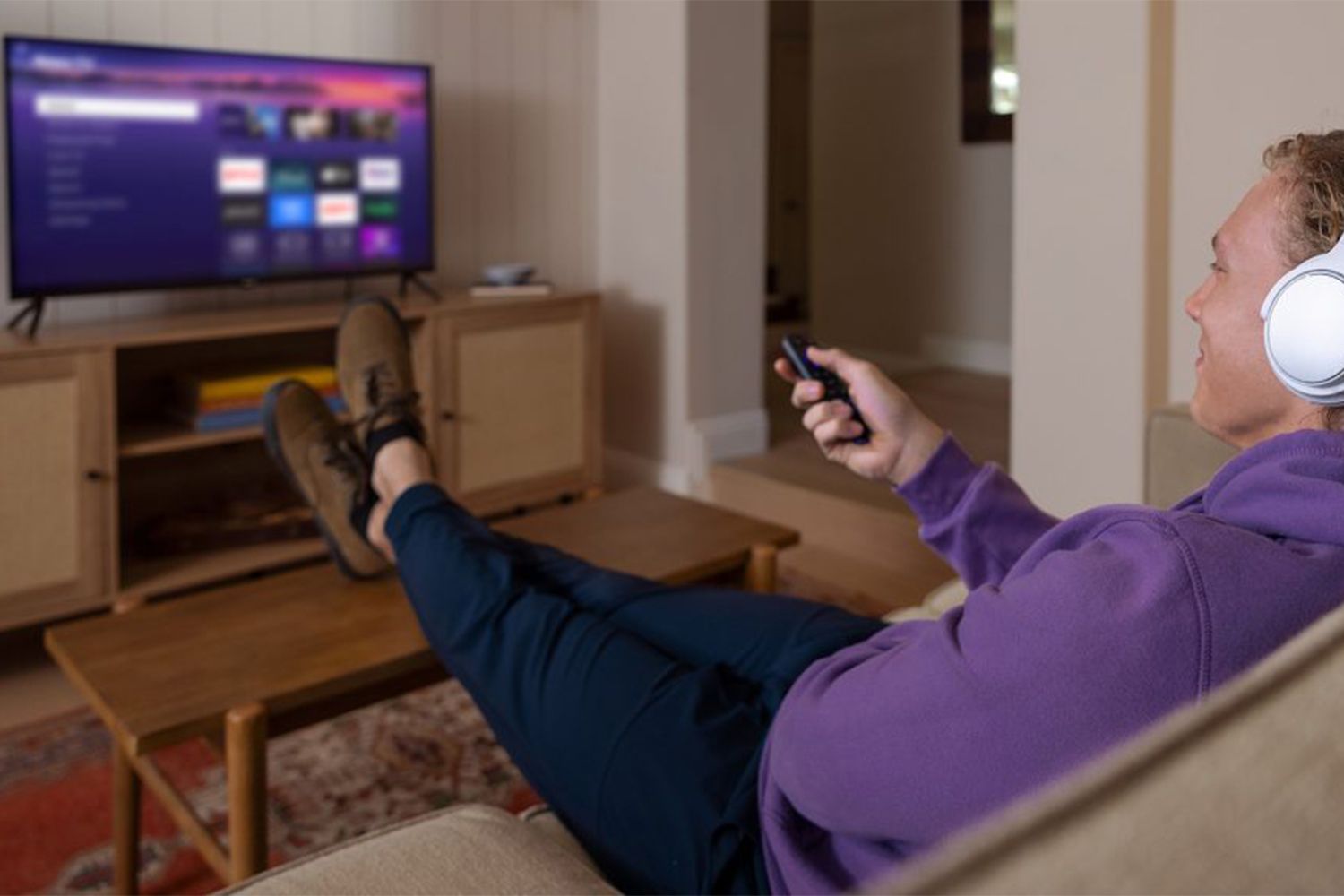

Beyond The Stream: Elevating Your Roku Experience
Did you know your everyday Roku streaming player holds hidden depths beyond Netflix and Hulu? While you can’t jailbreak these devices like some smart gadgets, dismissing their potential means missing out on a wealth of features cleverly built-in or easily unlocked. With millions cutting the cord annually (reports suggest Roku itself boasts over 70 million active accounts), mastering your device transforms it from a simple streamer to a versatile entertainment hub. Forgetting the physical remote, struggling with buffering, or overlooking vast libraries of free content are frustratingly common limitations. Understanding the operational flexibility of your Roku device is the key to unlocking smoother streaming, personalization, and access you didn’t know existed. Let’s move beyond the basics.
Your Roku: More Than Just a Streaming Stick
The humble Roku player powers televisions from giants like LG, Samsung, Sony, Panasonic, and Vizio. But its true power lies in harnessing its full suite of features.
Beyond the Living Room: Taking Your Roku Device On The Go
That getaway or dorm room doesn’t mean abandoning your streaming sanctuary. Roku’s Hotel and Dorm Connect tackles the notoriously tricky public Wi-Fi sign-in process.
- Preparation is Crucial: Ensure your Roku runs the latest firmware. Pack essentials:
- HDMI cable (for box models; sticks have this built-in)
- Power adapter
- Physical remote
- Your smartphone – essential for activating the feature.
- Check Ahead: Verify the destination offers Wi-Fi and that the TV has an accessible HDMI port.
Note: Roku 1 lacks this feature; compatibility for Roku TVs depends on the specific model. This feature facilitates the connection through login portals typically required in hotels/dorms.
Treasure Trove of Free Content at Your Fingertips
Your Roku device is a gateway to thousands of free movies and shows. You just need to know where to mine:
- The Roku Channel: The official hub for free, ad-supported movies and TV series, offering endless replay.
- Dedicated Free Apps: Seek out and install channels like Tubi, Pluto TV, Crackle, and the Roku Channel itself, renowned for their extensive free libraries.
- Search by Title: Simply search for the movie or show you want. If a Roku channel offers it for free, it will pop up in the results linkable via supported apps like Tubi or Pluto.
Maximizing Your 4K Roku Device’s Potential
If you’ve invested in a 4K-capable Roku model (e.g., Ultra, Streaming Stick+, 4K Roku TVs), ensure you’re utilizing the UHD viewing:
- From the Roku Home Screen, navigate to Streaming Channels.
- Select the 4K UHD Content Available category. This lists channels offering 4K programming.
- Browse Within Channels: Remember, listing doesn’t guarantee every show on that channel is UHD. Explore the individual channel’s offerings to find actual 4K content streams.
Unleashing the Power of the Roku Mobile App
Don’t underestimate the official Roku app (iOS/Android). It’s far more than a remote replacement:
- Enhanced Remote Features: Voice search, effortless pairing, opening recent channels.
- Supercharged for Roku TVs: Control power, inputs, OTA channel scanning, picture modes, and audio settings.
- Private Listening: Stream audio directly to your phone’s speakers or headphones – perfect for late nights. (Official Roku Mobile App Features)
Expanding Your Screen: Mirroring and Casting Magic
Your smartphone and Roku work brilliantly together to beam content to the big screen:
- Screen Mirroring (Android-centric):
- Shows your entire phone screen on the TV (works for apps, photos, videos, KODI-like platforms, web browsing).
- Often called Miracast on some Android devices.
- Direct Connection: Works without Wi-Fi (peer-to-peer). Drawback? You can’t multi-task on your phone while mirroring.
- Setup: Enable Mirroring on Android first, then on Roku: Settings > System > Screen Mirroring > Choose mode like “Always allow”.
- Casting (Android & iOS):
- App-Specific: Only casts supported content from apps featuring the Cast logo (YouTube, Netflix, Disney+).
- Multi-Tasking Friendly: Content plays on TV while you freely use your phone.
- Wi-Fi Essential: Both devices need the same network. May require setup (like Google Home app for Chromecast built-in).
- Simple Use: Tap the Cast icon within a compatible app and select your Roku device (Roku Screen Mirroring vs. Casting Explanation).
| Screen Mirroring vs. Casting Comparison | |
|---|---|
| Feature | Screen Mirroring |
| Primary Use | Entire Phone Screen |
| iOS Compatibility | Complicated |
| Android Compatibility | Native Feature |
| Requires Wi-Fi | ❌ |
| Allows Phone Use While Playing | ❌ |
| Best For | Phone Screens/Games |
| Connection Type | Direct (Peer-to-Peer) |
Gaming, Audio, and Personal Media Playground
Your Roku device offers more than passive viewing:
- Casual Gaming: Explore the Channel Store games section. Ideal for titles like Jeopardy! or puzzles. Use a Voice Remote Pro for a significantly better experience than the basic remote.
- Private Listening: Specific Roku models (like Ultra) include remotes with headphone jacks or utilize Private Listening via the mobile app. Audio streams wirelessly to your ears – walk around freely!
- Access Your Personal Library (Media Player):
- Stream music, photos, and videos stored on your PC or NAS (Network Attached Storage) over your home network. Works with Plex Media Server, PlayOn, Serviio, Windows Media Player.
- USB Playback: If your Roku model has a USB port, plug in a flash drive or external HDD to play compatible media files directly. (Roku Media Player Format Support).
Bringing Live Over-the-Air (OTA) TV to Your Roku Experience
While Roku players lack built-in antenna inputs (except Roku TVs), OTA TV integration is possible:
- External Tuner/DVR: Use devices like Tablo or AirTV connected to your antenna.
- Stream to Any Roku: These devices send the OTA signal over your network; install the dedicated Tablo or AirTV Roku channel to access live TV and DVR recordings right on your streaming device.
- Record Capabilities: Paired with external storage, a Tablo allows you to schedule and play back recordings via Roku. (Tablo Roku App)
Diagnosing Disruptions: Solving Streaming Woes
Buffering ruining movie night? Leverage hidden settings to diagnose and potentially fix:
- Check Wi-Fi Signal Strength:
- Remote Code: Press
Homex5, thenUp,Down,Up,Down,Up. A secret screen displays signal strength, source network, and channel. Low strength? Try better positioning or router upgrade.
- Remote Code: Press
- Override Default Bitrate (Use Cautiously):
- Access Secret Menu: Press
Homex5,Rewindx3,Fast Forwardx2. - Adjust if Needed: While Auto is best, you can manually select a lower bitrate (e.g., 2.0 Mbps) if experiencing constant buffering or to conserve data on capped plans. Trade-off: Lower video quality.
- Access Secret Menu: Press
Tailoring the Experience: Personalization & Accessibility
Make your Roku truly yours and utilize helpful features:
- Catch Every Word (Instant Replay + CC): Enable Roku’s unique feature: Captions only appear when you use the replay button. Perfect for catching muffled dialogue. Settings > Accessibility > Captions mode > Instant Replay. (Roku Accessibility Features)
- Set the Scene (Screensavers): Move beyond the default. Explore channels offering scenic vistas, aquariums, fireplaces, or space vistas.
- Elevate Your Sound: Connect your Roku player to an AV receiver via HDMI first. This unlocks:
- Advanced Audio: Dolby Atmos/Digital Plus support from services like Netflix.
- Superior Music: Enhanced playback for music streams (Pandora, Spotify, Amazon Music) through your home theater system.
- Personalize the Look (Themes): Change the Roku UI’s background and appearance. Home > Settings > Themes. Some themes are premium.
- Tame Your Channel List: New channels default to the bottom. Reorder them:
- Highlight channel > Press
*button > SelectMove channel. - Use D-pad to reposition > Press
OK.
- Highlight channel > Press
- Web Browsing Workarounds: No native browser? Solutions exist:
- Screen Mirror: Cast web pages from your smartphone browser.
- Fast Internet Browser: Install this app from the Roku Channel Store for basic web access via your TV screen. Use the Roku mobile app’s keyboard for easier input.
Mastering Your Stream Awaits
Unlocking these features transforms your Roku device from a passive tube into a dynamic, personalized entertainment command center. You’ve discovered how to travel seamlessly, tap vast free libraries, optimize 4K, leverage mobile control, cast and mirror content, game casually, listen privately, access personal media, integrate live TV, troubleshoot hiccups, personalize the interface, and even browse the web. Don’t settle for the default setup – your device is capable of much more than meets the eye. By embracing these readily available functionalities, you reclaim control over your viewing experience. Have you tried any of these “hacks”? Which feature has revolutionized your Roku time? Share your tip in the comments!


