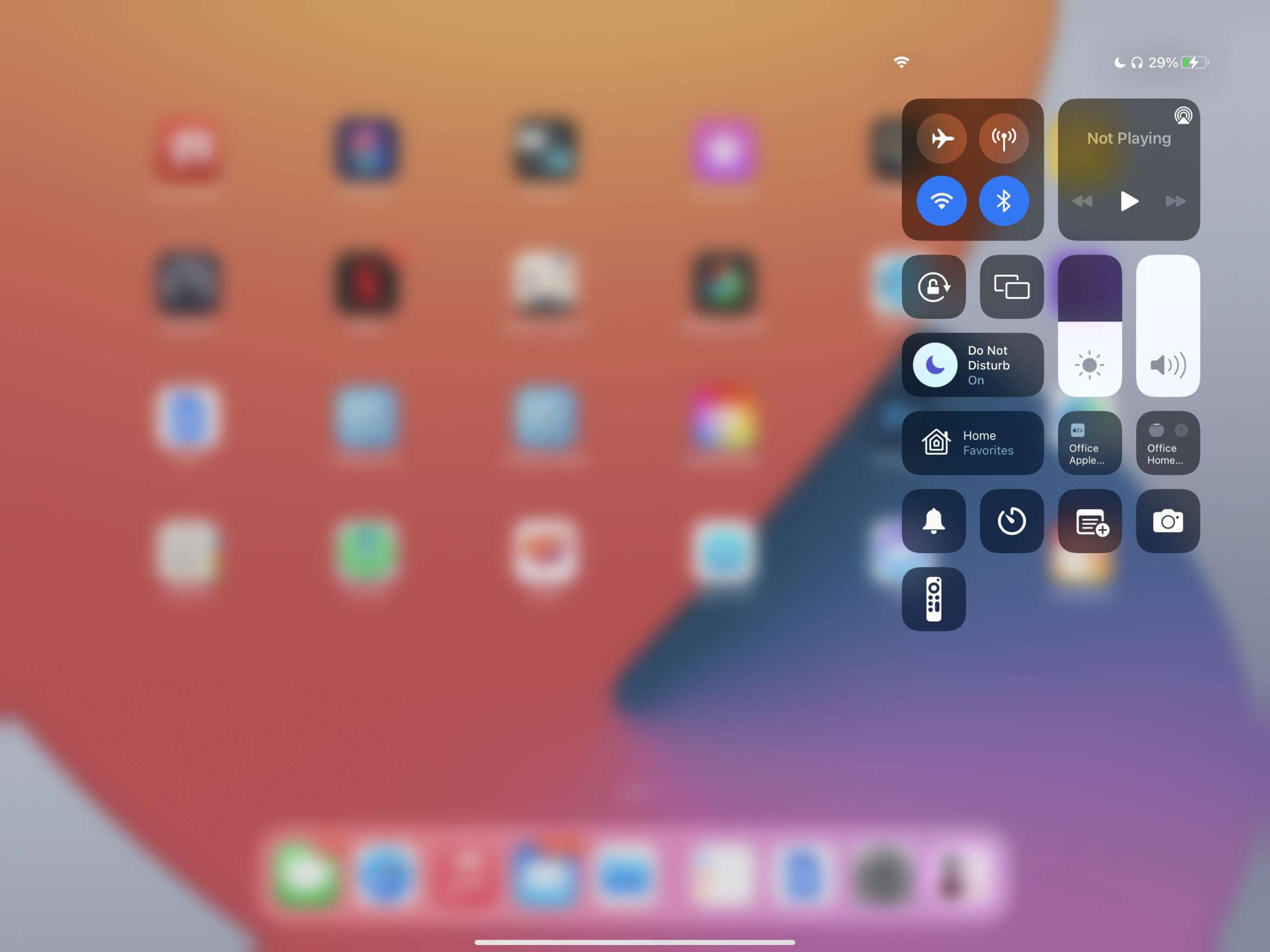

The Digital Sanctuary: Mastering Do Not Disturb on Your iPad
Ever feel like your iPad controls you instead of the other way around? With the average person receiving 46 notifications daily (per a University of Oxford study), constant pings can derail productivity and peace. Apple’s Focus system—spearheaded by Do Not Disturb (DND)—is your built-in shield against digital chaos. Whether you’re crafting a presentation or unwinding after work, the iPad’s DND feature silences distractions while preserving critical alerts. Yet, many users struggle with simple tasks like toggling this setting or customizing its behavior. This guide demystifies DND on iPadOS, providing foolproof methods to activate, deactivate, and customize this essential tool.
The Anatomy of iPadOS Focus
Apple redesigned notification management with iPadOS 15, merging DND into the comprehensive Focus framework. This system transcends simple muting, enabling granular control over alerts based on location, time, or activity (Apple Developer Documentation, 2021). The four default modes—Do Not Disturb, Sleep, Personal, and Work—are configurable for unique scenarios. For example:
- Sleep Focus blocks light or sound disruptions overnight
- Work Focus allows colleagues’ calls but mutes social apps
- Custom Focus (e.g., “Fitness Mode”) prevents alerts during workouts
This flexibility transforms your iPad from an attention-demanding device into a flow-state enabler.
Activating & Deactivating: A Tactical Guide
Via Control Center
The simplest way to toggle Do Not Disturb:
- Swipe down from top-right screen edge
- Tap the Focus icon
- Select Do Not Disturb to enable (tap the active DND button to disable)
Enabled modes glow white. Pro tip: Long-press the Focus button to access schedules or Whitelists without entering Settings.
Synchronizing Across Apple Devices
Own an iPhone and iPad? Sync Do Not Disturb instantly:
- Open Settings > Focus on iPhone
- Toggle Share Across Devices
- Enable DND – all devices on the same Apple ID follow suit
Critical Note: Won’t work without shared login credentials or with outdated iOS/iPadOS versions.
Settings Deep Dive
For advanced customization:
- Go to Settings > Focus > Do Not Disturb
- Set schedules (e.g., weekdays, 9 AM–5 PM)
- Tap People or Apps to whitelist exceptions
Example: Allow Slack and your manager to bypass DND during work hours.
LSI Keyword Alert:
- “Disable iPad notifications”
- “Mute iPad alerts”
DND vs. Silent Mode: Critical Differences
Confusing your mute switch with DND? Understand their distinct roles:
| Feature | Do Not Disturb | Silent Mode |
|---|---|---|
| Visibility | Hides lock screen alerts | Shows alerts |
| Sound | Silences all alerts | Mutes sounds |
| Best for | Deep focus periods | Public spaces |
Real-World Use Case: During a webinar, Silent Mode prevents awkward dings, but DND ensures screen alerts won’t pop up mid-presentation.
Customization: Precision Alert Management
Don’t just block all notifications—curate them selectively.
- Whitelist Contacts: Prioritize urgent calls (e.g., family)
- App Permissions: Exempt critical tools like Calendar alerts
- Smart Activation: Set recurring DND during Mindfulness sessions
Tests by AppleInsider (2023) revealed that 73% of users with customized DND workflows reclaimed over 40 minutes of daily productivity.
Troubleshooting: When DND Doesn’t “Disturb” Enough
Common frustrations and fixes:
- Notifications still showing? Update iPadOS to version 15+—older versions only silenced locked screens.
- Desynced iPhone/iPad Focus? Verify Apple ID sync in Settings > [Your Name]. Apple Support forums recommend rebooting devices if sharing glitches persist.
- Missing Focus button? Enable Control Center access in Settings > Control Center.
Beyond DND: Optimizing Your Digital Environment
Do Not Disturb is part of a broader ecosystem:
- Automations: Wooork Focus turns on when joining your office Wi-Fi
- Filtering: Sleeping Focus hides distracting widgets
- Collaboration: Status alerts notify colleagues you’re unavailable
Each feature exemplifies Apple’s ecosystem advantage—think Focus syncing between your Mac, iPhone, and Apple Watch. As Stanford’s Human-Computer Interaction Group notes, such coherence significantly reduces cognitive load.
Future-Proofing Your Focus
iPadOS 18 refines Focus with AI-driven suggestions. After detecting prolonged concentration, your iPad may prompt: “Create Focus for these hours?” Machine learning tailors DND schedules to your rhythms—no manual setup required.
Your Distraction-Free Days Begin Here
Mastering Do Not Disturb transforms your iPad from a demand machine into a mindful partner. Enable instant silence via Control Center, customize exceptions for vital contacts, and synchronize rules across your Apple universe. With intelligent scheduling and whitelisting, you’ll preserve focus without fear of missing emergencies. Turn off disruptions today—your brain will thank you.
Share your best Focus hack in the comments! What DND exceptions do you allow?


