
Is Your Android Phone Secretly Tracking You? Unmasking the “Nearby Devices” Privacy Threat
Did you know that even if you deny location permissions to apps on your Android phone, they might still be able to pinpoint your location with alarming accuracy? Despite Google’s efforts to improve user privacy, the Android ecosystem still presents challenges when it comes to protecting your personal data. One often-overlooked area is the “Nearby Devices” permission, introduced as a privacy enhancement but potentially a backdoor for location tracking. This article will delve into this critical privacy setting, explaining how it works, the risks it poses, and how you can take control of your Android privacy.
The Illusion of Privacy: How “Nearby Devices” Works
Android, despite its user-friendly interface and vast app selection, has a history of raising privacy concerns. Many users are unaware of the extent to which apps can access and utilize their data. While Android offers various privacy controls, navigating them can be complex. The “Nearby Devices” permission is a prime example of a feature designed to seem privacy-conscious but which can actually be exploited.
The “Nearby Devices” Permission: A Trojan Horse?
The “Nearby Devices” permission was introduced in Android 12, ostensibly to allow apps to connect to Bluetooth devices without requiring full location access. The intention was good: to allow apps to, for example, connect to your wireless headphones without needing to know your precise whereabouts. However, the implementation has created a potential loophole.
Instead of relying on GPS or Wi-Fi triangulation, apps can now scan for nearby Bluetooth devices. Each Bluetooth device emits a unique signal, and if an app can identify a Bluetooth device in your vicinity (e.g., a Bluetooth tracker or even someone else’s phone), it can potentially infer your location.
Location Tracking via Bluetooth Scanning: How Accurate Is It?
You might think that Bluetooth location data isn’t very precise. However, modern location technology is far more sophisticated than simple proximity detection. Here’s how Bluetooth scanning can be combined with other data to pinpoint your location:
- Bluetooth Beacons: Many businesses use Bluetooth beacons to track customer movement within their stores. These beacons broadcast unique identifiers that can be picked up by apps, revealing your presence in that particular store.
- Wi-Fi Network Data: Apps can also combine Bluetooth data with Wi-Fi network information. By identifying nearby Wi-Fi networks, they can narrow down your location significantly.
- Cell Tower Triangulation: Your phone is constantly communicating with cell towers. Even without precise GPS data, apps can use cell tower triangulation to get a rough estimate of your location.
- Accelerometer and Movement Data: Combining Bluetooth scanning with your phone’s accelerometer and gyroscope data can create a very detailed picture of your movements. This data can reveal not only where you are but also how you’re moving, whether you’re walking, running, or driving.
- Cross-Referencing with Social Networks: This is where things get particularly concerning. If you are near someone who has granted location permissions to a social media app like Facebook, and that app also has access to the “Nearby Devices” permission, the app can infer your location even if you haven’t shared it. The app essentially sees you and your friend as associated, and uses your friend’s location to infer yours.
The combination of these data points creates a powerful location-tracking mechanism that can be surprisingly accurate.
Finding and Managing “Nearby Devices” Permissions
One of the biggest challenges is finding the “Nearby Devices” permission settings. They’re often buried deep within Android’s menus, making it difficult for users to understand which apps have access.
Step-by-Step Guide to Accessing “Nearby Devices” Permissions
Here’s how to check and manage “Nearby Devices” permissions on Android:
- Open Settings: Launch the Settings app on your Android device.
- Navigate to Security and Privacy: Scroll down and tap on “Security and privacy.” Some Android versions may label this section slightly differently, such as simply “Privacy.”
- Privacy Controls: Look for and select “Privacy controls” within the “Security and privacy” settings.
- Permission Manager: Tap on “Permission manager.”
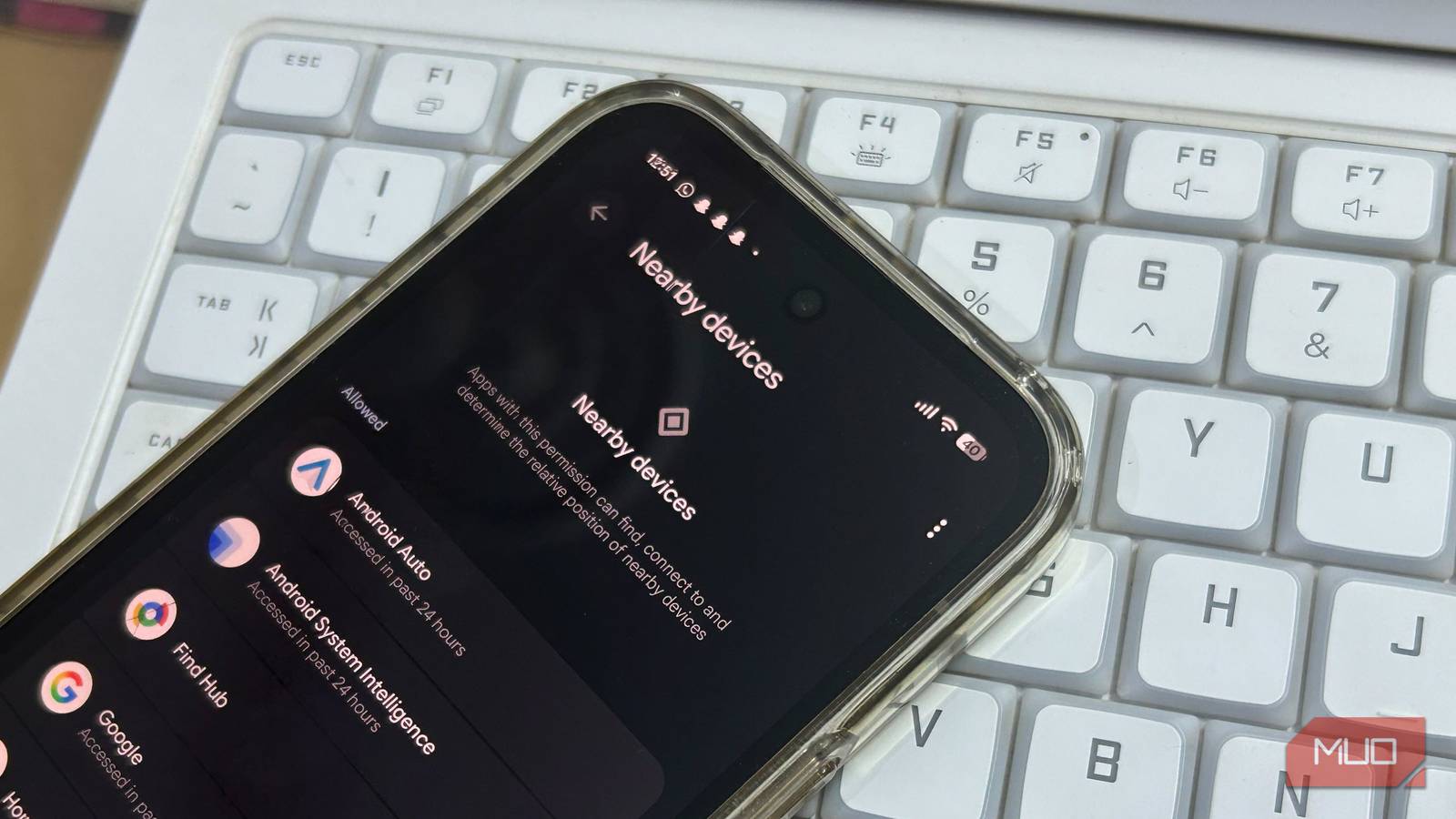
- Nearby Devices: You should now see a list of permissions. Select “Nearby devices.”
- Review App Permissions: This screen displays all the apps that have requested or been granted access to the “Nearby Devices” permission.
Identifying System Apps with “Nearby Devices” Access
Pay close attention to the apps listed. You’ll likely see several system apps, such as:
- Android System Intelligence: This app is responsible for powering various AI-related features on your device, such as smart text selection and predictive app launching.
- Personal Data Intelligence: Similar to Android System Intelligence, this app collects data to personalize your Android experience.
- Android Auto: This app enables seamless integration between your phone and your car’s infotainment system.
- Android Setup: Used during the initial setup of your device.
While some of these apps may genuinely need the “Nearby Devices” permission for specific functionalities, others might be collecting data unnecessarily.
The Impact of Disabling “Nearby Devices” Access
Before disabling “Nearby Devices” access for an app, it’s important to understand the potential consequences. In most cases, disabling the permission will have minimal impact on your overall phone experience. However, some features may stop working correctly.
Scenarios Where “Nearby Devices” Access Is Necessary
- Find My Device Apps: Apps like “Find My Device” rely on accurate location data to help you locate your phone if it’s lost or stolen. Disabling “Nearby Devices” access for these apps may reduce their effectiveness.
- Android Auto: If you use Android Auto to connect your phone to your car, you’ll need to grant “Nearby Devices” permission to enable wireless connectivity and access features like media playback and navigation.
- Smart Home Integration: Some smart home devices use Bluetooth to connect to your phone. Disabling “Nearby Devices” access may prevent your phone from communicating with these devices.
Scenarios Where Disabling Is Recommended
For any app that you don’t recognize or don’t explicitly need to connect to Bluetooth devices, it’s generally safe to disable “Nearby Devices” access. For example, if a game or utility app is requesting this permission without a clear reason, it’s likely collecting data for tracking purposes. Revoking these permissions can significantly improve your privacy.
Auditing Permissions: An Ongoing Task
Protecting your Android privacy is not a one-time fix; it’s an ongoing process. Here are some tips for staying vigilant:
- Regularly Review Permissions: Set a reminder to check your app permissions every few weeks. Pay attention to newly installed apps and any apps that have recently requested new permissions.
- Be Cautious with New Apps: Before installing a new app, carefully review the permissions it requests. If an app asks for permissions that seem unrelated to its core functionality, consider whether you really need it.
- Update Your Phone Regularly: Software updates often include security patches and privacy enhancements. Make sure your phone is running the latest version of Android.
- Consider a Privacy-Focused App Store: Explore alternative app stores like F-Droid (https://f-droid.org/), which focuses on open-source and privacy-respecting apps.
Conclusion: Take Control of Your Android Privacy
The “Nearby Devices” permission on Android highlights the ongoing challenge of balancing convenience with privacy. While Google has made efforts to improve Android’s privacy features, it’s up to users to take proactive steps to protect their data. By understanding how this permission works, regularly auditing your app permissions, and disabling unnecessary access, you can significantly reduce your risk of being tracked.
What steps will you take to improve your Android privacy? Do you have any other tips for managing app permissions? Share your thoughts in the comments below!
Sources & Further Reading:
Original article at www.makeuseof.com


