
Unlocking Your iPhone’s Secret Arsenal: The Must-Tweak iOS 26 Settings You’re Missing
Your iPhone is a marvel of engineering, yet do you ever feel like you’re only scratching the surface? Despite Apple’s reputation for intuitive design, the sheer volume of features packed into each iOS update – like the AI-centric iOS 18 and the sleek Liquid Glass interface of iOS 26 – means countless valuable settings remain hidden or disabled by default. Annoying defaults persist, and powerful personalization options lurk undiscovered, impacting privacy, battery life, usability, and overall enjoyment. Mastering these hidden gems transforms your device from merely functional to perfectly tuned how you live. Discover the essential custimizations that will unlock your iPhone’s true potential, turning it into an even more powerful extension of yourself.
Mastering Communication: Smarter Calls and Texts
-
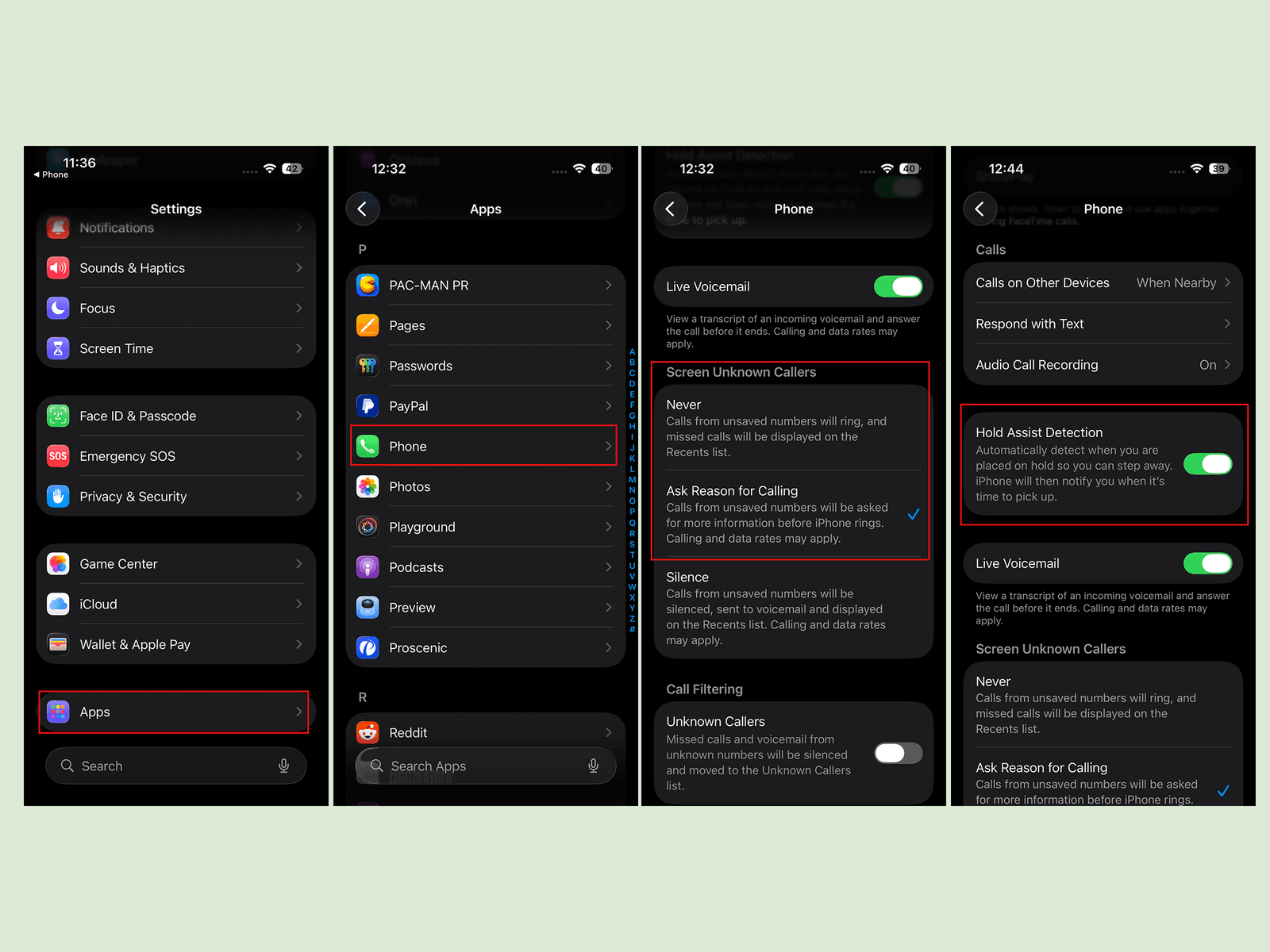
Taming the Robocall Menace: Cold calls drain your time and sanity. iOS 26’s Call Screening is a privacy game-changer, disabled by default. Navigate to
Settings > Phone > Screen Unknown Callersand select “Ask Reason for Calling”. How it revolutionizes calls:- Silent Vetting: Calls from numbers not in your contacts are silently answered in the background. You see and hear nothing… yet.
- Reason Revealed: The caller records their purpose (e.g., “Delivery from XYZ,” “Following up on service”).
- Informed Choice: Your phone then rings normally, displaying the transcribed reason. Instantly decide: answer, block, or silence. It cuts through spam like a digital machete. Bonus: Enable
Hold Assist Detection(in the same menu) – it listens for hold music and alerts you when a human returns, letting you temporarily mute or focus elsewhere. Studies like those cited by the FCC on unwanted calls highlight why tools like this are crucial.
-
Bridging the Messaging Divide (RCS): The infamous “green bubble” stigma gets a major upgrade. Apple’s late but welcome embrace of the RCS messaging standard vastly improves communication with Android users (Rich Communication Services on Wikipedia). Enabled by default? No. Why fix it?
- Modern features: Typing indicators, high-resolution photo/video sharing, read receipts.
- Improved Group Chat: While not yet perfect, it’s a huge leap beyond SMS/MMS limitations.
- Disabled by Default: Head to
Settings > Apps > Messages > RCS Messagingand toggle it ON. Finally, message friends seamlessly regardless of their phone. (And yes, group chats remain visually distinct, but the experience is fundamentally better).
Crafting Your Visual Experience: Interface & Interaction
-
Command Center Customization: Swipe down from the top-right bezel; your Control Center is more powerful than you think. Tap the
+icon or long-press anywhere (when open) for the customization grid:- Full Reshuffle: Drag icons/widgets around, remove unused ones with the
-tap. - Expanded Toolkit: Tap
Add a Controlto explore a massive searchable library of shortcuts – from Timer and Magnifier to Sound Recognition and Home controls. Organize them across multiple Control Center pages for effortless access. - Personalization Power: Don’t forget you can similarly rearrange your Home Screen app icons, change icon color/size treatments, and create widget stacks for ultimate organization.
- Full Reshuffle: Drag icons/widgets around, remove unused ones with the
-
Reclaiming Your Lock Screen: Those quick-access buttons (flashlight/camera) aren’t permanent fixtures. Long-press an empty area of your Lock Screen, tap
Customize. Tired of accidental swipes to camera? Tap the-on the camera button. Need quick notes access? Tap+and add a different shortcut like Wallet or Voice Memos. It’s not just buttons:- Widget Remix: Swap out the time, date, or weather widgets. Add calendar, stocks, or activity summaries.
- Design Depth: Dive deep into fonts, clock styles, and colors for the time display. Some clock faces even dynamically stretch or adapt to your chosen wallpaper’s contours.
-
Banishing Annoying Audio: The clicking keyboard sound is nostalgic for some, grating for most (especially anyone nearby). Silence it:
Settings > Sounds & Haptics > Keyboard Feedback. ToggleSoundoff. While there, spare yourself and others the loudLock Soundtoo – off feels quieter and more professional. -
Embrace the Darkness: White screens burn eyes in dim light. Enable permanent sanctuary with Dark Mode:
Settings > Display & Brightness > Dark. Alternatively, chooseAutomaticto sync with sunset/sunrise. Beyond aesthetics, research suggests Dark Mode can reduce eye strain in low-light conditions and may offer minor (though debated) power savings for OLED displays. Anecdotally, many find it significantly more comfortable for extended use. -
Fight the Timeout Temptation: Does your screen fade to black mid-thought? Extend its life.
Settings > Display & Brightness > Auto-Lock. Choose a longer duration (3-5 minutes often works well). Feeling risky? SelectNever. Remember, this trades convenience for battery life and security – your choice.
Extending Your Battery Lifespan Intelligently
-
The 80% Charging Rule (Demystified): Lithium-ion batteries degrade faster if constantly held at 100% charge. iOS’s default
Optimized Battery Charginglearns your routine, holding at 80% overnight and topping off just before you wake. Want more control? GoSettings > Battery > Charging. Here you find:- The Hard Limit: A slider to cap charging directly at 80%. Ideal for maximizing long-term battery health (Apple Support: Maximizing Battery Lifespan).
- Turning Optimization Off: Don’t like predictions? Disable it here. (Not recommended for battery longevity).
-
Adaptive Power: Your Battery Guardian Angel: Worried about making it to bedtime?
Settings > Battery > Power Mode > Adaptive Power. Toggle it on. It operates subtly in the background:- Smart Detection: Monitors if your battery is draining faster than typical for your usage patterns.
- Proactive Preservation: Detects this drain? It automatically throttles background processes, slightly lowers peak brightness, and may reduce CPU performance just enough to extend usable runtime until your next charge. It’s smarter and less disruptive than the old low-power mode.
Harnessing Cutting-Edge Hardware (Pro Models & Beyond)
-
Action Button: Beyond Silence: If your iPhone has the Action Button (15 Pro, 16, or iPhone 17), it shouldn’t just mute.
Settings > Action Button. Easily set it to launch Camera, Flashlight, Voice Memo, Translate, or Apple’s advanced Visual Intelligence (like Google Lens – identify objects via camera). The real magic? Set it to run a Shortcut from the Shortcuts app. Possibilities explode: Run smart home scenes, start a playlist, log your water intake, play a specific podcast with one press. (Apple Shortcuts Guide link needed). -
Mastering the iPhone 16 Camera Control: The dedicated physical Camera Control button below the power button is powerful, but the swipe feature can be overly sensitive.
- Basics: Single press = Photo (in Camera app). Long press = Start/Stop Video (in Camera app). Long press outside Camera = Launch Visual Intelligence.
- Taming the Swipe: In the Camera app, swiping left/right cycles zoom levels/lenses/photography styles. Practice makes perfect, but the sensitivity isn’t adjustable.
- Pro Tip: Instead of swiping on the button, try deliberate horizontal swipes just above it on the edge of the frame. This can feel more controlled for some users.
Maximizing Your Mobile Mastery
The journey through iOS 26’s layered settings reveals a truth: your iPhone is inherently powerful but thrives on personalization. Disabled gems like RCS or Call Screening solve daily frustrations, while custimizations like Dark Mode and Action Button shortcuts craft an experience uniquely yours. Tweaking battery charging or enabling Adaptive Power proactively protects your device’s longevity. Even silencing the keyboard sound reclaims a slice of peace.
These aren’t mere “tips and tricks”; they’re essential adjustments that transform a generic device into your ultimate personal tool. Each setting adjusted builds a more efficient, enjoyable, and enduring relationship with technology. Take control – explore, experiment, and tailor your iPhone until it fits like a glove. What hidden setting will you unlock first, or which one surprised you the most? Share your essential tweaks below and let’s unlock more secrets together!


